
What your customer sees when signing
The signing page from the signer's side: consent, fields, adopting a signature, finishing and their language.
8 sections · 15 screenshots
Signers don't need an account. They open the link in the email and sign in the browser, on a computer or a phone. The page carries your logo and brand color, and it's in the language you chose when sending.
Consent to sign electronically
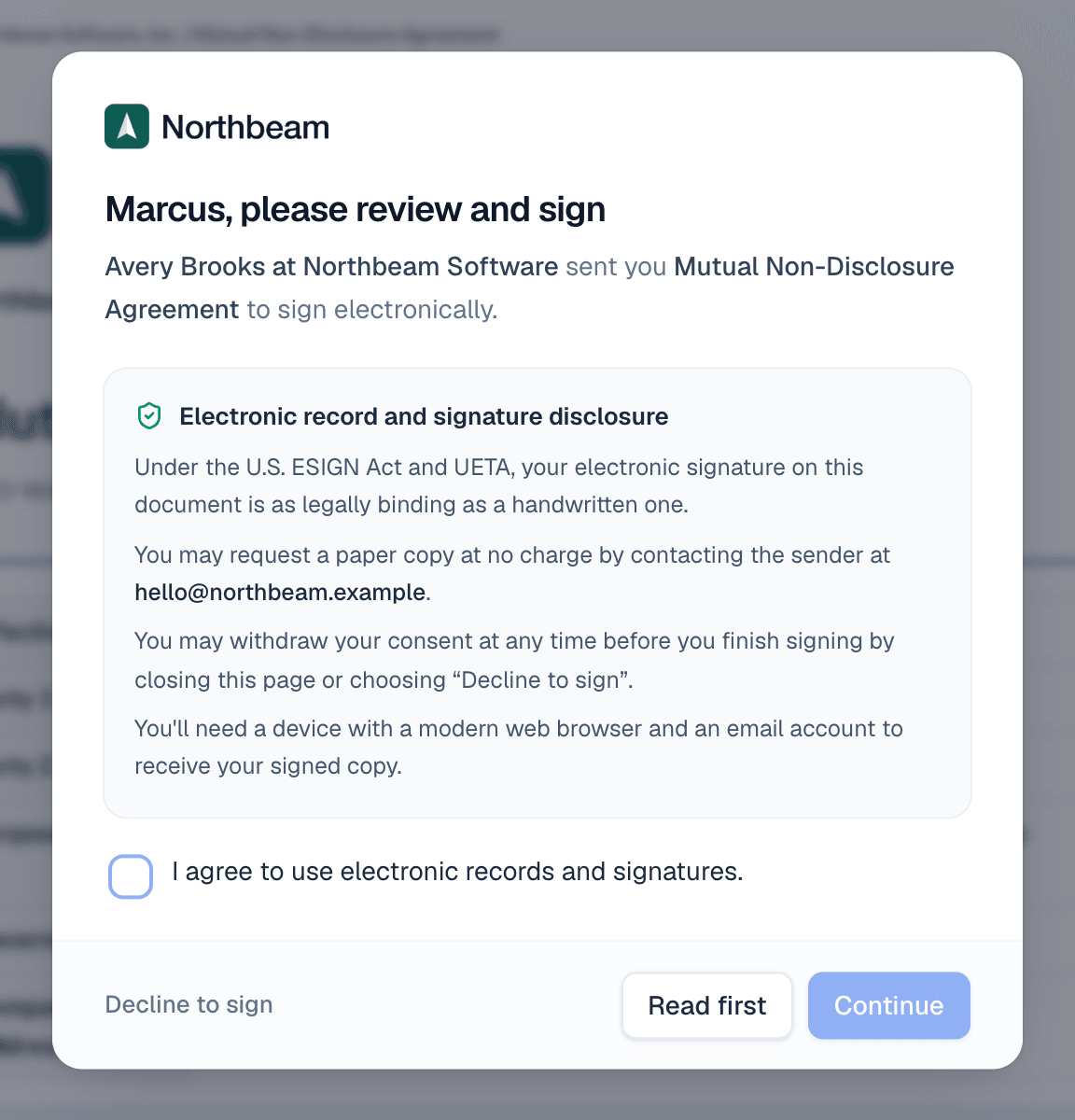
The first time a signer opens the link, they see who sent the document and a short disclosure about electronic signatures. It links the full Electronic Records and Signature Disclosure and the Privacy Policy. They tick the box agreeing to use electronic records and signatures and choose Continue. They can also choose Read first, Decline to sign, or Assign it to someone else if you allow it.
Assign to someone else
Sometimes the person you sent it to isn't the one who signs for their company. They can hand it to the right person instead of forwarding the email.
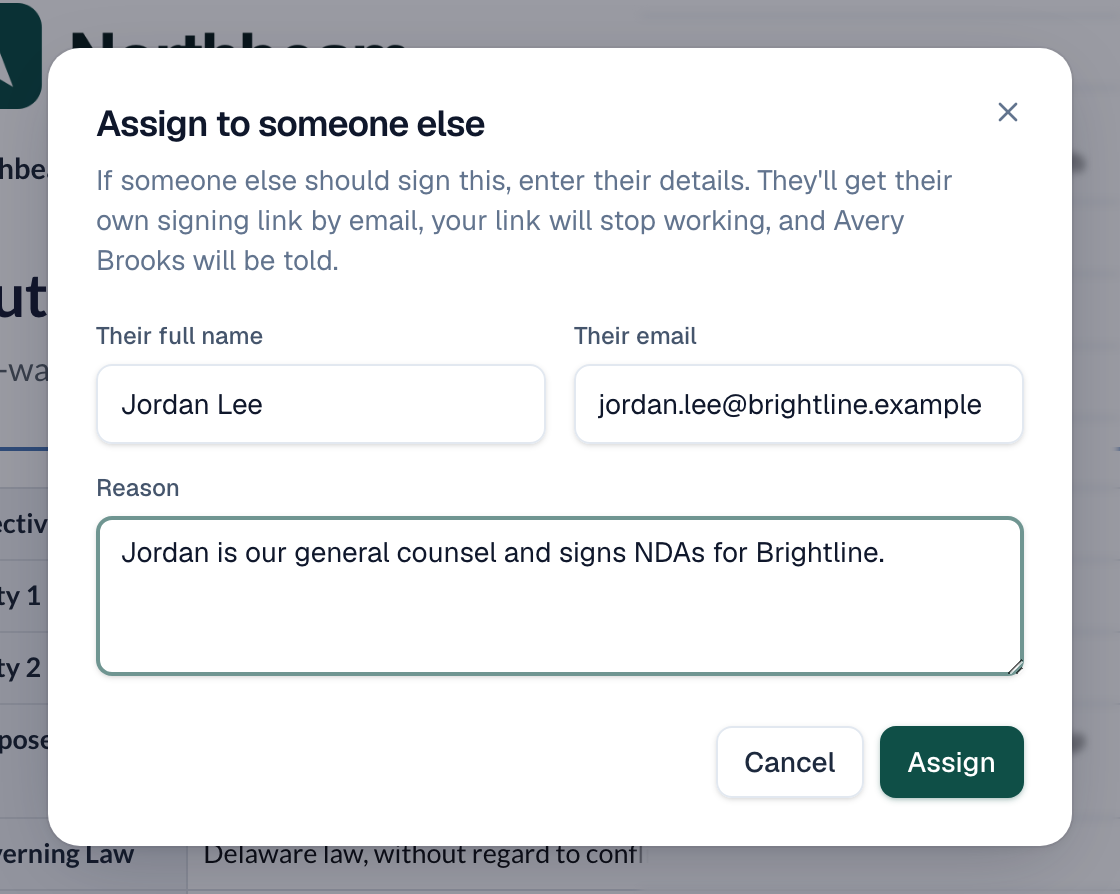
- On the signing page, choose Assign it to someone else in the first dialog, or open the menu (three dots) at the top right and choose Assign to someone else.
- Enter the new person's full name and email, and a reason. You see the reason.
- Choose Assign.

The new person gets their own email with a signing link and the reason. They take the same place: the same fields and the same turn when signing in order. The first person's link stops working at once.
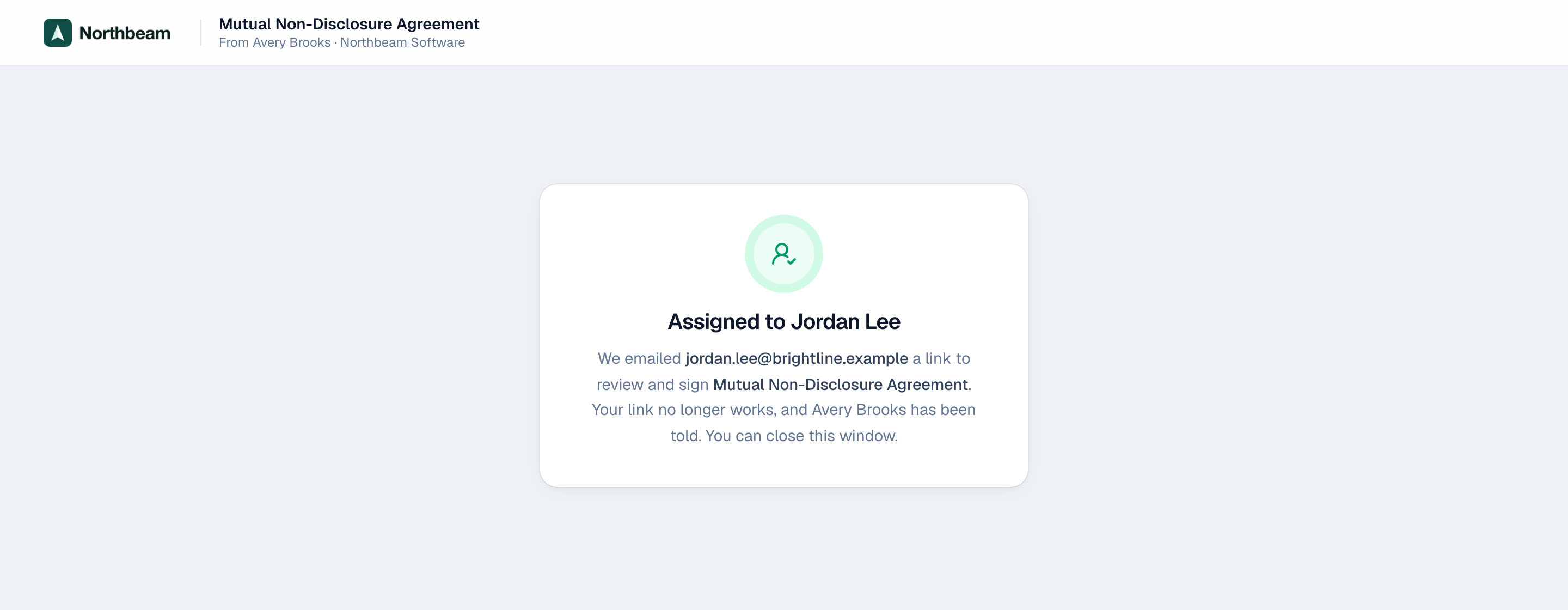
- You get an email saying who it was assigned to and why. The document page shows Assigned by on the new person's card.
- Activity and the certificate record the hand-off, with the old and new name and email, the reason, the time and the IP address.
- If it wasn't right, choose Change on their card to correct it, or void the document.
Fill in the fields
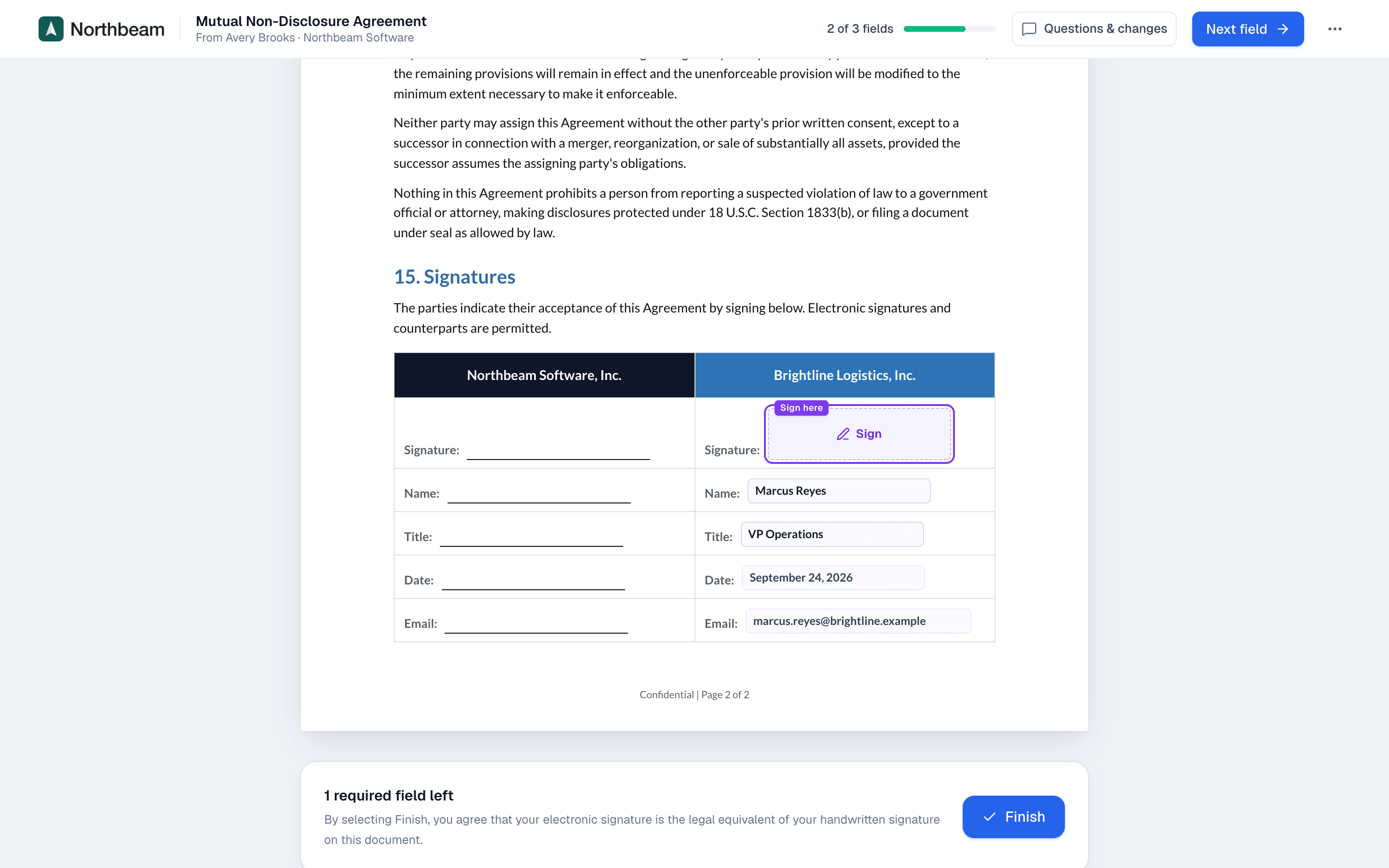
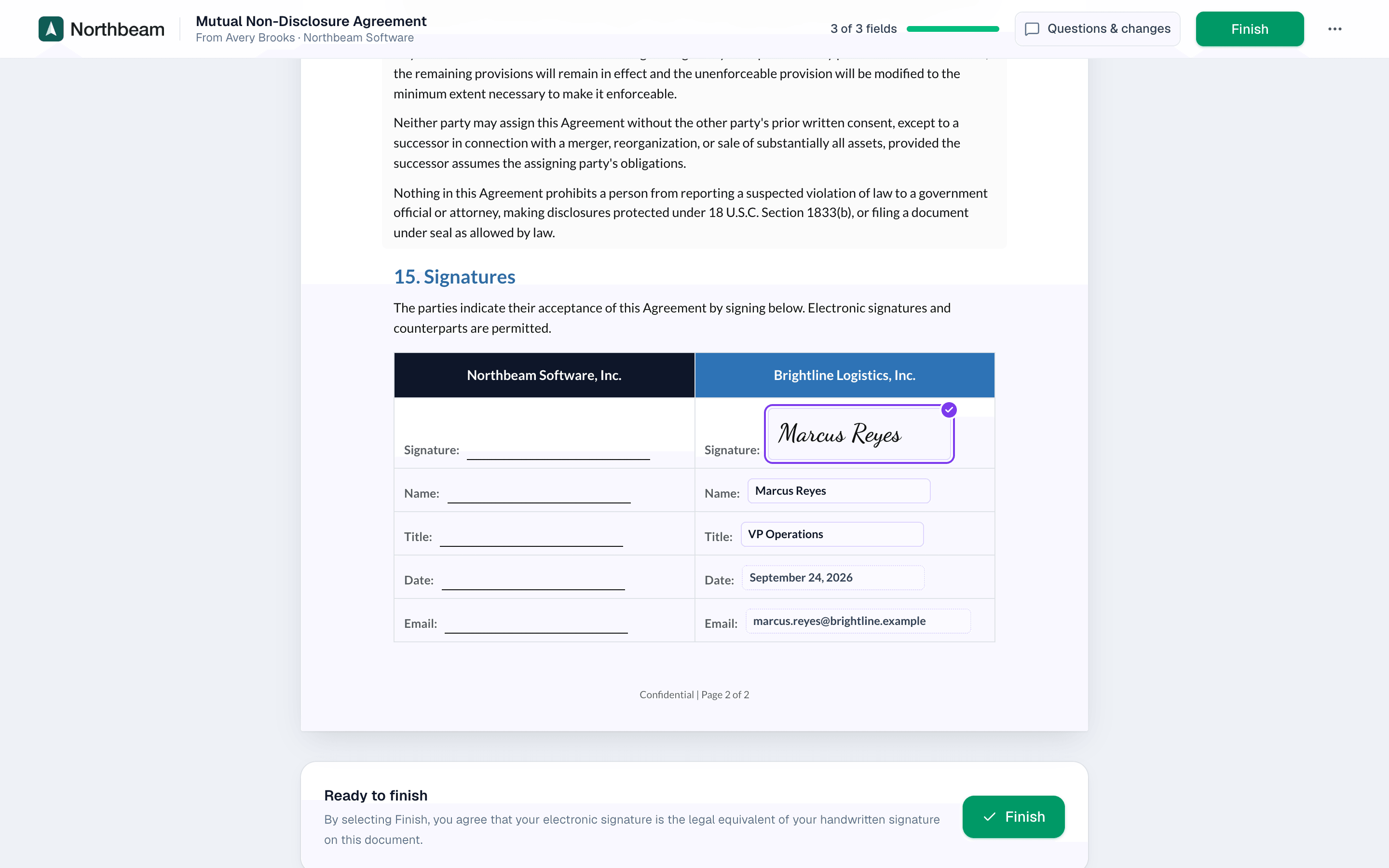
The signer's fields are highlighted. The header shows how many are done, for example 2 of 3 fields. Start, then Next field, jumps from one field to the next.

Adopt a signature
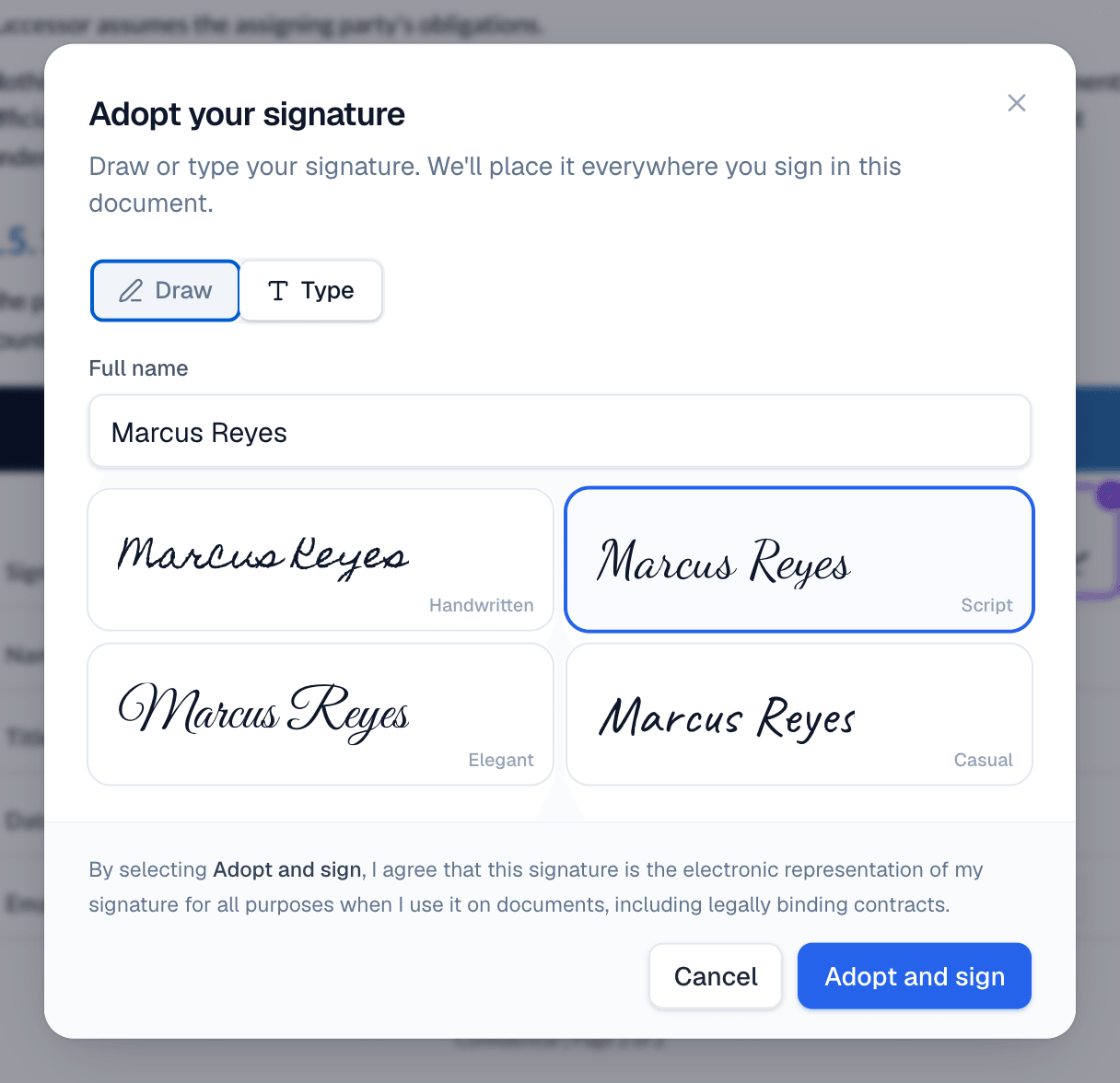
Clicking a signature field opens Adopt your signature. The signer draws it, or types their name and picks a style. The same signature is placed everywhere they sign in the document.
Initial
When a document has Initials fields, the signer adopts their initials the same way as a signature.
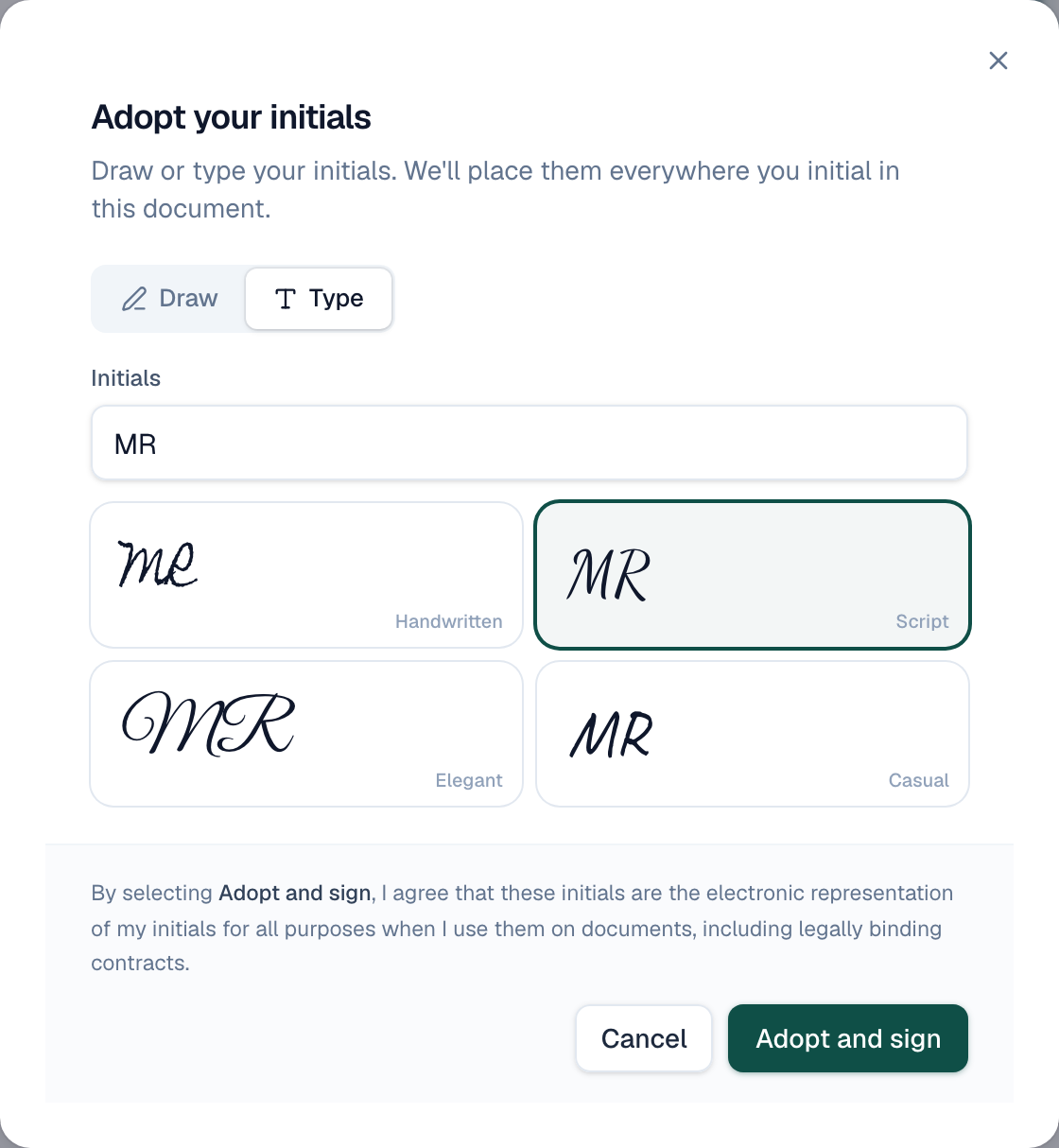
- The signer clicks an Initial field. Adopt your initials opens.
- They draw their initials, or choose Type. Their initials are filled in from their name, and they pick a style.
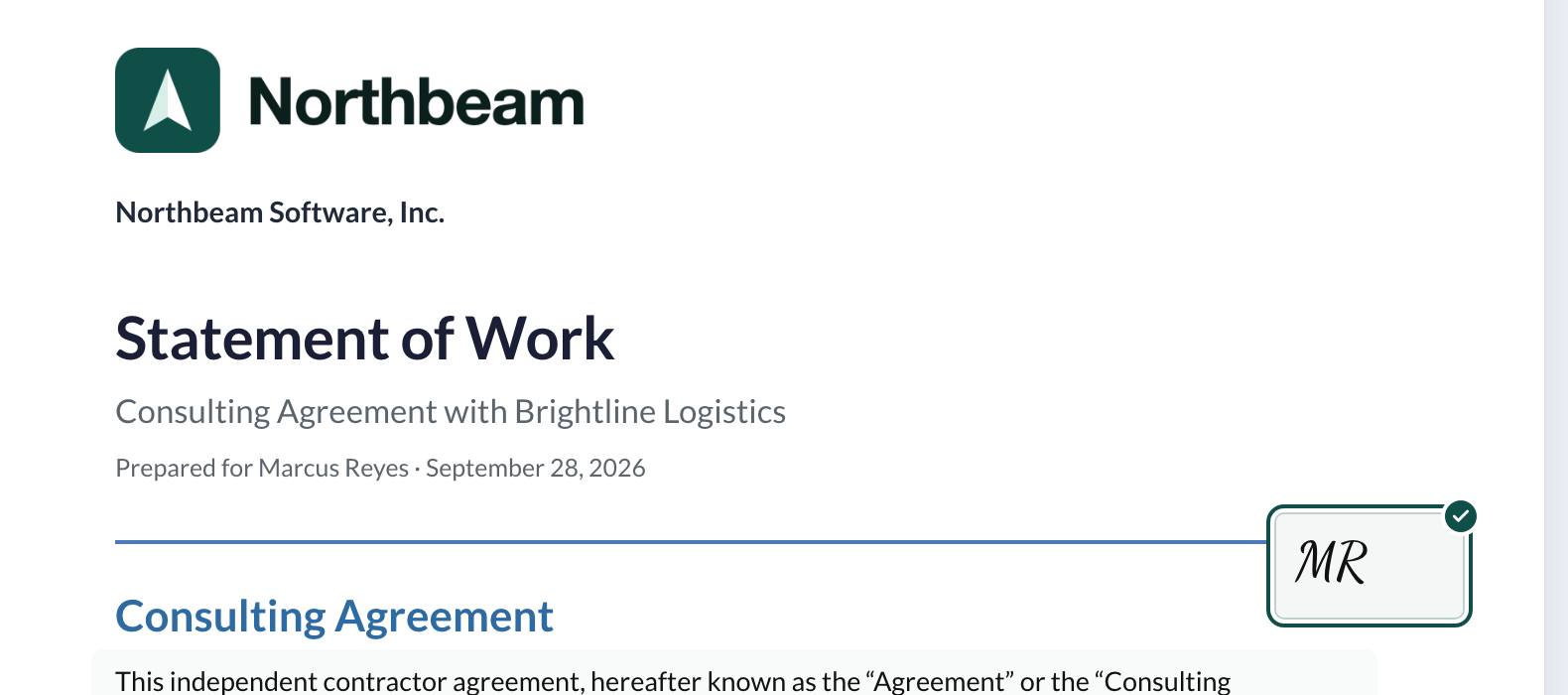
- They choose Adopt and sign. The field shows their initials with a check mark.
- Every other Initial field then takes one click. Next field goes to the next one.
Finish
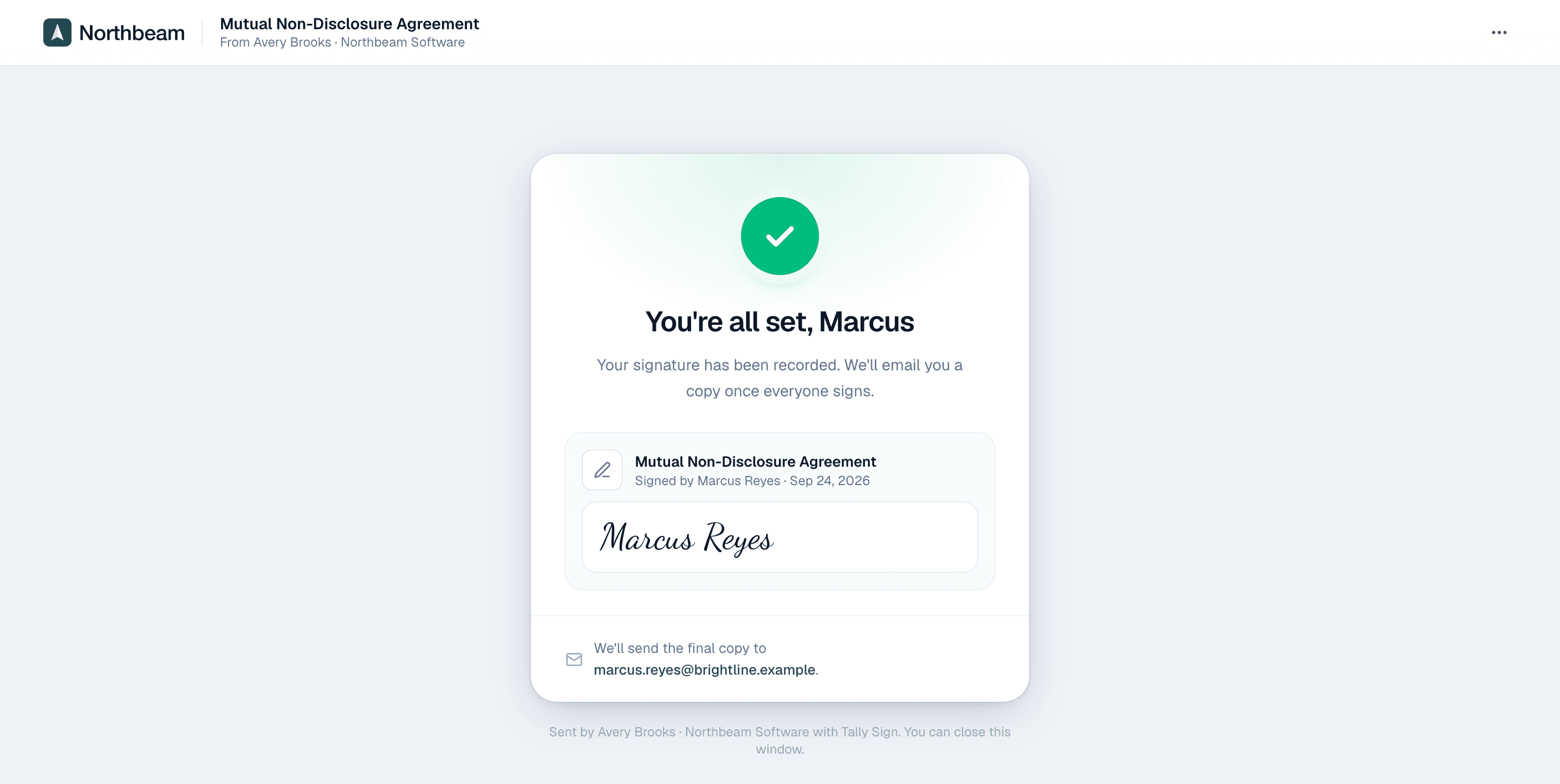
When every required field is done, the button changes to Finish. After finishing, the signer sees a confirmation and gets the signed PDF by email once everyone has signed.
In their language
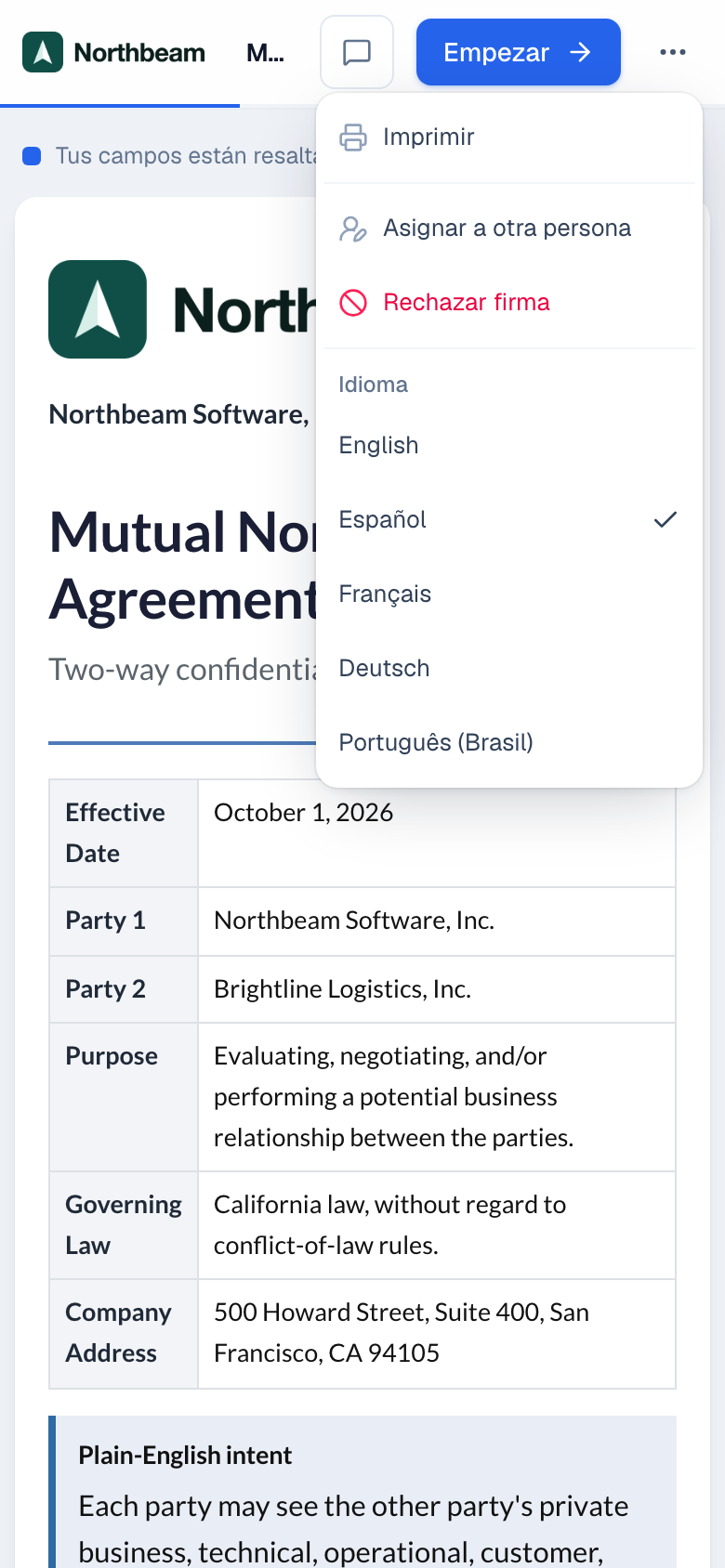
The signing page opens in the Signer language you chose when sending: English, Spanish, French, German or Portuguese (Brazil). Buttons, fields, dialogs, Questions & changes and the confirmation page are all in that language. The document itself stays as you wrote it.
- To switch, the signer chooses the language button next to Questions & changes at the top of the page. On a phone, the languages are in the ⋯ menu.
- They pick a language. The page changes right away.

The choice is remembered for their link: coming back, and the emails they get afterwards (such as the completed copy), use it too. The Certificate of Completion lists the language each signer's page was in.
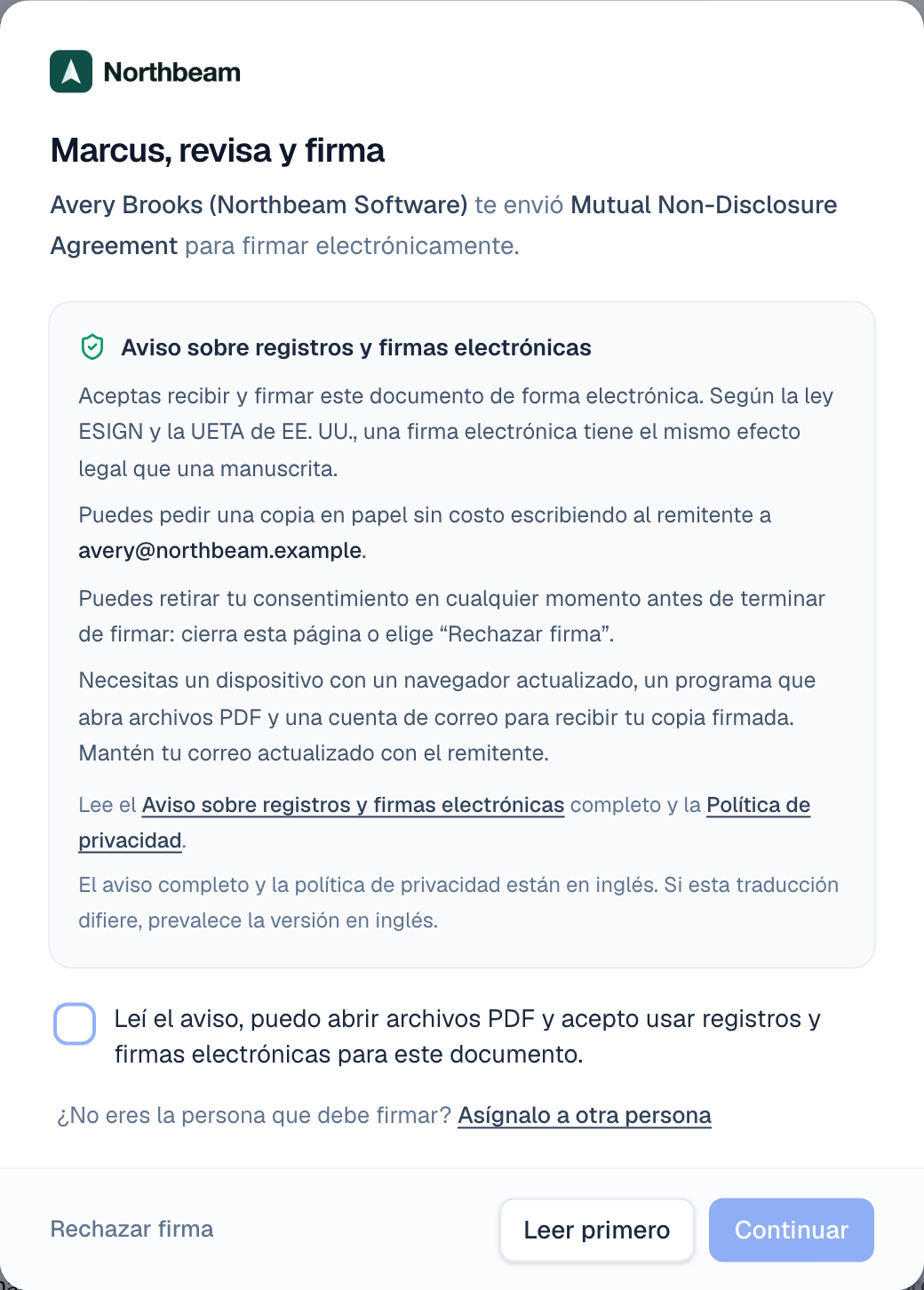
In other languages, the consent dialog is translated. The full Electronic Records and Signature Disclosure and the Privacy Policy it links to are in English, and the dialog says so: if a translation differs, the English version governs.
Signing on a phone or tablet
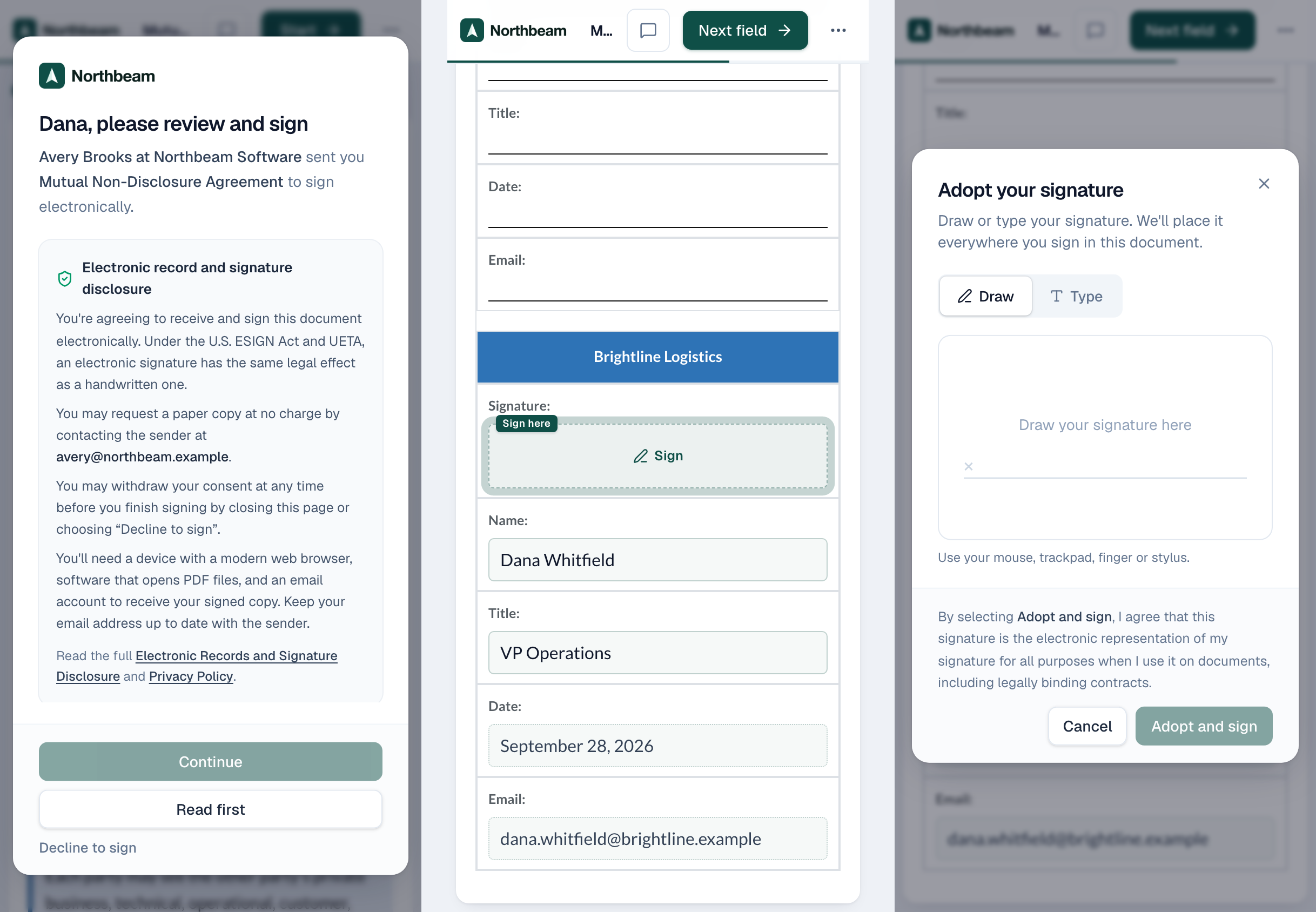
The same link works on a phone or tablet, in the browser. There's no app to install. The page fits the screen, and the steps are the same as on a computer.
- The signer opens the link in the signing email and ticks the consent box, then Continue.
- Start jumps to the first field. Next field moves on from there.
- To sign or initial, they draw with a finger or stylus, or choose Type, then Adopt and sign.
- When every required field is done, they choose Finish.
Sign in person. To have someone sign on your own phone or tablet, open the document and choose Sign in person next to their name. The Certificate of Completion records that it was signed in person and who handed over the device.
In the Salesforce mobile app, your team can send and follow documents from records activated for phones, with the Send with Tally Sign action. Customers still sign in their own browser. See Where Tally Sign works in Salesforce.
On the website: No CRM needed·Pricing