
Billing
Your plan and free trial, paying by card, changing seats, invoices, and what happens when a subscription ends.
4 sections · 5 screenshots
Billing is in Settings → Billing. Everyone can see the plan; owners and admins can change it. Every plan has unlimited documents, templates, signers and automations.
The free trial and choosing a plan
A new company gets a 7-day free trial, with no card needed. The bar at the top of the app shows the days left, with Choose a plan.
- Open Settings → Billing.
- Pick a plan: Tally Sign ($20 per user a month) or Tally Sign for Salesforce ($200 a month for every 5 users). Connecting Salesforce needs the Salesforce plan.
- Under Users, set how many people send documents with − and +. It starts at the number of people who have a seat now, and can't go lower. On the Salesforce plan it moves in blocks of five.
- Check the monthly price and choose Continue to payment.
- Stripe's secure checkout page opens. Enter your card and billing details (and a promotion code if you have one), then confirm.
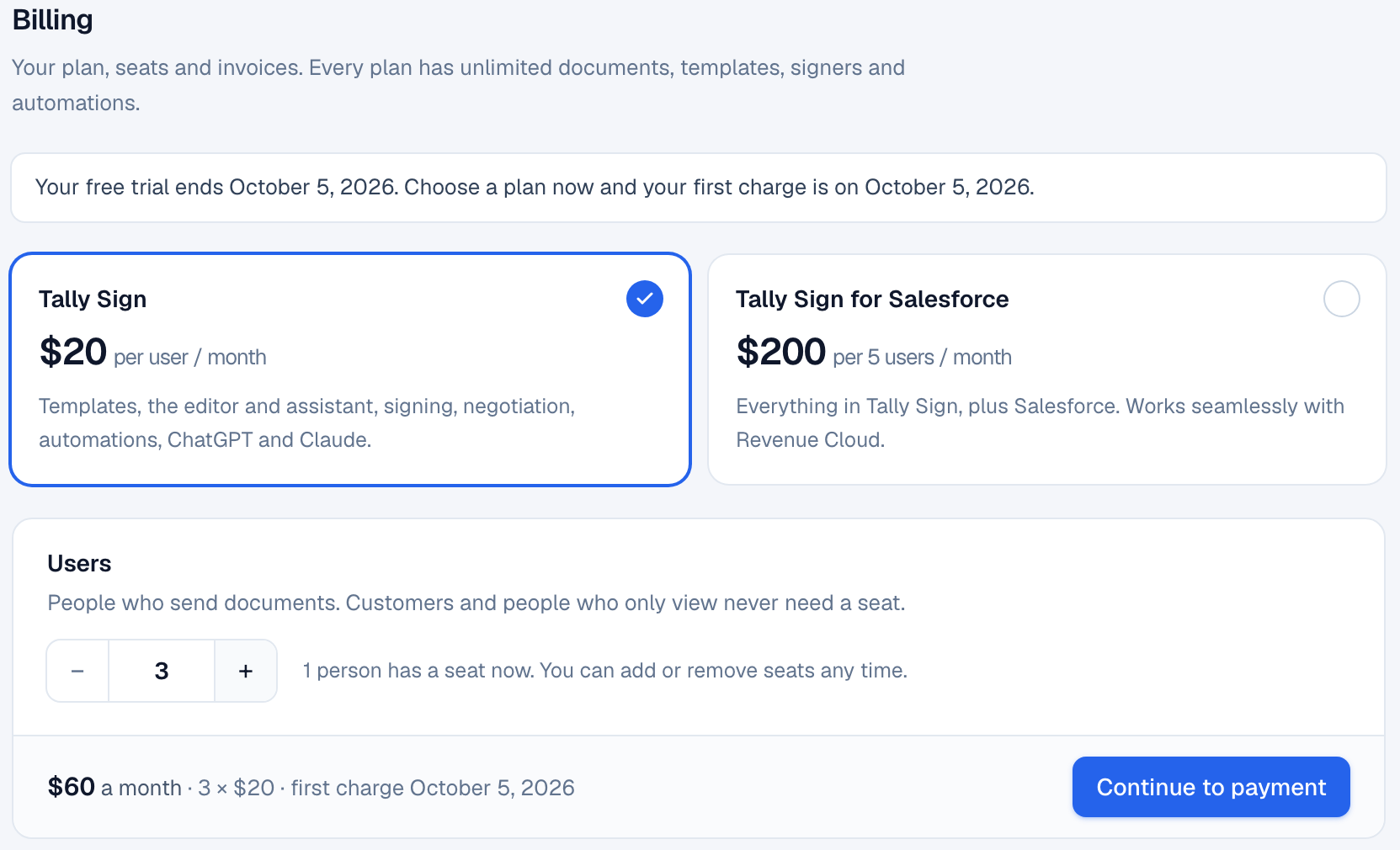
You come back to Settings → Billing, which says You're subscribed. If you choose a plan during the trial, you aren't charged until the trial ends: the first charge date is shown before you pay.
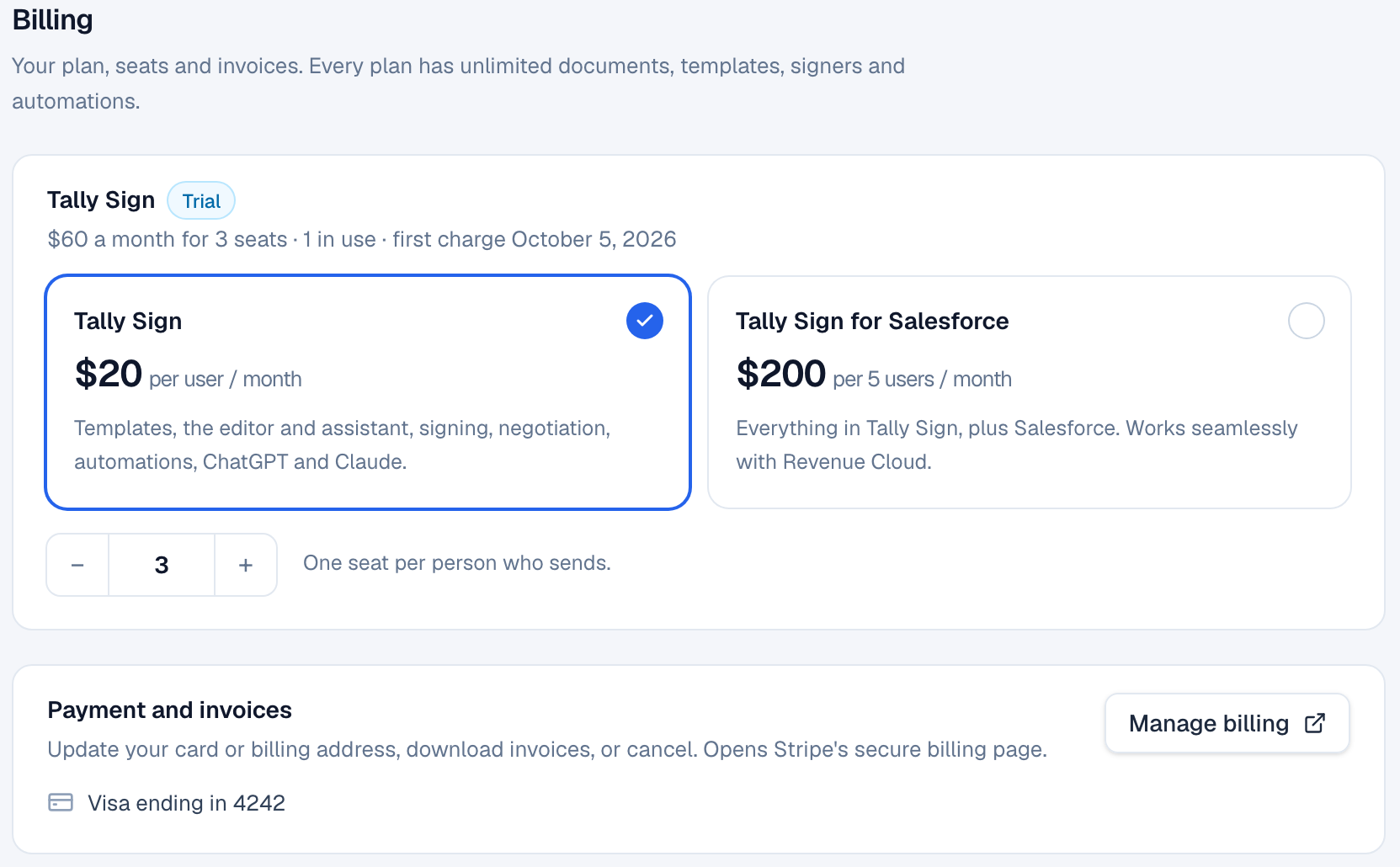
Change seats or plan
- In Settings → Billing, change the number of seats with − and +, or pick the other plan.
- A bar shows the new monthly price.
- Choose Update seats (or Switch to the other plan). Cancel leaves everything as it was.
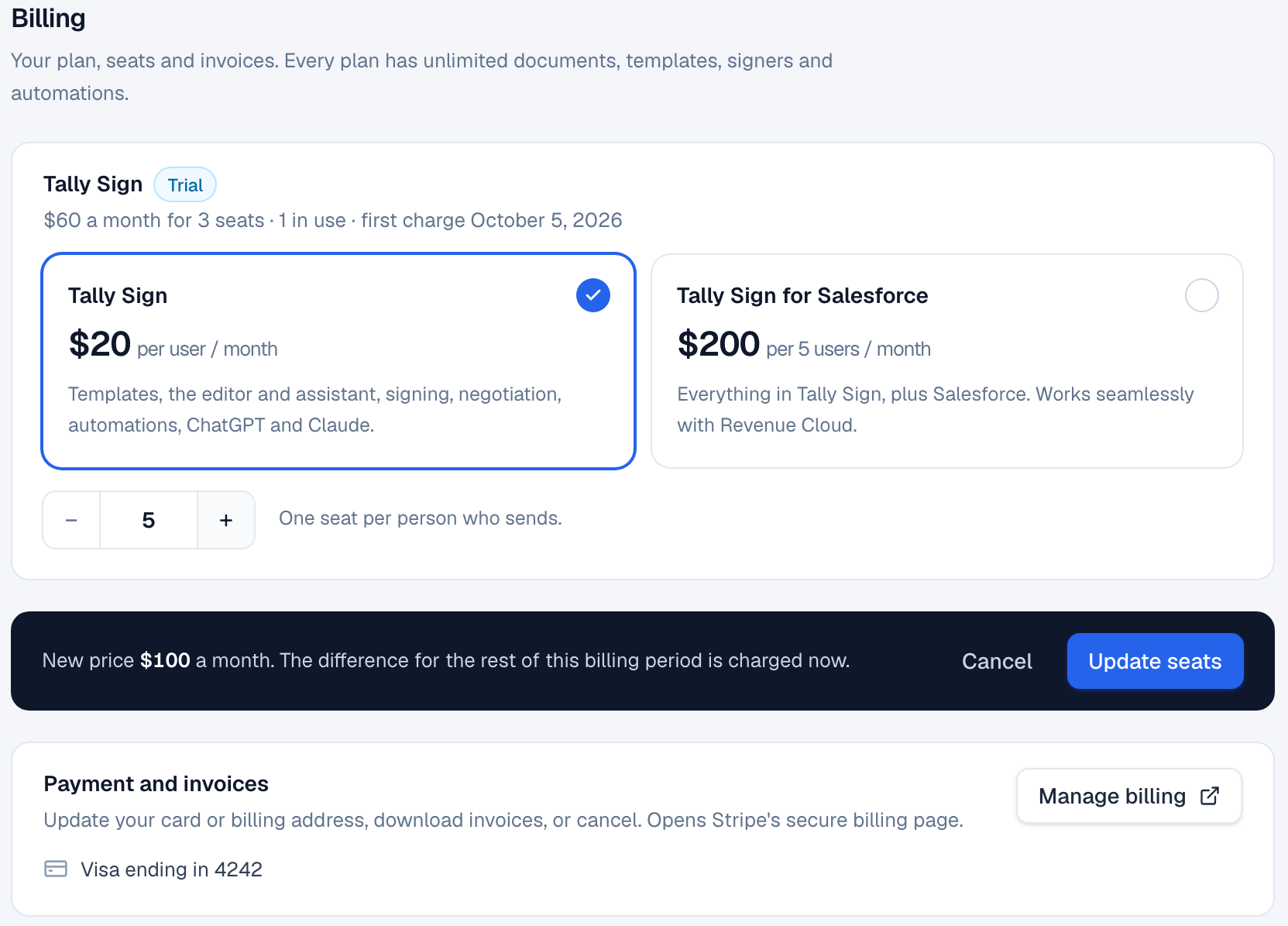
- More seats: the difference for the rest of the billing period is charged to your card straight away. If the card is declined, nothing changes.
- Fewer seats: the unused difference is credited to your next invoice.
- You can't go below the number of people with a seat. Seats given up in the last 7 days still count until they free up; the message says when. Remove people in Settings → Team or Settings → Seats first.
- While Salesforce is connected, you can't switch to the per-user plan. Disconnect Salesforce first, or keep Tally Sign for Salesforce.
Card, billing details and invoices
- In Settings → Billing, go to Payment and invoices. It shows the card on file.
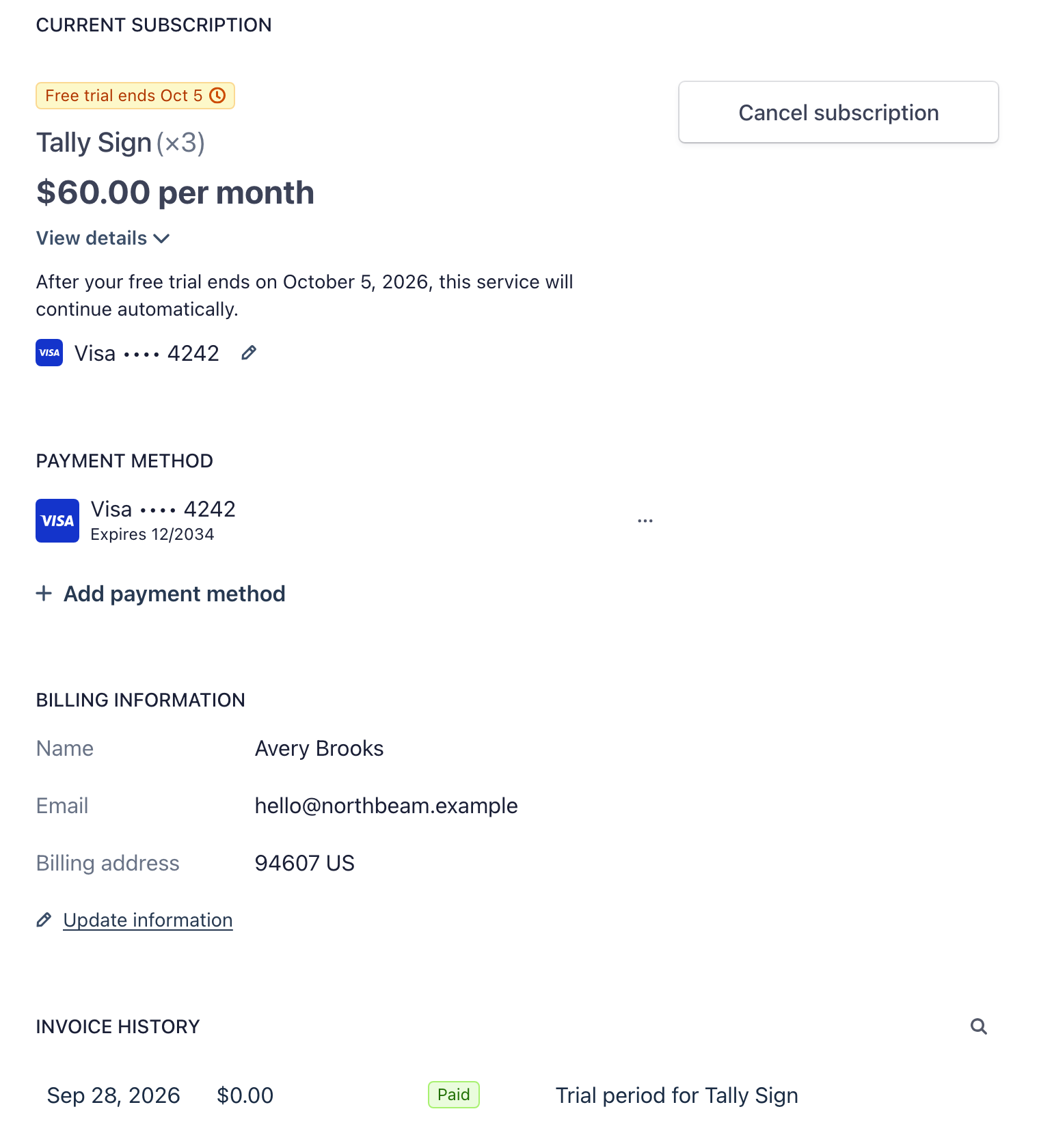
- Choose Manage billing. Stripe's billing page opens.
- Update your card under Payment method, your name, email, address or tax ID under Billing information, or open and download invoices under Invoice history.
- Choose Return to Tally to come back.
Cancel, or when a subscription ends
- In Settings → Billing, choose Manage billing.
- Choose Cancel subscription and confirm. Stripe asks for an optional reason.
- Back in Settings → Billing, the plan shows Ends and the date.
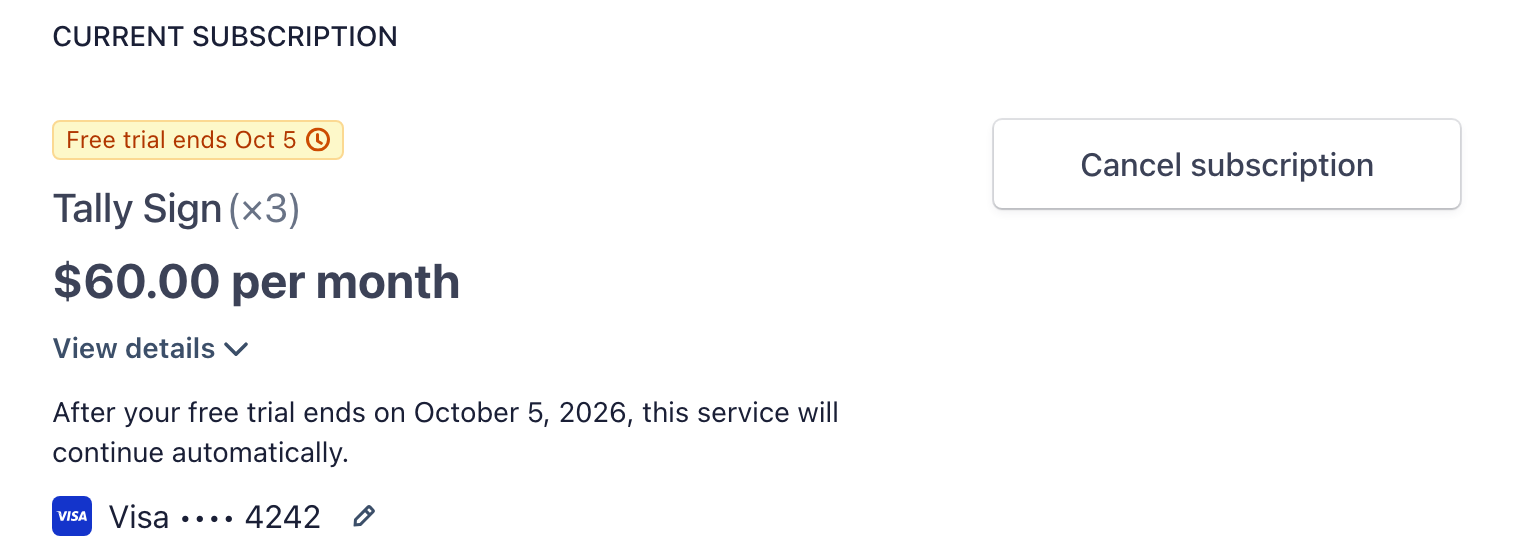
Everything keeps working until the end of the period you've paid for. After that:
- For 14 days after a subscription ends or a payment fails, everything still works. Settings → Billing says when, and the owner is emailed. A failed payment shows Payment failed: update the card under Payment and invoices.
- Then the account is paused. So is a free trial that ends without a plan. While paused, nobody can send documents and the assistant is off. Everyone can still sign in, read documents and download signed PDFs, and documents already sent can still be signed.
- To pick up where you left off, open Settings → Billing and choose a plan.
- If an account stays paused for 6 months, the company and all its documents are deleted. The owner is emailed 30 days and 7 days before. Download anything you need first.
The details are in the Terms of Service and section 13 of the Data Processing Addendum.
On the website: Pricing