
Email and deliverability
Send signing emails from your own domain, add the DNS records and a DMARC policy, and what to do when emails land in spam.
9 sections · 5 screenshots
Tally Sign emails signing requests, reminders, completed copies and team invites for you. By default they come from Tally Sign's shared address with your company name on them. Owners and admins can have them come from your own domain instead, like sign@yourcompany.com, which helps them reach the inbox. Everything is in Settings → Email.
How your emails are sent
Open Settings → Email. Delivery shows the address your emails come from, where replies go and what's sent.
- Without your own domain, emails come from Tally Sign's shared address and show as "Your company via Tally Sign".
- With a verified domain, they come from your own address, such as Northbeam Software <sign@northbeam.example>.
- Either way, when a recipient replies, the reply goes to the teammate who sent the document, or to your company email when no one did.
Signing requests, reminders, updated versions, void notices, completed copies with the signed PDF, messages to signers about changes and questions, automation emails to recipients and team invites all use your domain. Notices from Tally Sign to your own team, such as seat requests and alerts about a signer's comments, still come from the shared address.
Send from your own domain
- Open Settings → Email and find Sending domain. Only owners and admins can change it.
- Enter your domain, for example
northbeam.example, and choose Add domain. - Add the DNS records Tally Sign shows (next section), then choose Check DNS.
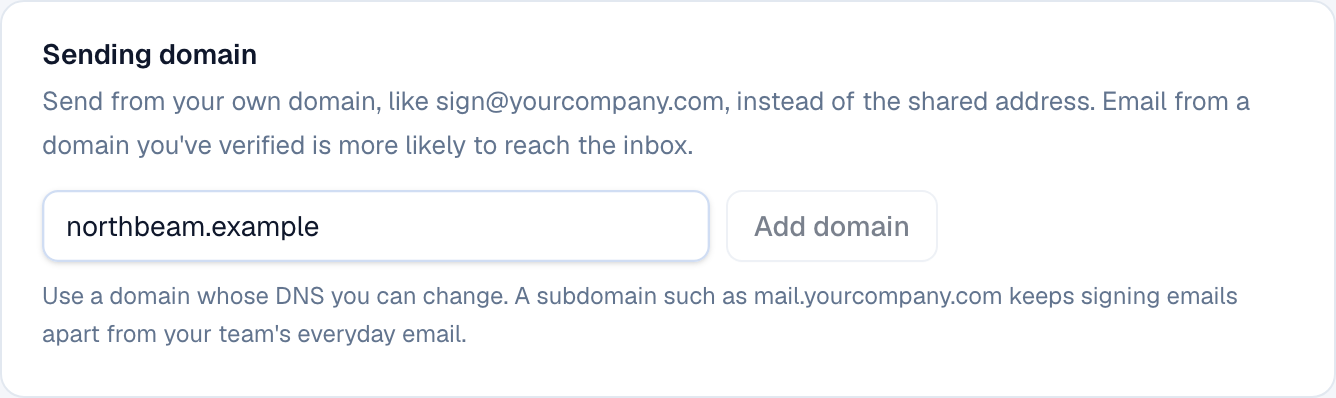
Until the domain is verified, nothing changes: emails keep coming from the shared address.
Add the DNS records
After you add a domain, Sending domain lists the DNS records our email provider (Resend) needs. Add each one where your domain's DNS is managed, usually your domain registrar (GoDaddy, Namecheap, Squarespace) or DNS host (Cloudflare, Route 53, Google Cloud DNS).
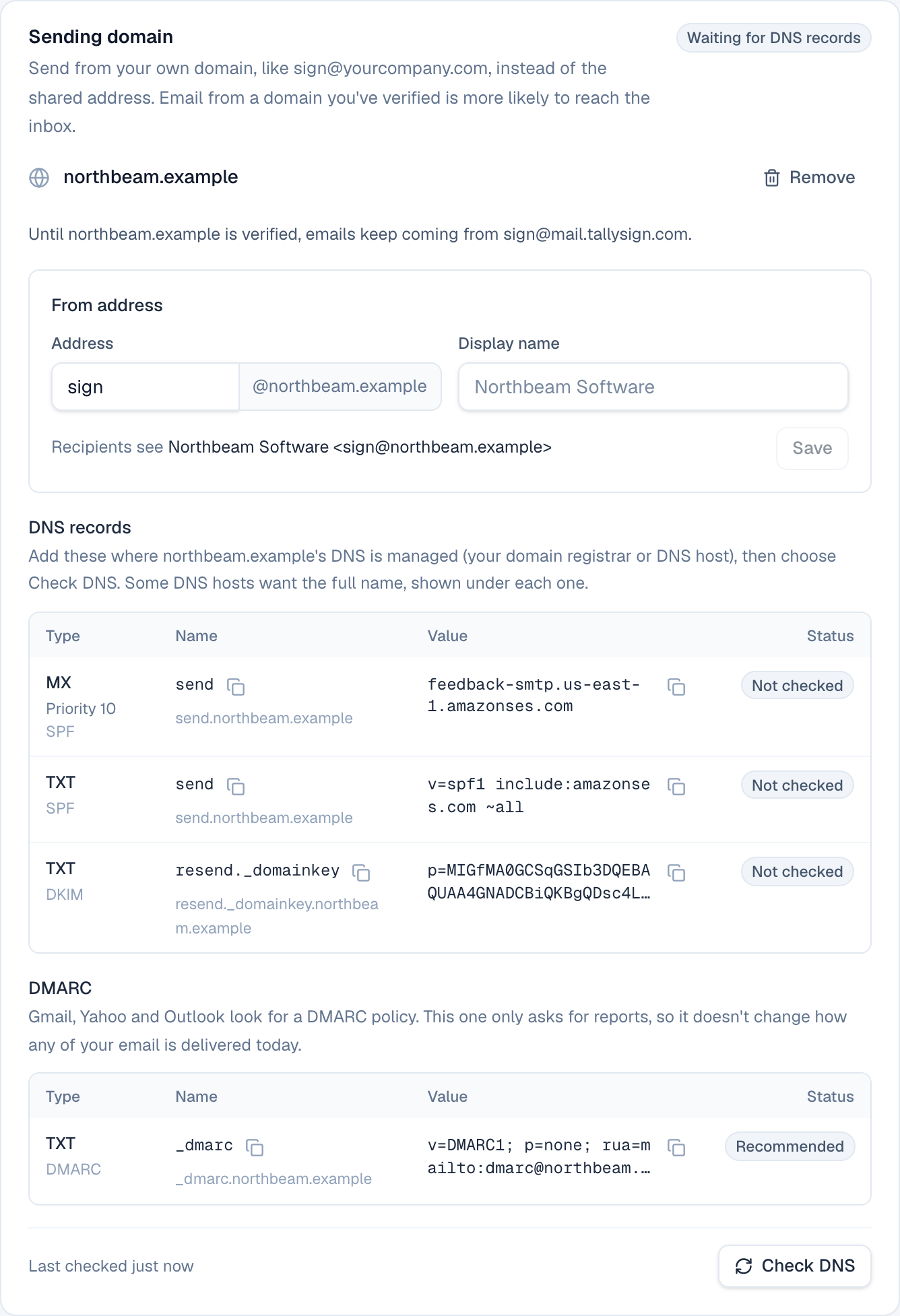
- At your DNS host, create a record of the Type shown (MX or TXT).
- Copy the Name with its copy button. Most DNS hosts want the short name, like
send; if yours wants the full name, use the one shown under it, likesend.northbeam.example. - Copy the Value. For the MX record, set the priority to the number shown (10).
- Repeat for each record, save, then come back and choose Check DNS.
| Record | What it does |
|---|---|
MX and TXT named send (SPF) | Say our email provider may send for your domain, and where bounces go |
TXT named resend._domainkey (DKIM) | A key that proves each email really came from your domain and wasn't changed |
TXT named _dmarc (DMARC) | Your policy for email that fails those checks. Recommended; see below |
DNS changes usually show up within minutes, but can take a few hours. After Check DNS, the status reads Checking DNS while the records are looked up, and the page updates by itself.
| Status | What it means |
|---|---|
| Waiting for DNS records | Added, but not checked yet. Add the records and choose Check DNS |
| Checking DNS | The records are being looked up |
| Verified | Your emails now come from your domain |
| Records not found | It was verified, but the records can't be found now. Emails use the shared address until they're back |
| Not verified | The records weren't found within 72 hours. Check them and choose Check DNS again |
Choose the from address
Under From address, set the part before the @ (for example sign or contracts) and the Display name people see in their inbox. Leave the display name empty to use your company name. Recipients see shows exactly how it will look. Choose Save.
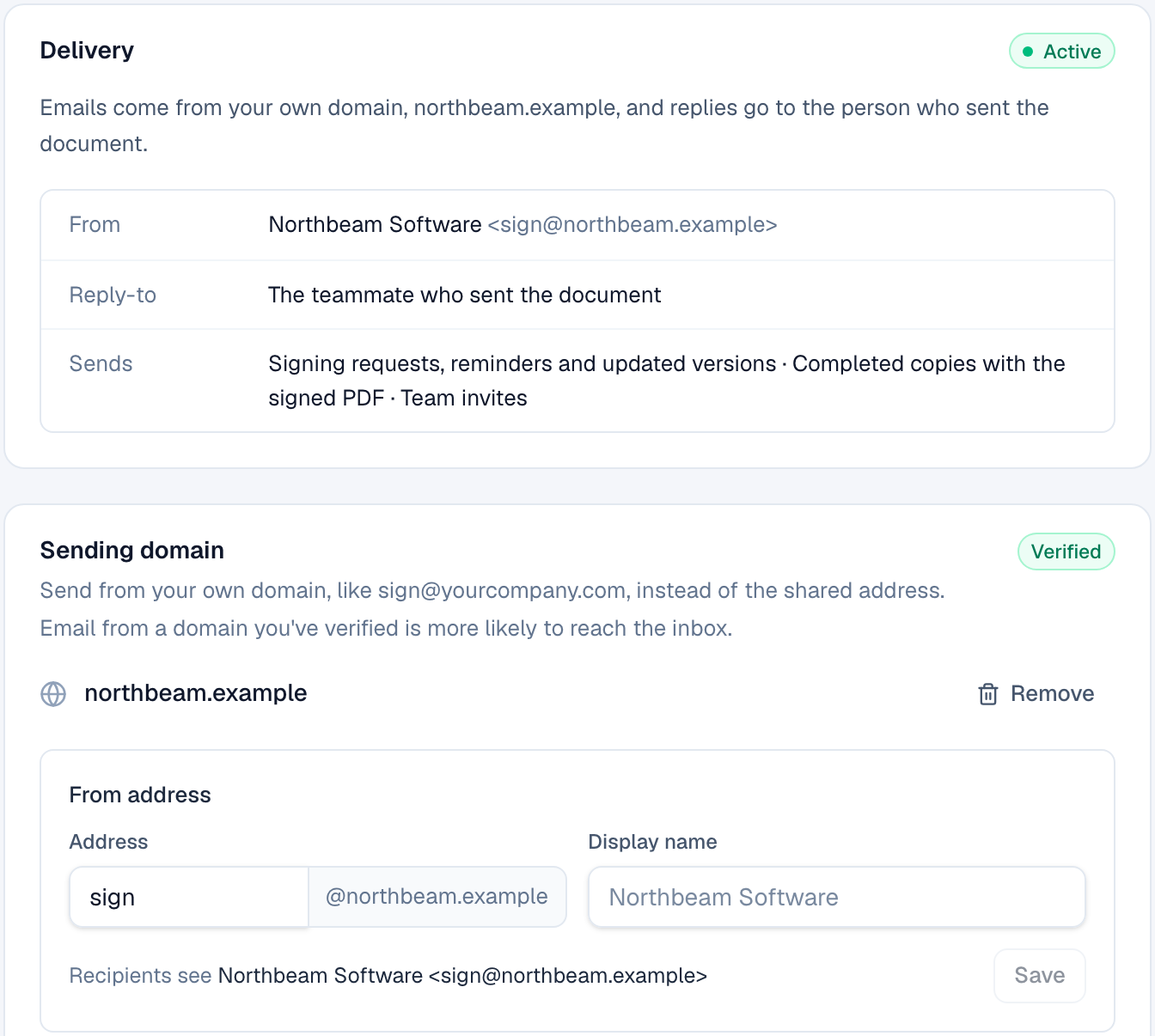
The address doesn't need a mailbox: replies go to the teammate who sent the document, not to this address. Pick one and keep it; a from address that stays the same builds trust with email providers over time.
Add a DMARC policy
DMARC tells email providers what to do with email that claims to be from your domain but fails the SPF and DKIM checks. Gmail, Yahoo and Outlook expect domains that send email to have one, and email without it is more likely to be filtered.
- Your domain has no DMARC record: add the one shown under DMARC, a TXT record named
_dmarcwithv=DMARC1; p=none; rua=mailto:dmarc@yourdomain.p=noneonly asks for reports, so it doesn't change how any of your email is delivered. Change the address afterrua=mailto:to a mailbox you read, or remove that part. - Your domain already has one: the status reads Found and shows it. Keep it; there's nothing to add. If you send from a subdomain, the policy of your main domain covers it.
Once the reports show that all your email passes, your IT team can tighten the policy to p=quarantine and later p=reject, which stops others from sending email that pretends to be from your domain.
If your domain stops working
Tally Sign checks your domain's status when you open Settings, every hour in the background, and right away if our email provider refuses an email from it. If the domain stops passing its check (for example, someone removed a DNS record), emails don't stop: they go out from the shared address, as "Your company via Tally Sign", until it's fixed. Nothing waits and nothing is lost.
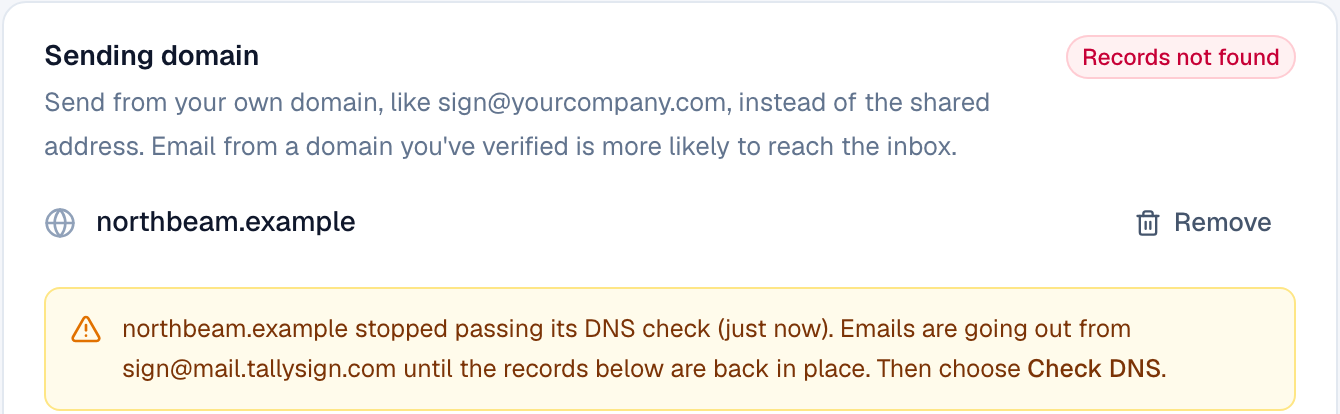
- Open Settings → Email and read the warning under Sending domain. Records that can't be found are marked Not found.
- Put those records back at your DNS host, exactly as shown.
- Choose Check DNS. Once it reads Verified, emails come from your domain again.
To stop using your domain, choose Remove next to it. Emails come from the shared address again. You can add the domain later, and it will need the DNS records and Check DNS again.
Why signing emails land in spam
Signing emails have everything spam filters look at closely: a link to open, often a PDF attached, and a sender the recipient may never have heard from. The usual reasons one lands in spam or quarantine:
- It comes from a shared address instead of your own domain, so the recipient's email provider can't tie it to your company.
- Your domain has no DMARC policy, or its SPF and DKIM records are missing or wrong.
- The recipient's company filters email from outside senders strictly (Microsoft 365 quarantine, Mimecast, Proofpoint and similar tools often hold messages with links for review).
- It's the first email the recipient has had from that address.
- Many emails went out at once to people who weren't expecting them, or earlier ones were marked as spam.
What to do about it
- Verify your own domain in Settings → Email, as above. This helps more than anything else.
- Add a DMARC policy to your domain, or check that it already has one.
- Tell the recipient it's coming. A quick note that a document is on its way from your address helps them find it, and gets them to open it instead of ignoring it.
- Ask recipients to allow the address. They can add it to their contacts or safe senders list. For a company that quarantines outside email, ask their IT team to allow your from address (or your domain) in their email filter.
- Check the activity log on the document to see whether and from which address each email went out (next section).
- Share the link directly if an email still can't be found: open the document and choose Copy link next to the recipient, then send it to them yourself.
Check the activity log
Every document's Activity, on its page in Tally Sign, records each email: who it went to, when, and the address it came from.

- Emailed … from sign@yourcompany.com: it left from your own domain.
- Emailed … from the shared address: your domain wasn't verified at that moment, so the email used the shared address.
- Not emailed: it didn't go out. Email may not be set up, or our email provider refused the recipient's address. Use Copy link to share the link yourself.
On the website: Pricing