
Who signs (signer rules)
Tell Tally Sign where to find each signer on the record. The first rule that finds a name and email wins.
3 sections · 2 screenshots
How signer rules work
For each role in the template, you list places to look. Tally Sign tries them in order and uses the first one that has a name and an email. The rep can still change the signer before sending.
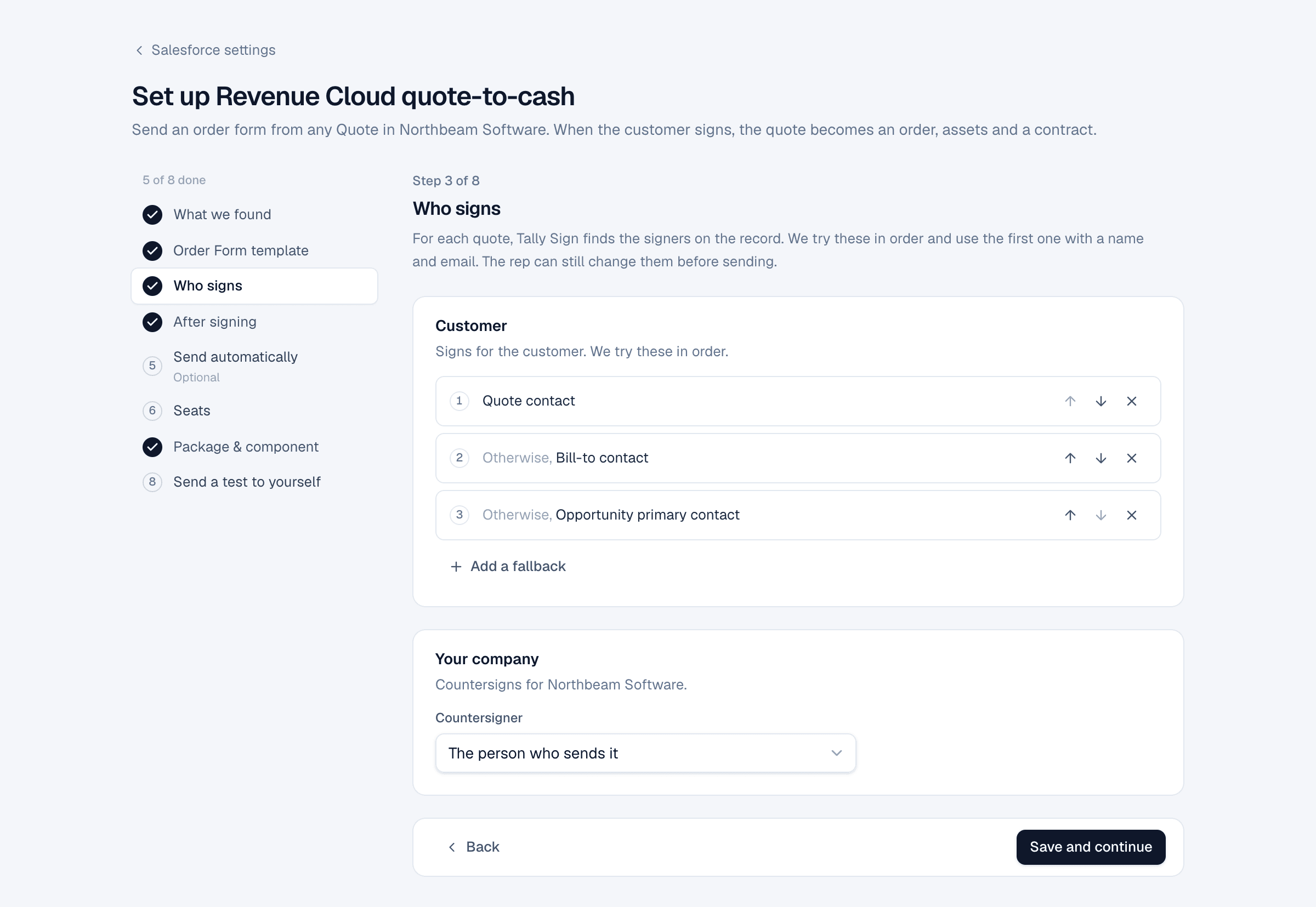
| Rule | Finds |
|---|---|
| The quote's contact | The Contact on the record |
| Bill-to contact | The Bill To Contact on a Quote or Order |
| Person in a lookup field… | Any contact or user lookup you pick |
| Opportunity contact (primary first) | The opportunity's primary contact role, otherwise its first contact role |
| Contact with role… | The opportunity contact with a role such as Decision Maker |
| Related contact on the account with role… | An account contact relationship with that role |
| The quote's owner, Owner's manager | People at your company |
| Whoever sends it | The sender. Used for your company's signer |
| A specific person | A fixed name and email |
| Choose when sending | Nobody is picked automatically; the sender chooses |
Defaults
| Object | Customer signer, in order |
|---|---|
| Quote | Quote contact → Bill-to contact → Opportunity contact (primary first) |
| Salesforce CPQ quote | Primary contact → Opportunity contact (primary first) |
| Opportunity | Opportunity contact (primary first) |
| Contract | Customer Signed By |
| Order | Bill-to contact → Customer Authorized By |
| Account | Choose when sending |
Your company's signer defaults to Whoever sends it. When a template has more than one customer role, only the first follows these rules; the others are chosen when sending.
Change the signer when sending
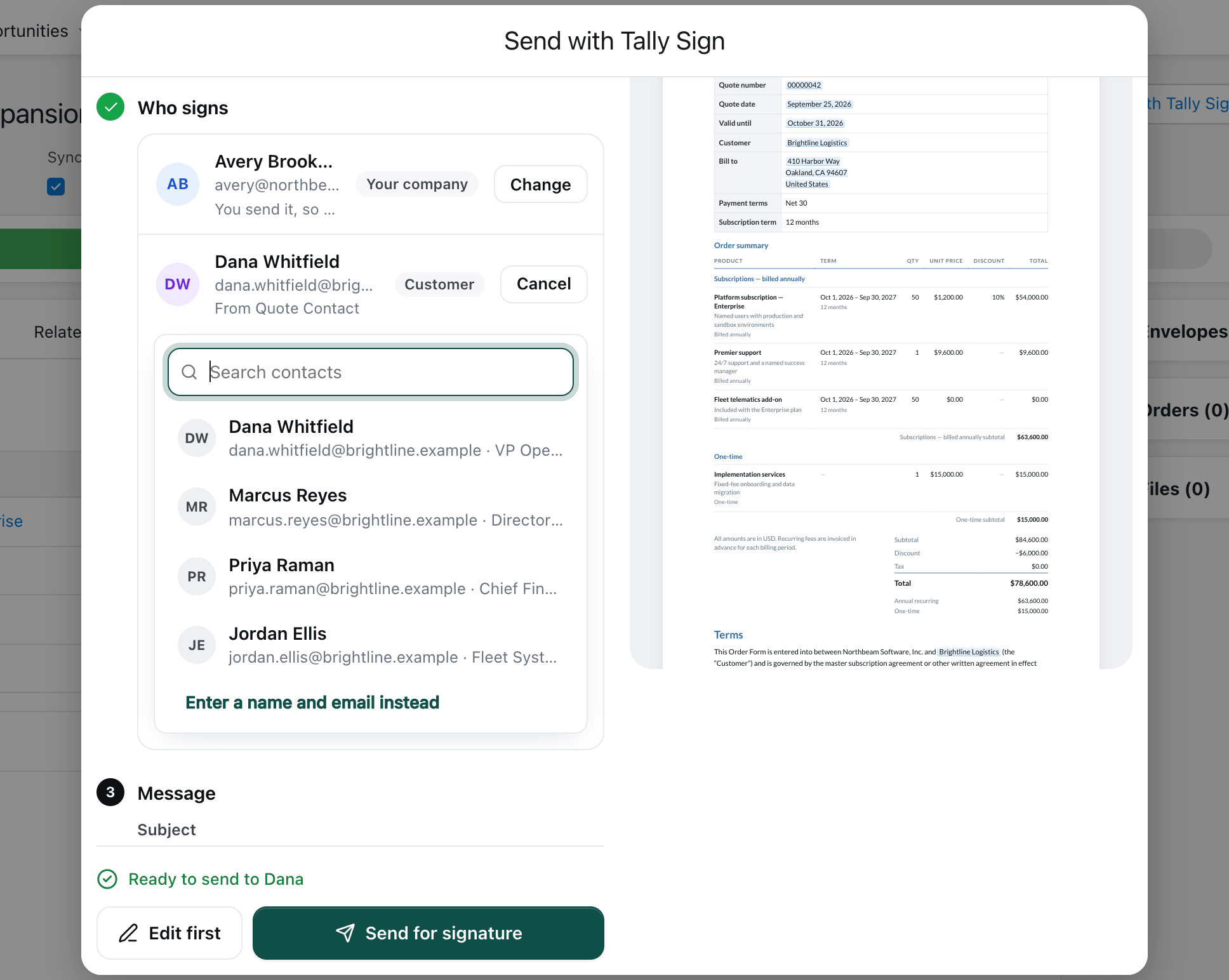
In Send with Tally Sign, each person under Who signs shows where they came from, for example From Quote Contact. If a rule was skipped, it says why under the person, for example Quote Contact (Dana Lee) has no email, so Quote Bill To Contact was used.
Choose Change to pick someone else. The list starts with the opportunity's contact roles, then the account's contacts; search to find anyone else, or choose Enter a name and email instead. Your company's signer isn't a contact: choose Change and type their name and email.
On the website: Any object·Pricing