
Two-step sign-in
Add a code from an authenticator app to signing in, require it for your whole company, and get back in if you lose your phone.
7 sections · 10 screenshots
Two-step sign-in asks for a 6-digit code from an authenticator app on your phone after your password, so a stolen or guessed password isn't enough to get into your account. Anyone can turn it on for themselves in Settings → Profile. Owners and admins can require it for everyone in Settings → Single sign-on. It works with Google Authenticator, Microsoft Authenticator, 1Password, Authy and any other app that makes time-based codes.
Turn it on
- Open Settings → Profile and go to Two-step sign-in.
- Choose Set up.
- Scan the QR code with your authenticator app. If you can't scan it, choose Can't scan it? Enter a key instead and type the key into the app as a time-based account.
- Enter the 6-digit code the app shows for Tally Sign and choose Turn on.
- Save your 10 recovery codes with Copy codes or Download, tick I've saved my recovery codes and choose Done.


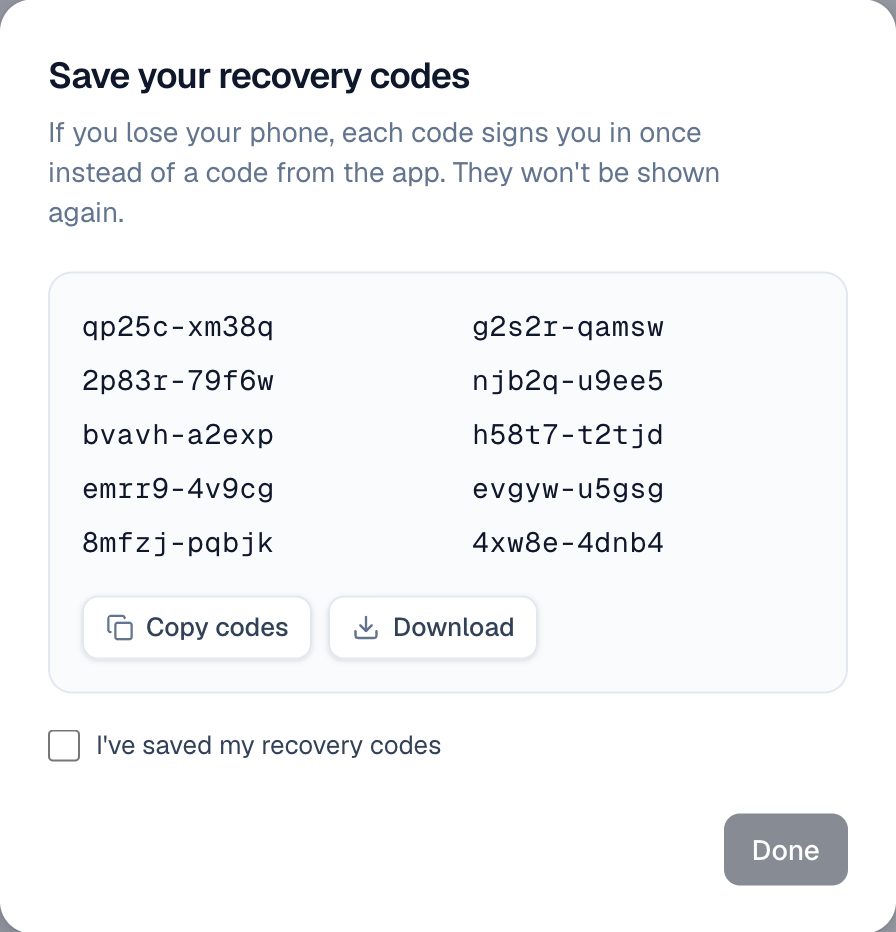
Each recovery code signs you in once instead of a code from the app, for when you don't have your phone. They're shown only this once, so keep them somewhere safe, like your password manager. Tally Sign stores only a keyed hash of each one, and the app's secret is encrypted.
Turning it on signs you out on every other browser and device (they signed in without a code), keeps you signed in here, and emails you that it's on.

Sign in with a code
- Sign in with your email and password as usual.
- On Two-step sign-in, enter the 6-digit code your app shows for Tally Sign. It's checked as soon as you've typed six digits.

- Codes change every 30 seconds. A phone clock that's a little off is fine; a code from the step before or after still works.
- Each code works once. Signing in on a second browser in the same 30 seconds needs the next code.
- No phone? Choose Use a recovery code and type one of your saved codes. You're emailed when one is used, with how many are left.
- After 5 wrong codes, codes aren't accepted for 15 minutes, and you get an email: whoever typed them had your password. If that wasn't you, change your password.
- You're not signed in until the code is right: closing the page or choosing Sign in as someone else starts over.
- The usual email about a sign-in from a new browser still comes once you're in.

Which sign-ins ask for a code
| How you sign in | Asks for the code |
|---|---|
| Email and password, including connecting ChatGPT or Claude and after resetting your password | Yes, whenever you have two-step sign-in on |
| Continue with Google, Microsoft or Salesforce | Only when your company requires two-step sign-in for everyone. Otherwise that provider's own two-step sign-in protects you |
| Single sign-on (your company's identity provider) | No. Your identity provider's own rules, such as its multi-factor sign-in, apply |
| API keys, the Salesforce package and AI apps already connected | No. They don't sign in with a password, and they keep working |
New recovery codes, a new phone, or turning it off
In Settings → Profile → Two-step sign-in:
- New recovery codes makes 10 new codes. The old ones stop working.
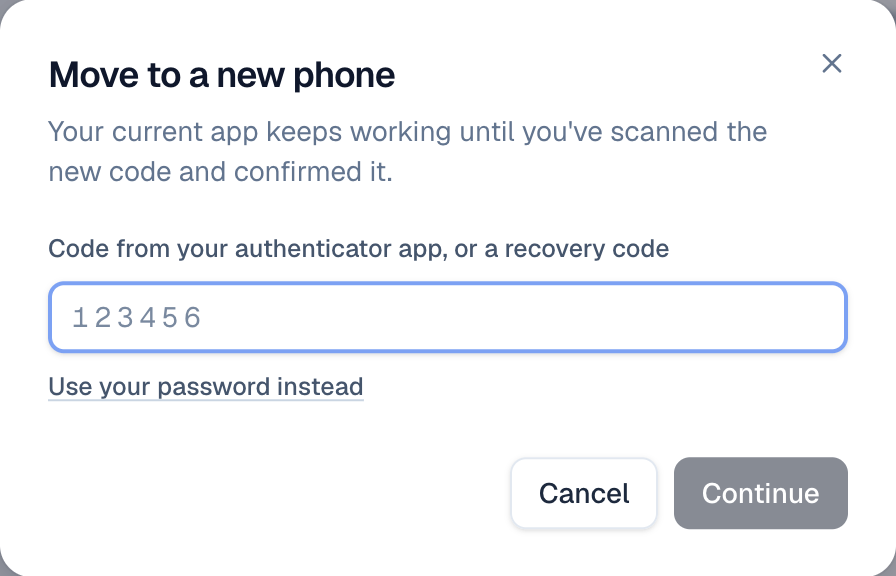
- Move to a new phone shows a new QR code. Your current app keeps working until you've scanned the new one and entered its code, and you get new recovery codes too.
- Turn off stops asking for a code, signs out every other browser and emails you. It isn't there while your company requires two-step sign-in.
Each of these asks you to prove it's you first: a code from your app, a recovery code, or Use your password instead.
Require it for everyone
- Turn on two-step sign-in for yourself first, in Settings → Profile.
- Open Settings → Single sign-on.
- Under Two-step sign-in, turn on Require two-step sign-in for everyone.

Only owners and admins can change it. From then on:
- Signing in with a password, Google, Microsoft or Salesforce asks for the code.
- Anyone who hasn't set it up does so before they get in: at their next sign-in, when they accept an invite, or on the next page they open if they're already signed in.
- People who sign in through your company's single sign-on aren't asked. Your identity provider decides.
- Nobody can turn theirs off; they can still move it to a new phone.
- API keys, the Salesforce package and AI apps already connected keep working.

Settings → Team shows a shield next to everyone who has it on.
Lost your phone
- You have your recovery codes: sign in with one, then use Move to a new phone in Settings → Profile.
- You've lost your phone and your codes: ask your company's owner or an admin. In Settings → Team they choose Reset two-step next to you. Your app and codes stop working, you're signed out everywhere, and you're emailed. Sign in with your password and set it up again (you'll be asked to if your company requires it).
- You're the owner and you've lost both: email support@tallysign.com from your account's address. Admins can't reset the owner's two-step sign-in. Tally support checks it's really you before resetting it, and you're emailed when it's done.

Resetting your password doesn't get around two-step sign-in: after choosing a new password, you're still asked for the code. Every reset is recorded with who did it.
Emails you get
- Two-step sign-in is on when you turn it on.
- Two-step sign-in is off when you turn it off, and Your two-step sign-in was reset when an admin or Tally support resets it.
- A recovery code was used each time one signs you in, with how many are left.
- Wrong two-step codes when 5 wrong codes stop the sign-in for 15 minutes.
Each says when, from which browser and where, so you can tell if it wasn't you. If it wasn't, reset your password right away.
On the website: Pricing