
Bring over your DocuSign templates
Using DocuSign in Salesforce? Create the same templates in Tally Sign in a click: same pages, same Salesforce object, same signer.
3 sections · 4 screenshots
When your Salesforce has DocuSign for Salesforce, Tally Sign notices and offers to create the same templates for you. Each one comes over with its pages, the Salesforce object it's sent from and who signs it. DocuSign isn't changed.
Where it shows up
Once Salesforce is connected, owners and admins see this on the Templates page and in Settings → Salesforce until the templates have been brought over. Your org in Settings → Salesforce also lists DocuSign for Salesforce, with a Bring over DocuSign templates link.

Choose Bring over DocuSign templates, or open Settings → Move from DocuSign. That tab is there only for companies whose Salesforce has DocuSign.
Create them from Salesforce
Your DocuSign templates lists every template DocuSign for Salesforce keeps in your org: the object it's sent from, its file, and where it's at.
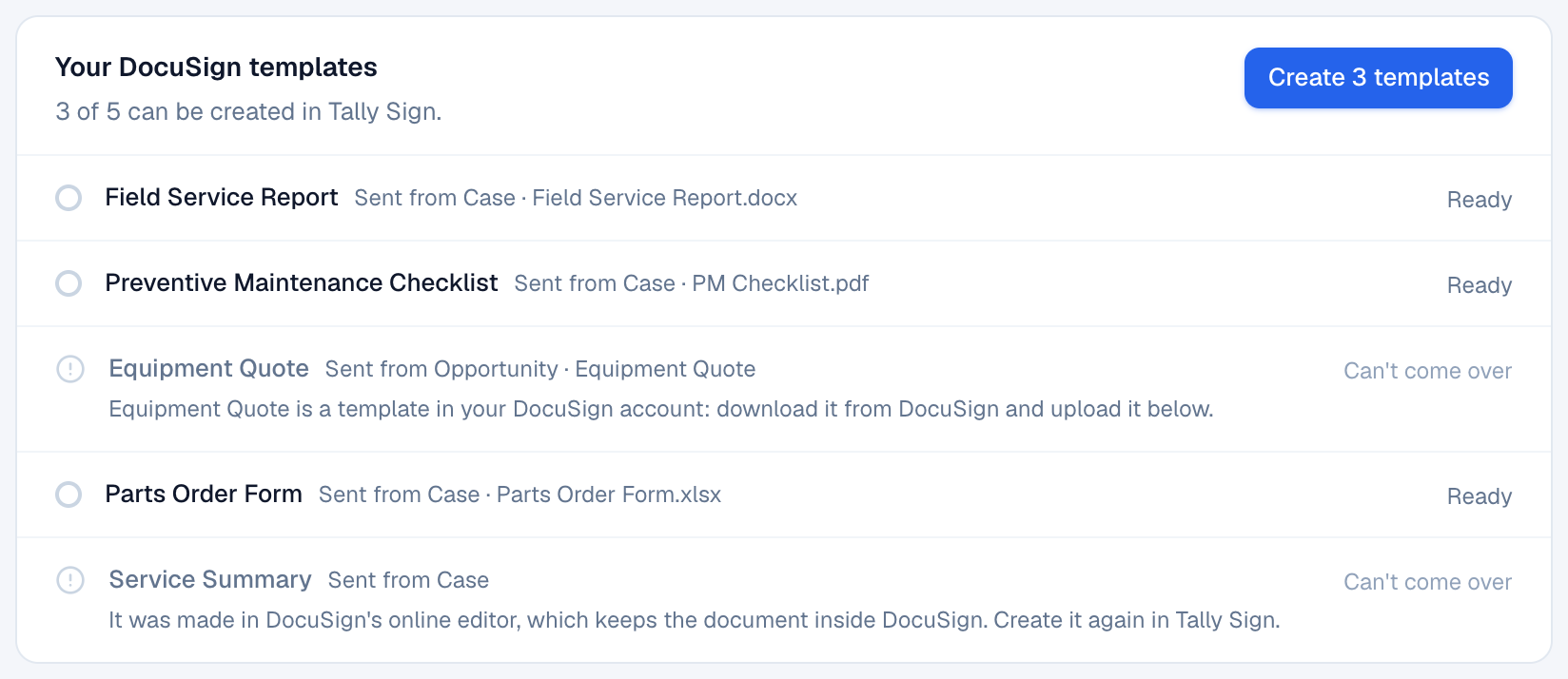
- Choose Create 3 templates (the button shows how many are ready). It takes a minute; you can leave the page.
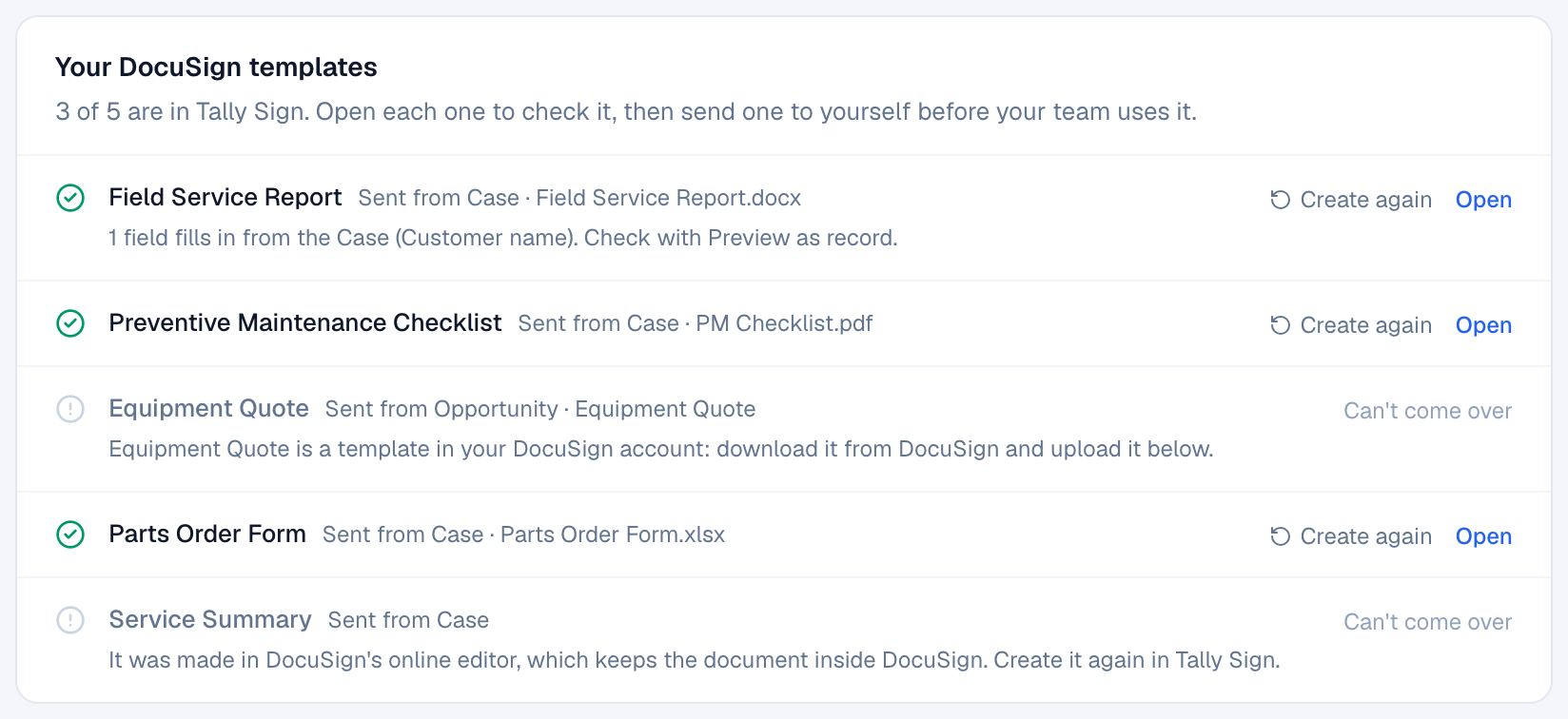
- Each row turns green with Open when its template is ready. Open each one to check it, then send one to yourself before your team uses it.
| In DocuSign | In Tally Sign |
|---|---|
| Template sent from a Case (or any object) | A template sent from the same object |
| Signer found on the record, such as the Case's Contact | The same signer rule (Contact), so the right person is filled in when you send |
| Word, Excel or PDF file | The same pages, looking exactly like the file (tables, shading, logo) |
| Signature placed by the sender while sending | The customer's signature and date beside the form's own labels, such as "Customer signature approval" and "Date of approval" |
| Gen template (Word) | A template from the Word file, with DocuSign's merge fields turned into Salesforce fields |
| Gen template made in DocuSign's online editor | Not brought over: create it again in Tally Sign |
Templates kept in DocuSign itself
Some DocuSign templates live in the DocuSign account, not in Salesforce; their row says so. Bring those over as files:
- In DocuSign, open Templates, select the templates and choose Download. You get a .json file for one template, or a .zip for several.
- In Settings → Move from DocuSign, choose Upload on Templates kept in DocuSign itself (or drop the file on it).
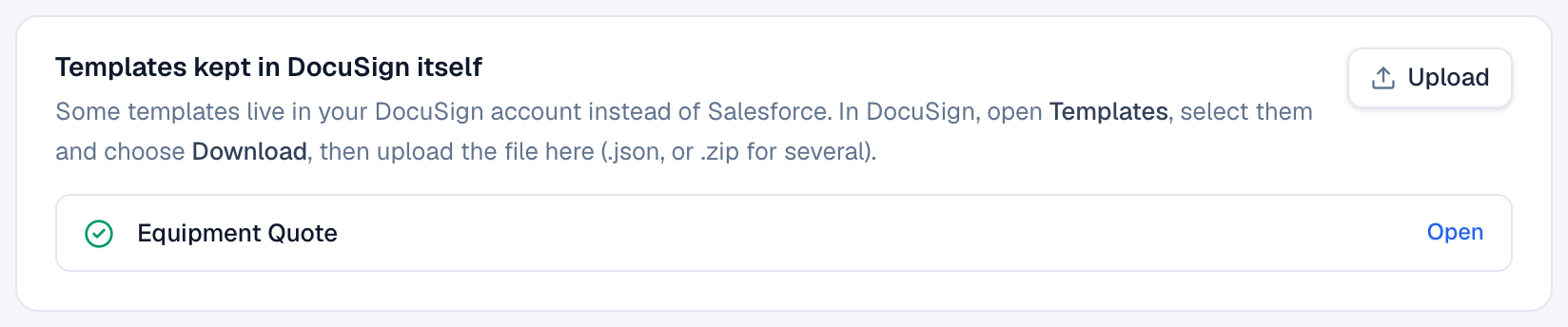
These keep their pages and every field where DocuSign had it, including fields placed next to text in the document. Radio buttons become checkboxes and drop-down lists become text boxes; the note under each template says what changed.
On the website: No CRM needed·Pricing