
Automations: reminders, alerts and follow-ups
Turn on ready-made automations that remind signers, tell your team when a document is signed, and follow up on their own. Adjust any of them and design the emails they send.
9 sections · 5 screenshots · 14 clips
An automation says: when this happens to a document, or this much time passes, do these things. You find them in Tally Sign under Automations in the menu on the left. Start from the Library, where each one turns on in a click or two, then adjust it. Only owners and admins can turn automations on or change them; everyone else can see what's running.
Step by step · 5 steps
Remind signers automatically
Where: Tally Sign → Automations → Library
1. Open the reminders
In Tally Sign, choose Automations in the menu on the left. The Library opens. Choose Follow-ups & reminders on the left.
More detail: Open the reminders
What's in the library
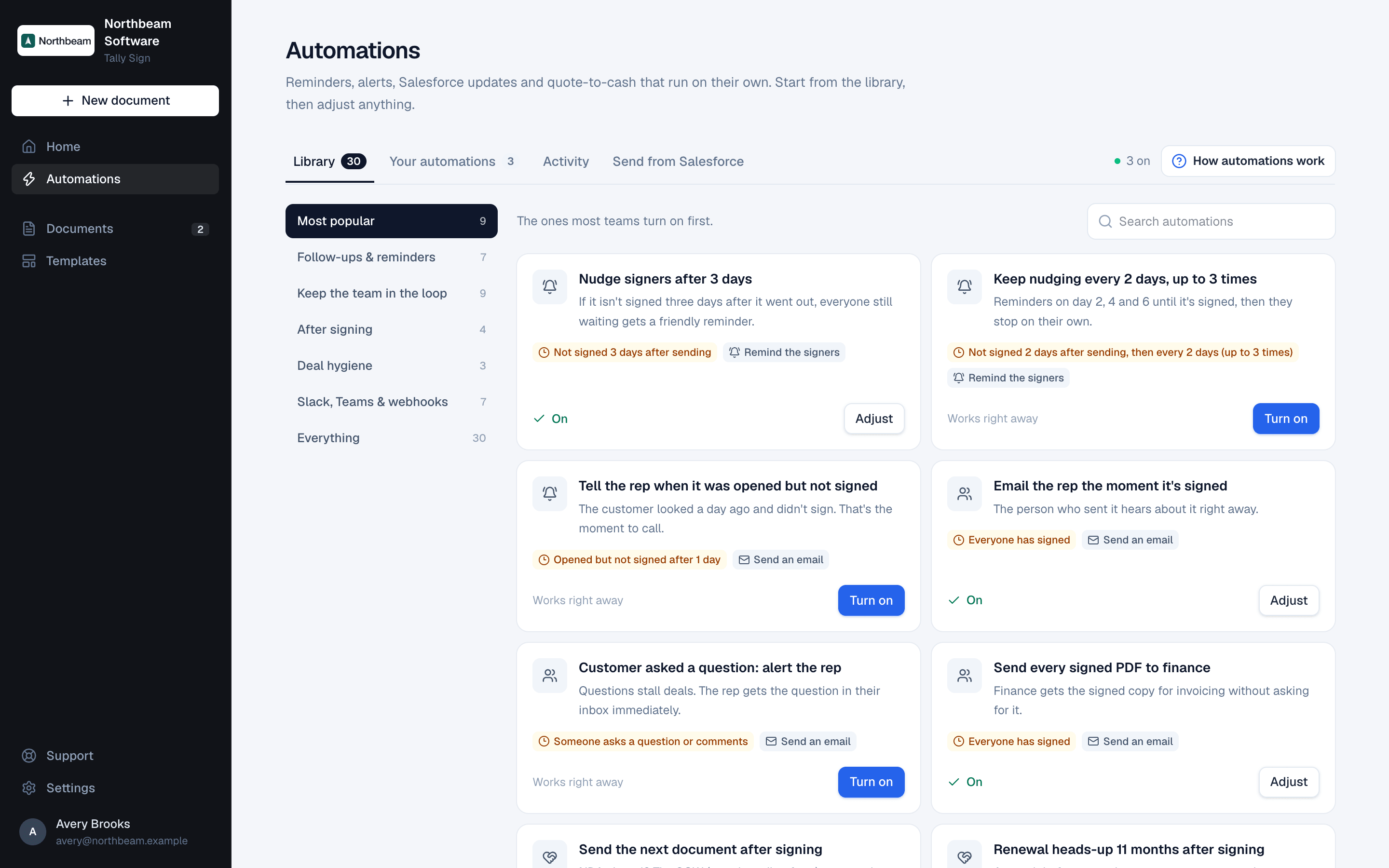
Choose Automations in the menu on the left. The Library tab opens on Most popular, the ones most teams turn on first. The categories on the left sort the rest:
| Category | What's in it |
|---|---|
| Follow-ups & reminders | Reminders to signers after a few days, again until they sign, before the link expires, and a nudge to the rep when the customer opened it but didn't sign. |
| Keep the team in the loop | Emails to the rep, to owners and admins, or to anyone you name (finance, legal, the deal desk) when a document is signed, opened, declined, questioned or about to expire. |
| Salesforce updates | Quote and opportunity status, tasks, bell notifications and the signed PDF in the record's Files. Needs Salesforce. |
| Revenue Cloud | From signed quote to order, assets and contract. Needs Salesforce with Revenue Cloud. |
| Automatic sends | Send (or draft) a document when a Salesforce record reaches a stage. These set up a rule on the Send from Salesforce tab. Needs Salesforce. |
| After signing | Thank the customer, send the next document, check in a week later, renewal heads-up at 11 months. |
| Deal hygiene | Void documents nobody opened, tell the rep when one expires, void expired ones. |
| Slack, Teams & webhooks | Post signed deals, declines and questions to a channel, or send them to Zapier, Make or your own system. |
Each card says when it runs (the amber tag) and what it does (the grey tags). Search automations at the top right finds one by name. Everything lists them all.
Turn one on
The bottom of each card says how much it takes:
- Works right away: choose Turn on. “Nudge signers after 3 days” is on appears, with Adjust to change it straight away. The card now says On.
- Takes a minute to set up: choose Set up. The automation opens with the part that needs filling in already open, for example the email addresses finance gets, a Slack webhook link or the next template to send. Fill it in and choose Turn on, or Save, leave off to turn it on later.
An automation you've added keeps its Adjust button on the library card, and shows On, or Added, off when it's switched off. Once added, the card shows what your automation does now: its When and its steps. If you changed them from the ready-made version, it reads On · adjusted; choose adjusted to see it in Your automations. Filling in what it needed to set up (like a webhook link) doesn't count as a change.
Adjust it
Choose Adjust on the card, or ••• → Edit in Your automations. The automation reads top to bottom like a sentence, and the line under its name says the whole thing in words.
- Click the name at the top and type your own, for example *Remind signers until they sign*.
- Open When to choose what starts it: something that happens right away (It's sent, A signer opens it, Everyone has signed, A signer declines, Someone asks a question and more) or After some time (Not signed after a while, Nobody opened it, Opened but not signed, Before the links expire, After everyone signed).
- For a time-based one, type the number of days in the box. For reminders, choose Repeat until it's signed, then set how often and how many times, for example again every 2 days, up to 3 times. Don't repeat goes back to once.
- Open Only for to narrow it down: Documents made from one or more templates (or Any template), Only documents sent from Salesforce, or Only when the total is at least an amount. Leave it on All documents for everything.
- Open each Then step to change what it does. Add another step adds up to ten, and the arrows and bin on a step move or remove it.
- Choose Save. Automation saved appears.
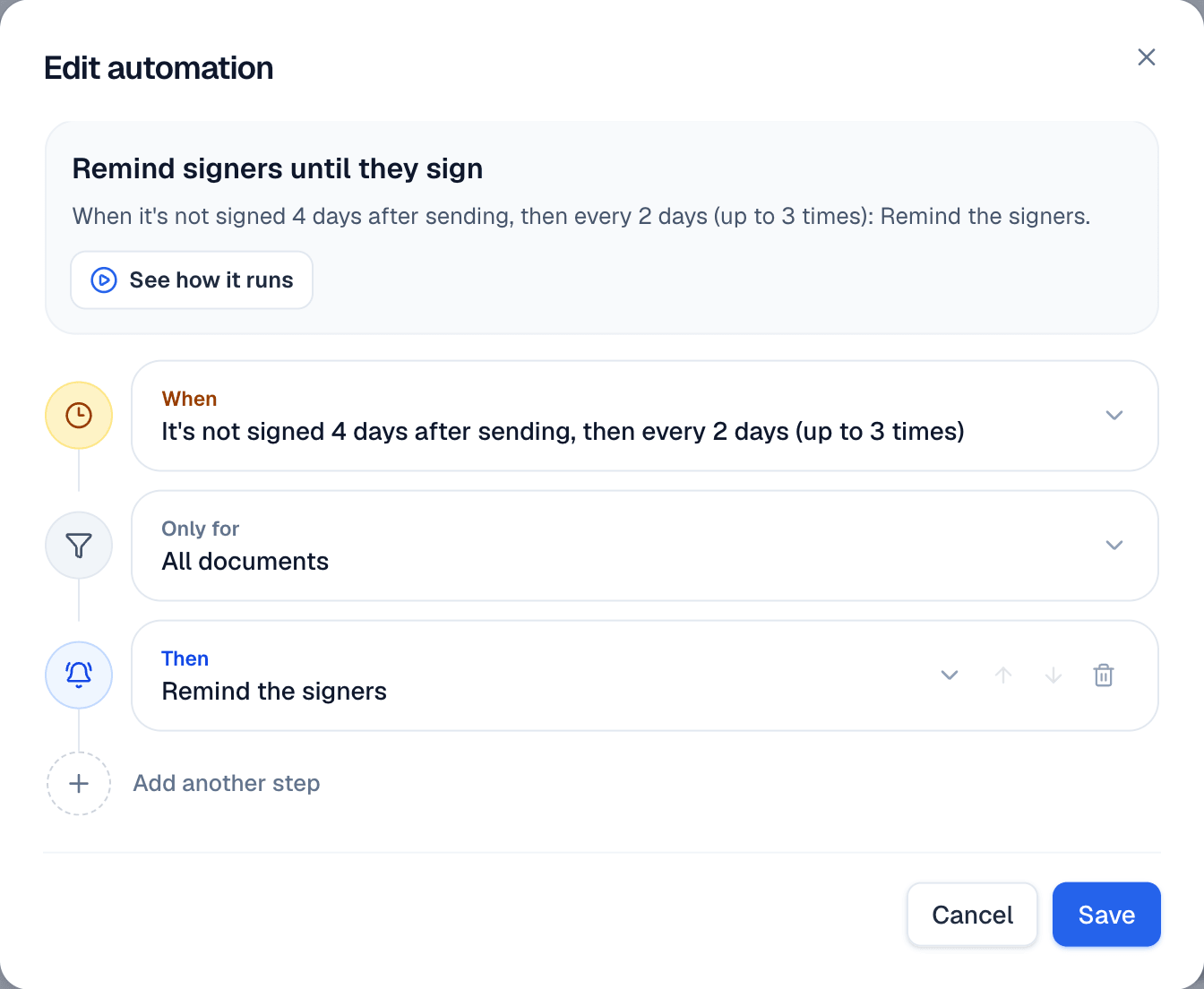
See how it runs, under the name, plays the automation out day by day on a sample document, with each email shown the way people will get it. Names, dates and amounts in it are examples. Nothing is sent: automations don't have a test mode, so this is the way to check one before it runs.
Change the email it sends
Reminders and emails come as your standard company email: your logo, the message and a button. To change the words, open the step under Then:
- Remind the signers: type a line under Note in the reminder (optional). It's shown above the reminder's own text. The subject and the Review and sign button stay the same.
- Send an email: choose who gets it under To (The sender (rep), The signers, Owners and admins or These people… with their addresses), then change Subject and Message. The buttons under Message, like + Document title and + Customer company, add fields that fill in from each document. Check Attach the signed PDF (once everyone has signed) to send the signed copy with it.
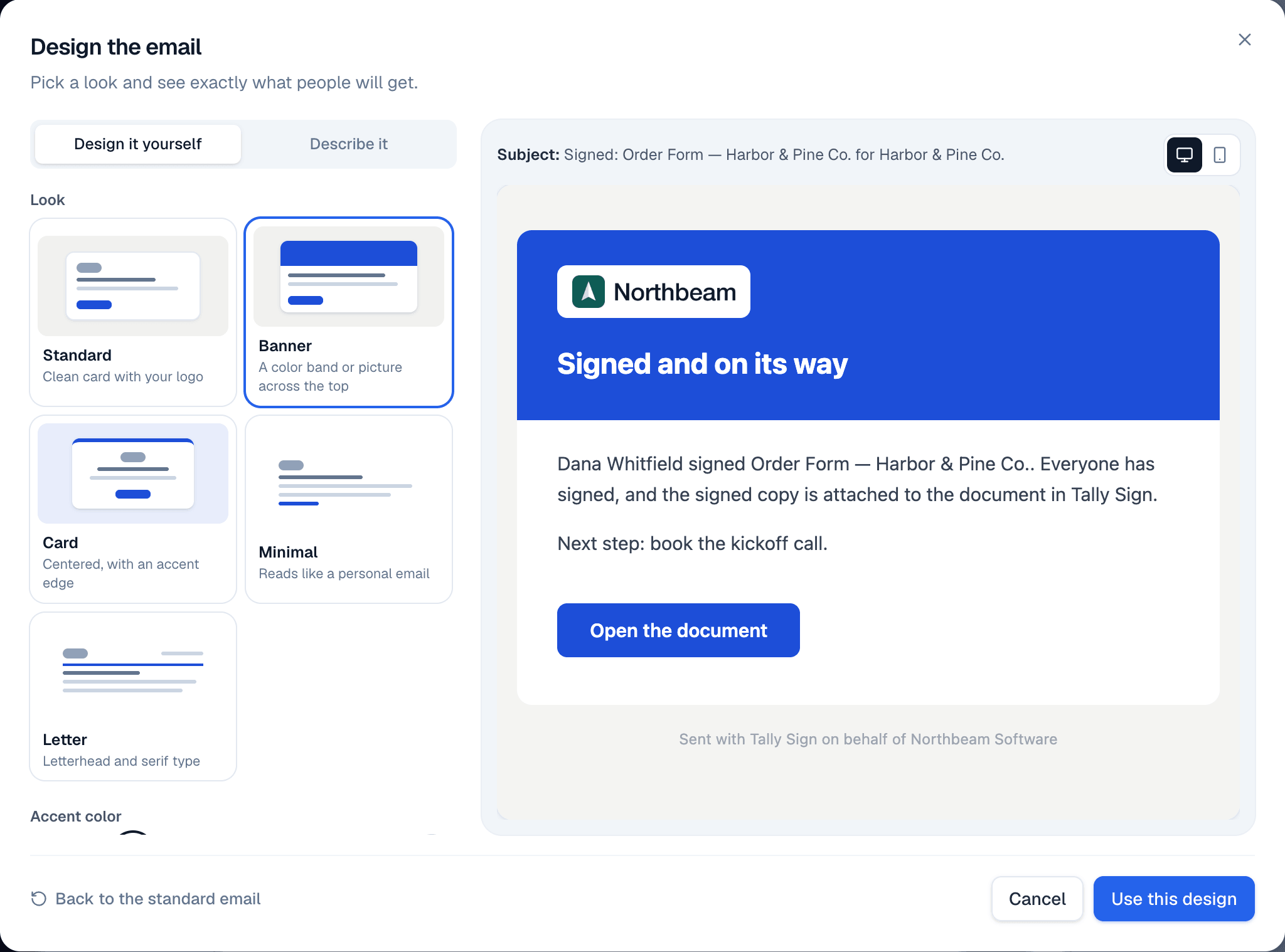
To change how it looks, choose Design email on the step (Edit design once it has one). The designer shows the email on the right as people will get it, with your logo, brand color and company name, filled in with sample names. If your logo and colors can't be loaded (for example, the connection drops), the preview says so with Try again instead of showing a stand-in.
- Under Look, choose Standard, Banner, Card, Minimal or Letter.
- Under Accent color, pick a color for the button and banner. The first one is your brand color; the pipette picks any color, or type a hex value.
- Optional: under Background pick a page color, and under Top of the email choose Show your logo, Color band, Your cover photo or Upload a picture (up to 2 MB; about 1200 × 400 px works best), and Left aligned or Centered.
- Under Words, change the Heading, the Message (or the reminder's note), the Button text and an optional Footer. Clear the button text to hide the button.
- Choose the phone icon above the preview to see it on a phone, then Use this design.
- Back in the automation, choose Save. The design is only kept once the automation is saved.
Pause, edit or delete
Your automations lists every automation you've added, what it does, how many times it ran and when it last ran. If its last run couldn't do something, the reason is shown in red under it.
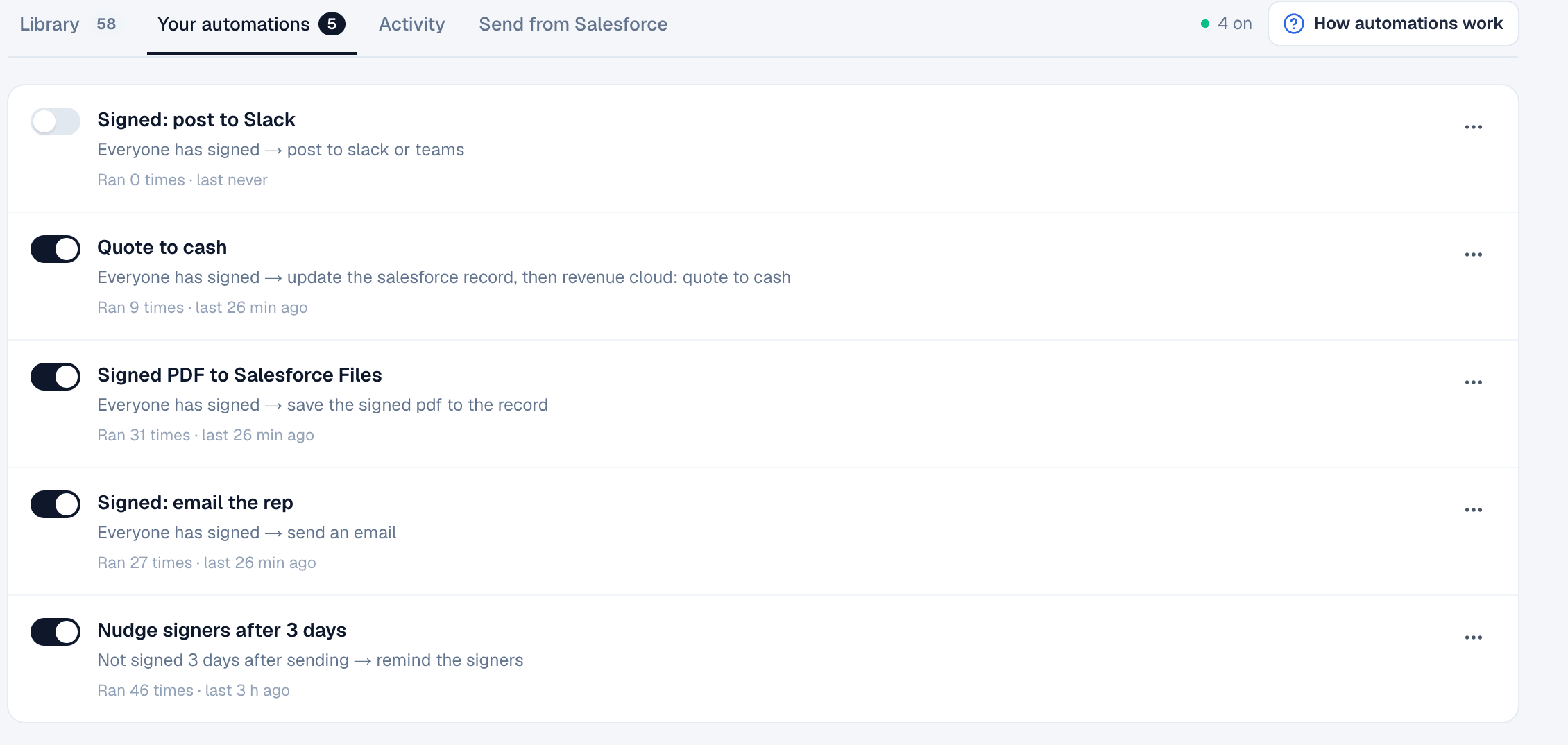
- Pause: turn off its switch. “Remind signers until they sign” is off appears. It keeps its settings and its history.
- Turn it back on: turn the switch on again. It starts fresh: a time-based one doesn't catch up on the days it was off.
- Edit: choose •••, then Edit, change it and choose Save.
- Delete: choose •••, then Delete, and OK when your browser asks. Its activity is deleted with it. Automation deleted appears.
Activity
The Activity tab shows everything your automations did, newest first: which automation, which document (click it to open the document), what each step did, and the outcome. Choose Refresh to see new runs.
| Outcome | Meaning |
|---|---|
| Done | Every step did what it should. |
| Partly done | Some steps worked and some couldn't. The ones that couldn't start with Couldn't: and say why. |
| Nothing to do | Every step was skipped, for example Skipped: Everyone has signed for a reminder. |
| Failed | No step worked. The reason is on each step. |
| Waiting on Salesforce | A Salesforce step is queued, for example until Salesforce is reconnected. The run updates when it finishes. |
| Running | Its steps are still going. |
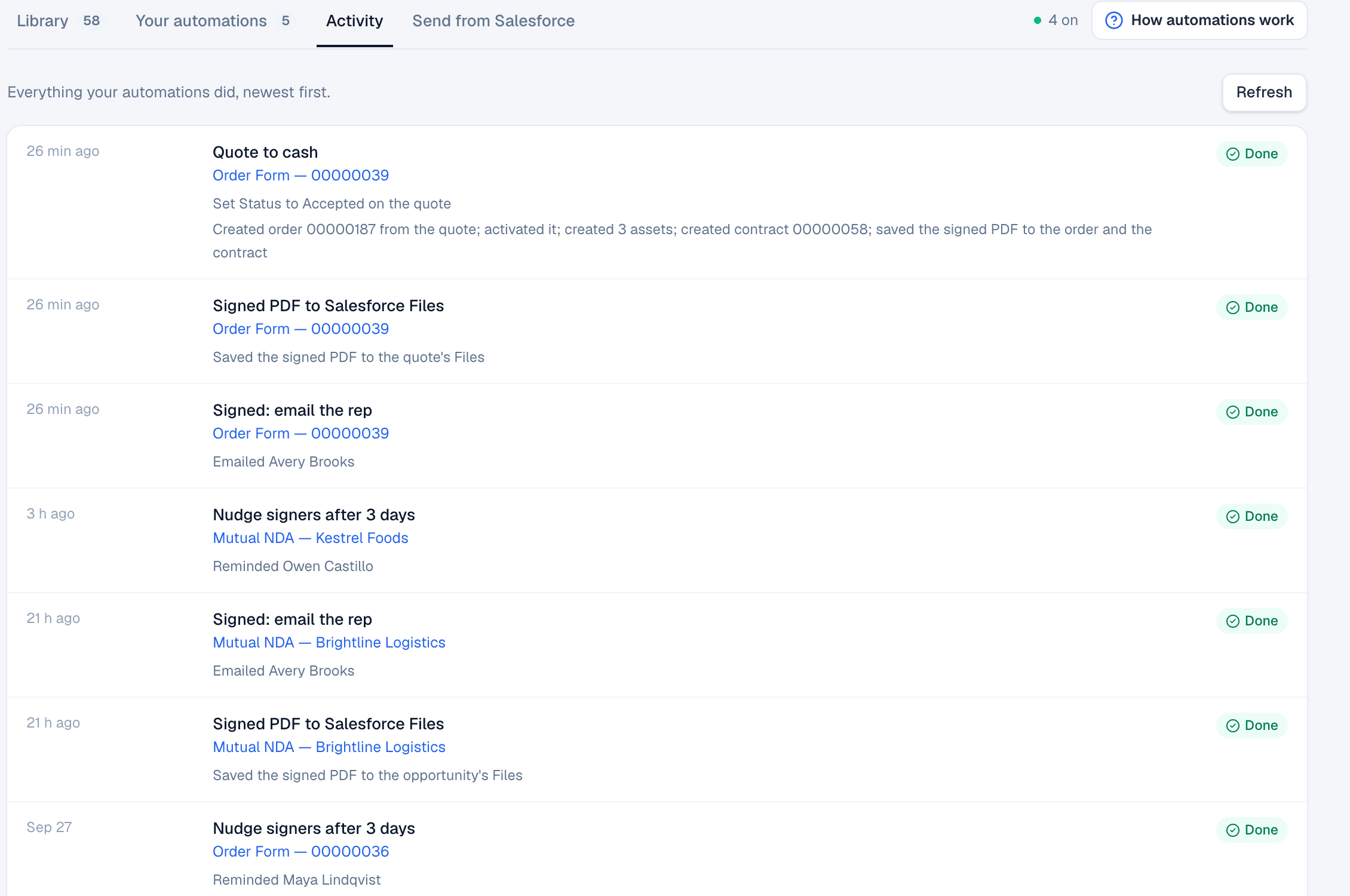
Each run is also written in the document's history, as Automation “Signed: email the rep”: Emailed Avery Brooks.
Which ones need Salesforce
Until Salesforce is connected (Settings → Salesforce), the library only shows automations that work without it. Once it's connected, three more categories appear, Salesforce updates, Revenue Cloud and Automatic sends, along with Renewal task in Salesforce at 11 months under After signing and Flag expired quotes in Salesforce under Deal hygiene.
| Needs | Automations |
|---|---|
| Nothing | Everything in Follow-ups & reminders, Keep the team in the loop and Slack, Teams & webhooks, and all but one in After signing and Deal hygiene. |
| Salesforce | Salesforce updates: quote Presented, Accepted or Denied, opportunity Closed Won, Next Step, account type, the signed PDF in the record's Files, tasks for the rep and Salesforce bell notifications. Also the renewal task and flagging expired quotes. |
| Salesforce with Revenue Cloud | Revenue Cloud: create the order, activate it, create assets and the contract, Full quote to cash. A card says Needs Revenue Cloud until it's available. |
| Salesforce and a template | Automatic sends: Set up opens the Send from Salesforce tab with a rule filled in. See Automation rules. A card says, for example, Needs a Quote template until you have a template used on that object. |
Salesforce automations only act on documents sent from Salesforce. Only for can narrow one to a single object, for example From Quotes.
Good ones to turn on first
| Automation | When | What it does |
|---|---|---|
| Nudge signers after 3 days | Not signed 3 days after sending | Reminds everyone still waiting to sign, once. |
| Keep nudging every 2 days, up to 3 times | Not signed 2 days after sending, then every 2 days | Reminders on day 2, 4 and 6 until it's signed. |
| Resend when nobody opened it in a day | Not opened 1 day after sending | Sends the signing link again. |
| Warn signers 2 days before the link expires | 2 days before the links expire | A last reminder, saying the link expires soon. |
| Tell the rep when it was opened but not signed | Opened but not signed after 1 day | Emails the rep: the moment to call. |
| Email the rep the moment it's signed | Everyone has signed | Emails whoever sent it. |
| Customer asked a question: alert the rep | The customer asks a question or comments | Emails the rep the question, with a link to reply. |
| Send every signed PDF to finance | Everyone has signed | Emails the signed PDF to the addresses you give it (Set up). |
| Alert admins when a deal is declined | A signer declines | Emails owners and admins, with the reason. |
| Tell the rep 3 days before it expires | 3 days before the links expire | Emails the rep while there's still time. |
| Tell the rep when a document expires | The signing links expire | Emails the rep to resend it or close it out. |
| Renewal heads-up 11 months after signing | 335 days after everyone signed | Emails the rep a month before a yearly agreement comes up. |
| Post every signed deal to Slack | Everyone has signed | Posts to a Slack, Teams or Discord channel (Set up: paste the channel's incoming webhook link). |
Good to know
- Each automation runs once per document, and once per repeat for reminders. One on It's sent runs again when an edited document is sent again.
- Time-based automations only cover documents that reach that point after you turn them on, so turning one on never reminds a pile of old documents. They're checked every few minutes.
- Reminders stop on their own once the document is signed, declined or voided, and aren't sent once the signing links have expired.
- Opening or signing your own document never counts as the customer opening or signing it.
- An internal note from your team never reaches the customer: steps that would email the signers or anyone outside your company are skipped for it.
- Everything an automation does, including anything it couldn't do and why, is in Activity and in the document's history.
On the website: Any object·Pricing