
Download everything, leave or delete the company
Download every signed document as a zip, delete your own login, hand the company to someone else, or delete the whole company.
5 sections · 5 screenshots
Everything here is in Settings. Anyone can delete their own login. Owners and admins can download every signed document at once. Only the owner can delete the company, and it's deleted 14 days after they confirm, so there's time to change your mind.
Download all signed documents
- Open Settings → Company and scroll to Download signed documents.
- Choose Download zip.
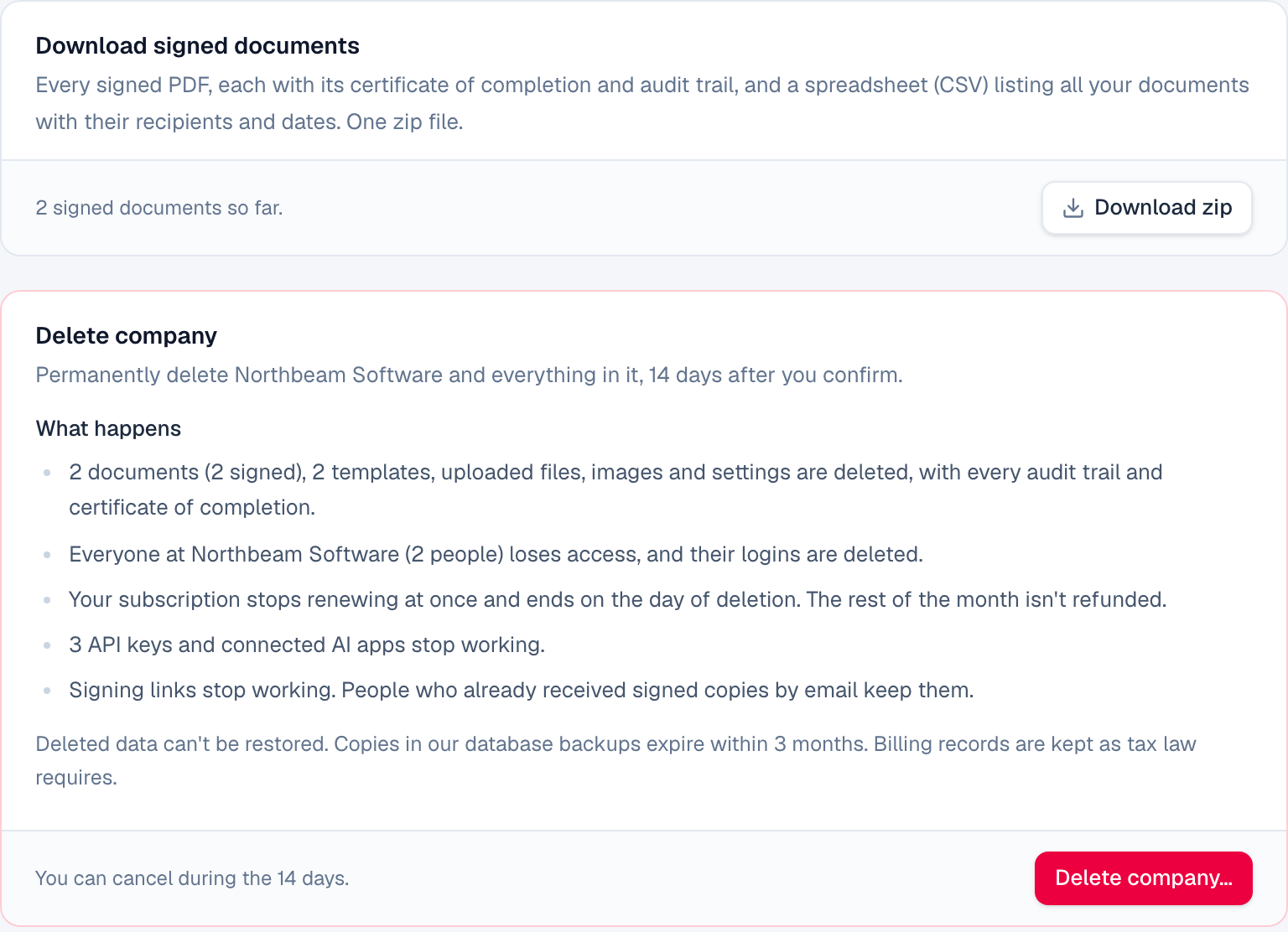
The zip has the signed PDF of every completed document, each ending with its certificate of completion and audit trail, and documents.csv, which lists every document (drafts, sent, completed, declined and voided) with its recipients, their status and the dates. Owners and admins can download it; anyone can download a single signed PDF from its document.
Delete your own login
- Open Settings → Profile and scroll to Delete my login.
- Choose Delete my login….
- Type your email address to confirm, then choose Delete my login.

- You're signed out everywhere and leave the company. You can only come back if someone invites you.
- Your password, linked Google, Microsoft, Salesforce and single sign-on logins, remembered browsers and any API keys you created are deleted.
- Your seat goes back to the company. Like any removed seat, it can go to someone else after 7 days.
- Documents you sent stay with the company. Your name and email stay on them, on their audit trails and on comments, because they're the company's signing records. Signed copies emailed to you are yours to keep.
We email you to confirm. The owner can't delete their login until someone else owns the company, or the company is deleted.
Hand the company to someone else
- The owner opens Settings → Team.
- Choose Make owner next to the person, then confirm.
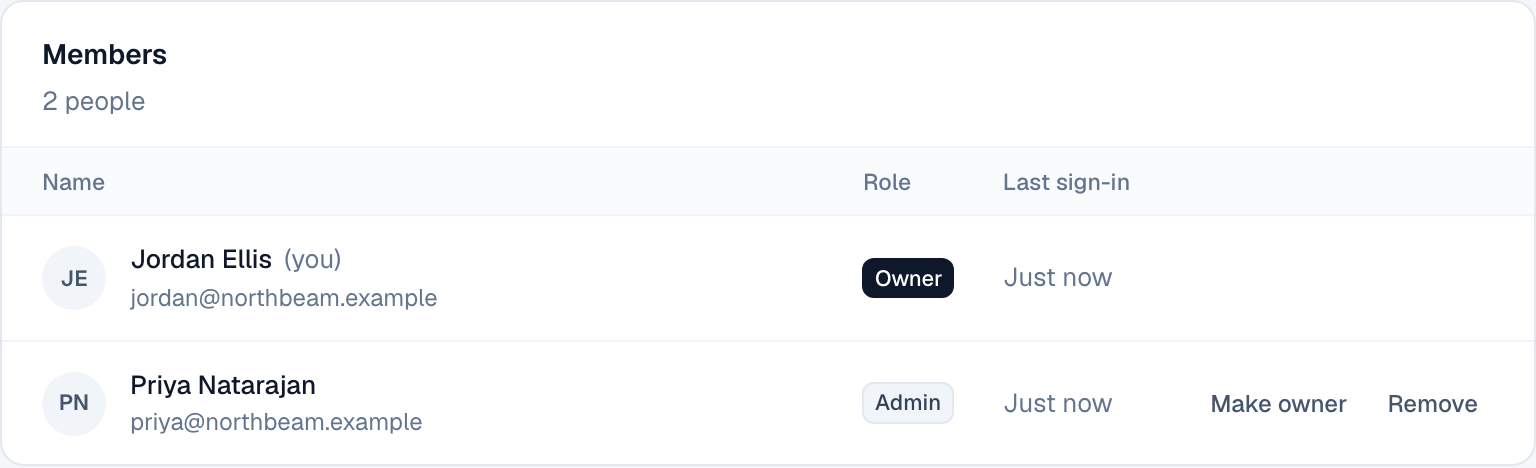
They become the owner and are emailed; you become an admin. The new owner can delete the company or hand it on, and billing emails go to them. A company scheduled for deletion can't change owners until the deletion is canceled.
Delete the company
Only the owner can do this. Download your signed documents first.
- Open Settings → Company and scroll to Delete company. It lists what will be deleted, with your numbers.
- Choose Delete company….
- Type the company name exactly as shown, then choose Delete company.
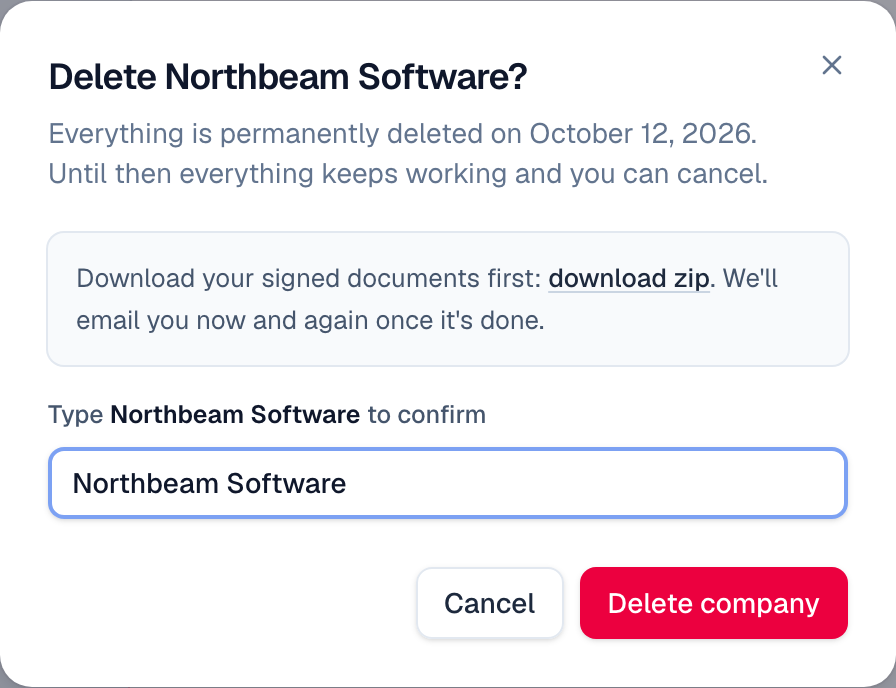
The deletion is scheduled 14 days ahead, and we email the owner. Until then everything keeps working: people can sign in, send and download, and recipients can still sign. Everyone at the company sees the date across the top of every page, and the subscription stops renewing.
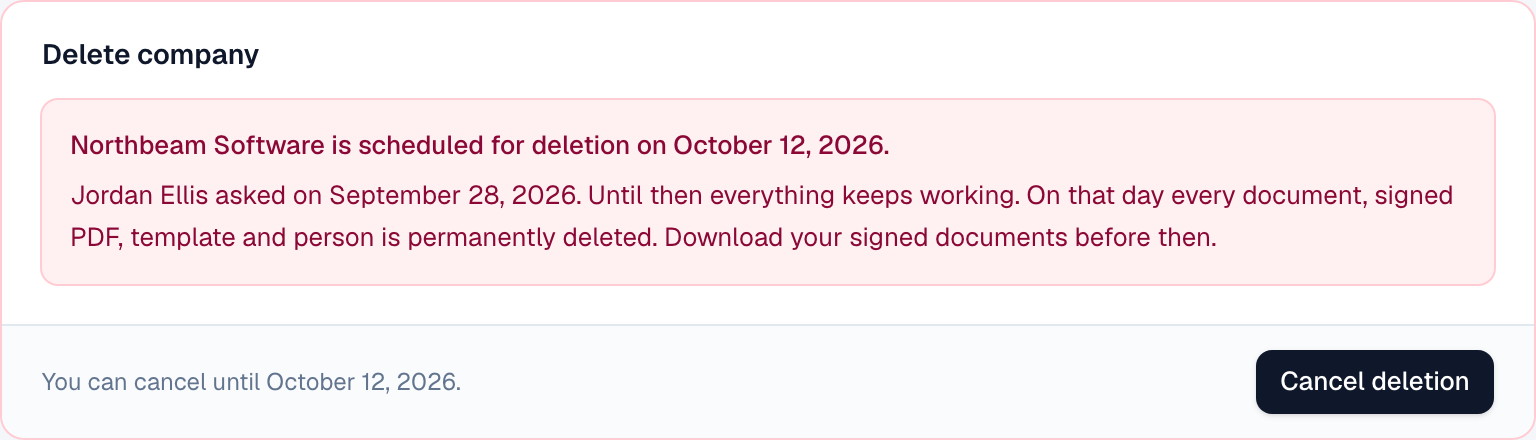
Changed your mind? The owner chooses Cancel deletion in Settings → Company any time before the date. The subscription renews again as before, and we email the owner.
What happens on the deletion date
- The subscription ends. The rest of the month isn't refunded, and nothing more is charged.
- Salesforce is disconnected: the Flows your automation rules added are removed and its sign-in is revoked. Records already written to Salesforce stay there.
- API keys and connected AI apps like ChatGPT and Claude stop working.
- Every document, signed PDF, audit trail, template, uploaded file, image, automation, setting and login is permanently deleted, with the company's files in our storage. Single sign-on setup goes too.
- Signing links stop working. People who already received signed copies by email keep them.
- We email the owner once it's done.
On the website: Pricing