
Negotiate from inside Salesforce
Reply to questions, leave internal notes and accept or reject redlines without leaving the record.
2 sections · 9 screenshots
On this page
Reply and leave notes
Customers negotiate on the signing page. Here the customer asked a question, suggested an edit to the terms and requested a change to the order summary.

You see it all on the record. In the Tally Sign tab, the Document tab shows a count when there are open changes or a question waiting for a reply. Suggested edits are marked on the page, and Changes and Chat sit beside it.
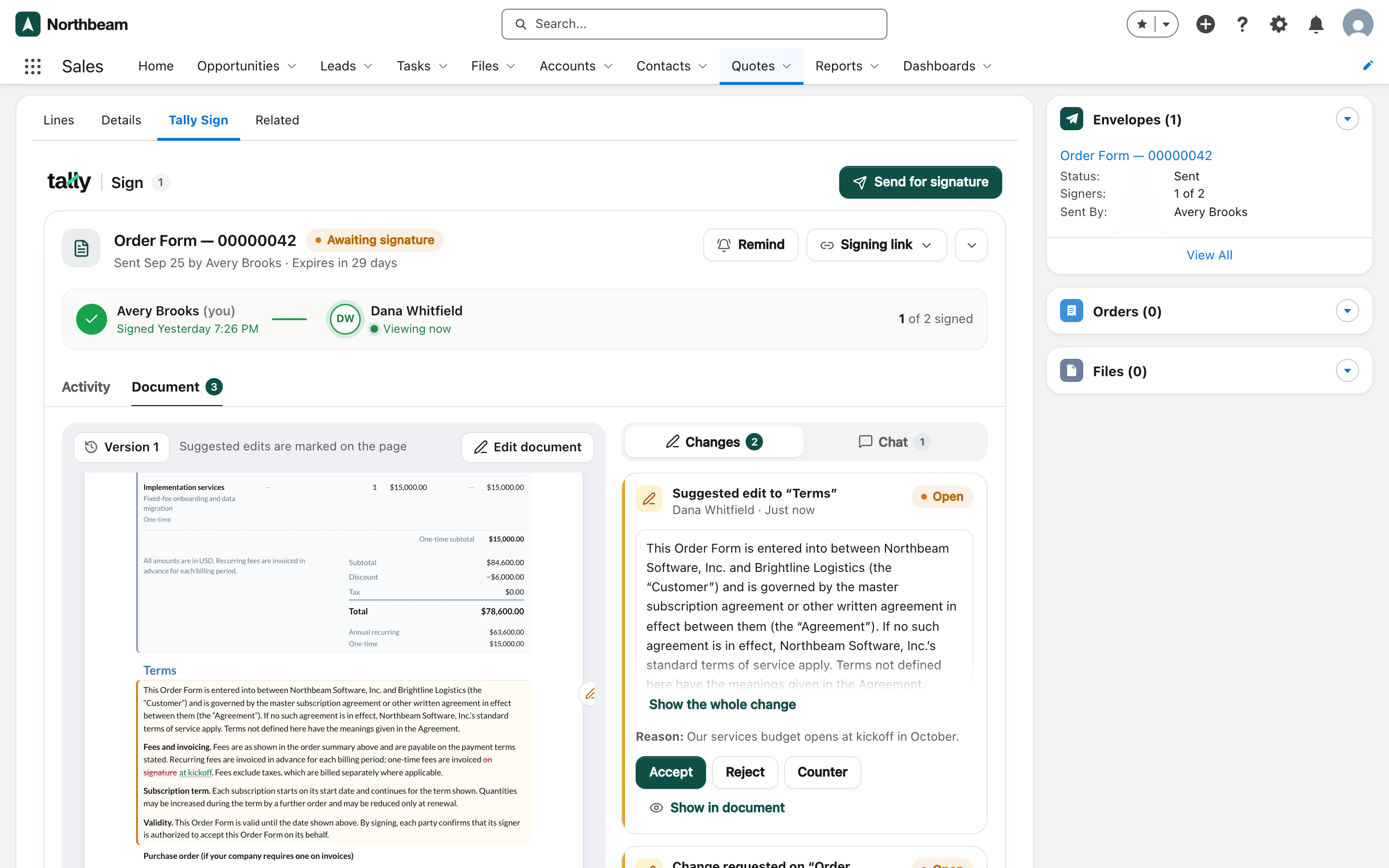
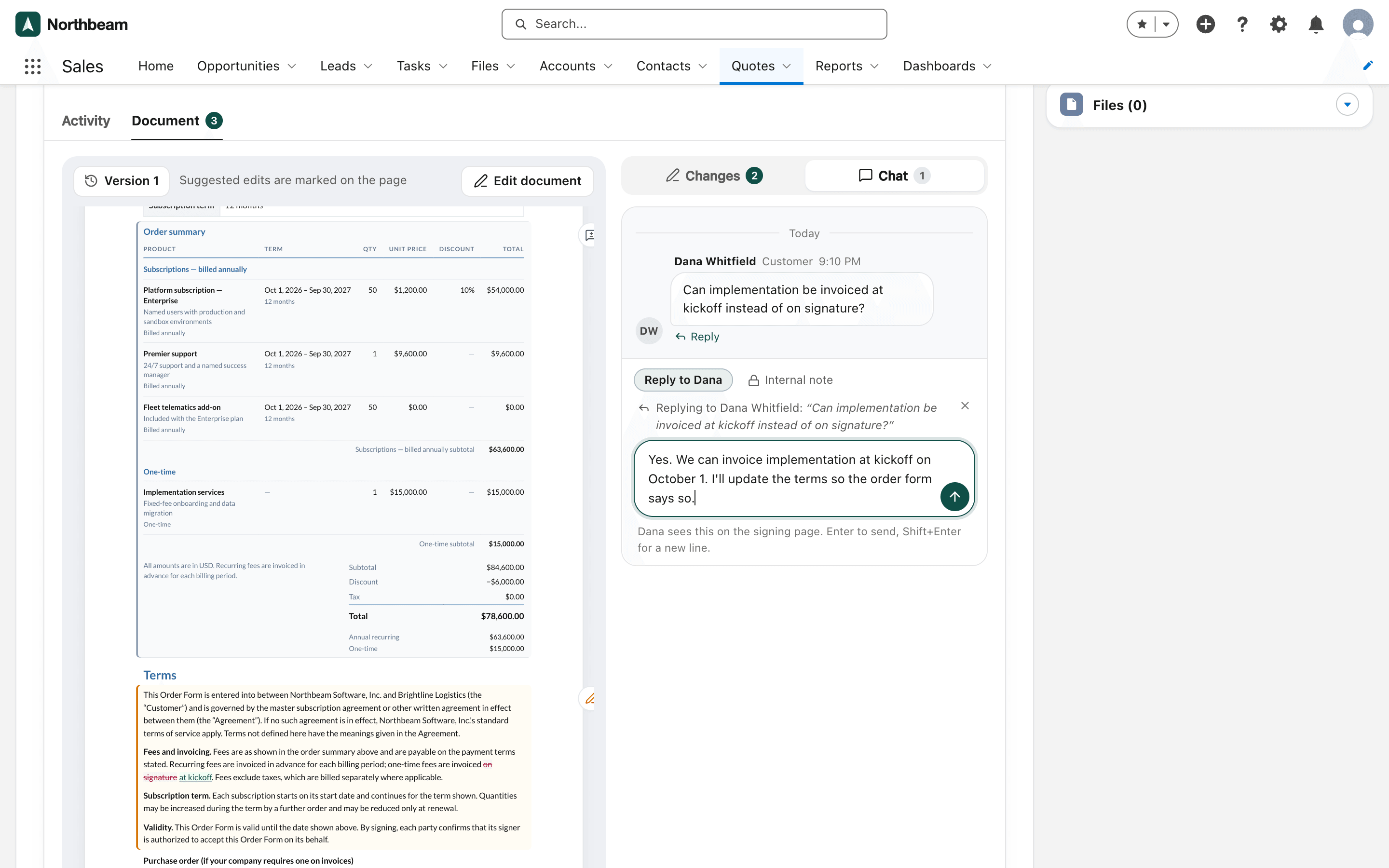
- Open the Document tab and choose Chat.
- With Reply to Dana selected, type your answer. Press Enter to send. It goes under Dana's latest question; to answer a different message choose Reply under it, or clear the reply to start a new topic.
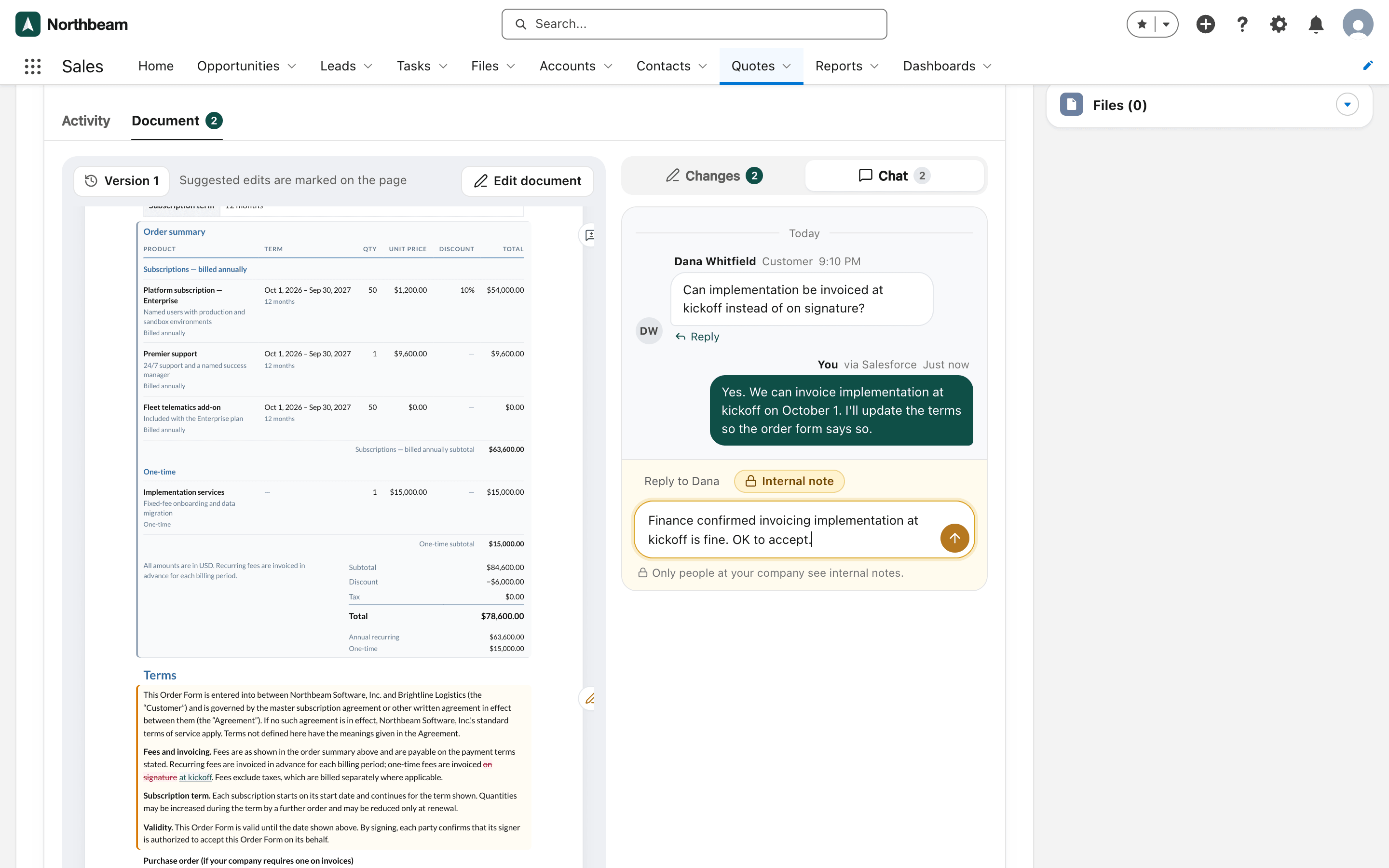
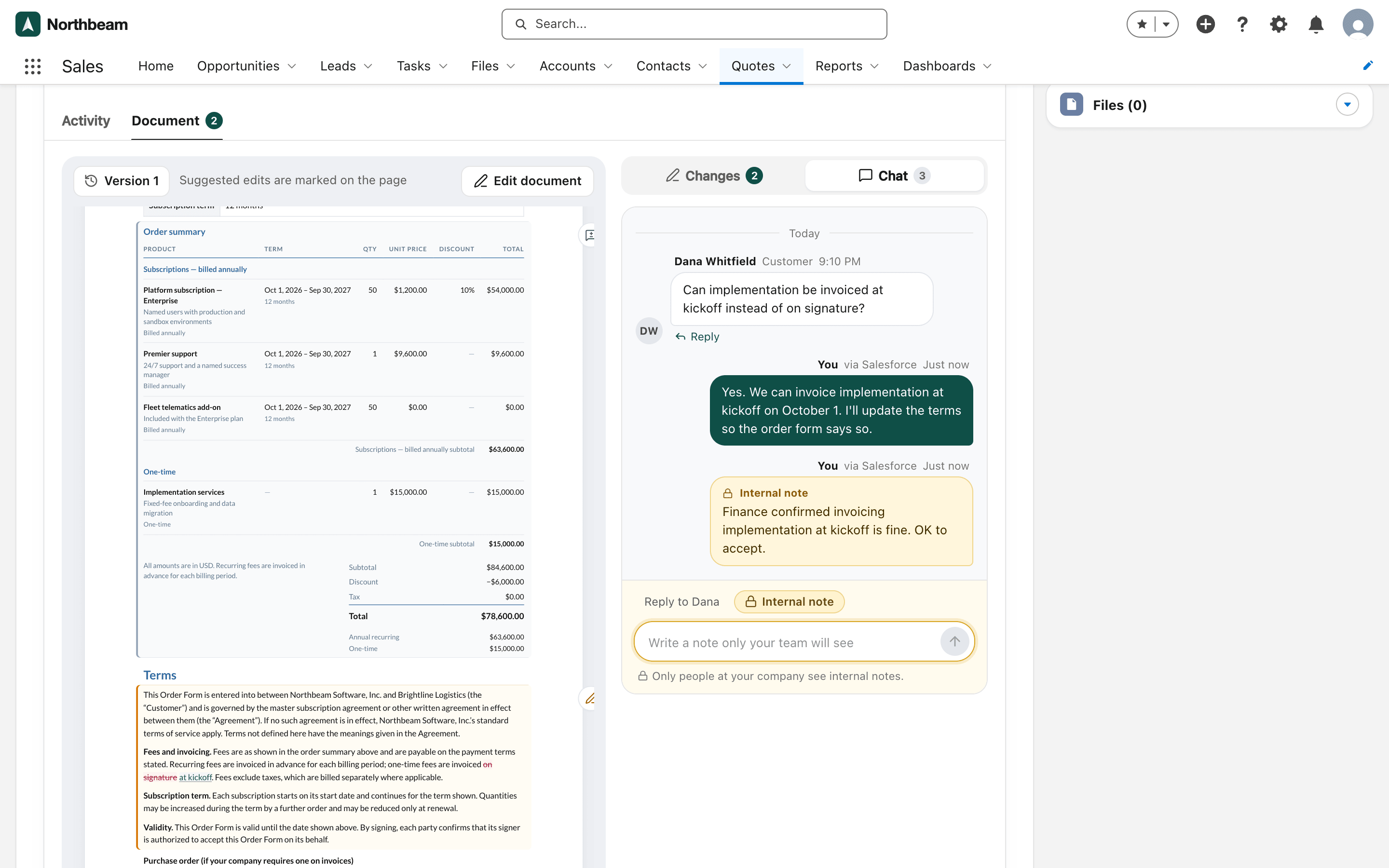
- To talk to your team only, choose Internal note first. The composer turns yellow.
Replying to the customer needs a seat. Anyone who can open the record can leave internal notes. Internal notes never reach the customer. They don't run automations that email signers, send reminders or send documents, whatever the automation's settings.
Once the signing link has expired, replies and decisions wait: the customer can't open the page. Choose Edit and resend to send a fresh link first. Internal notes still work.
Accept, reject or counter
In the Document tab, choose Changes. Deciding changes needs a seat.
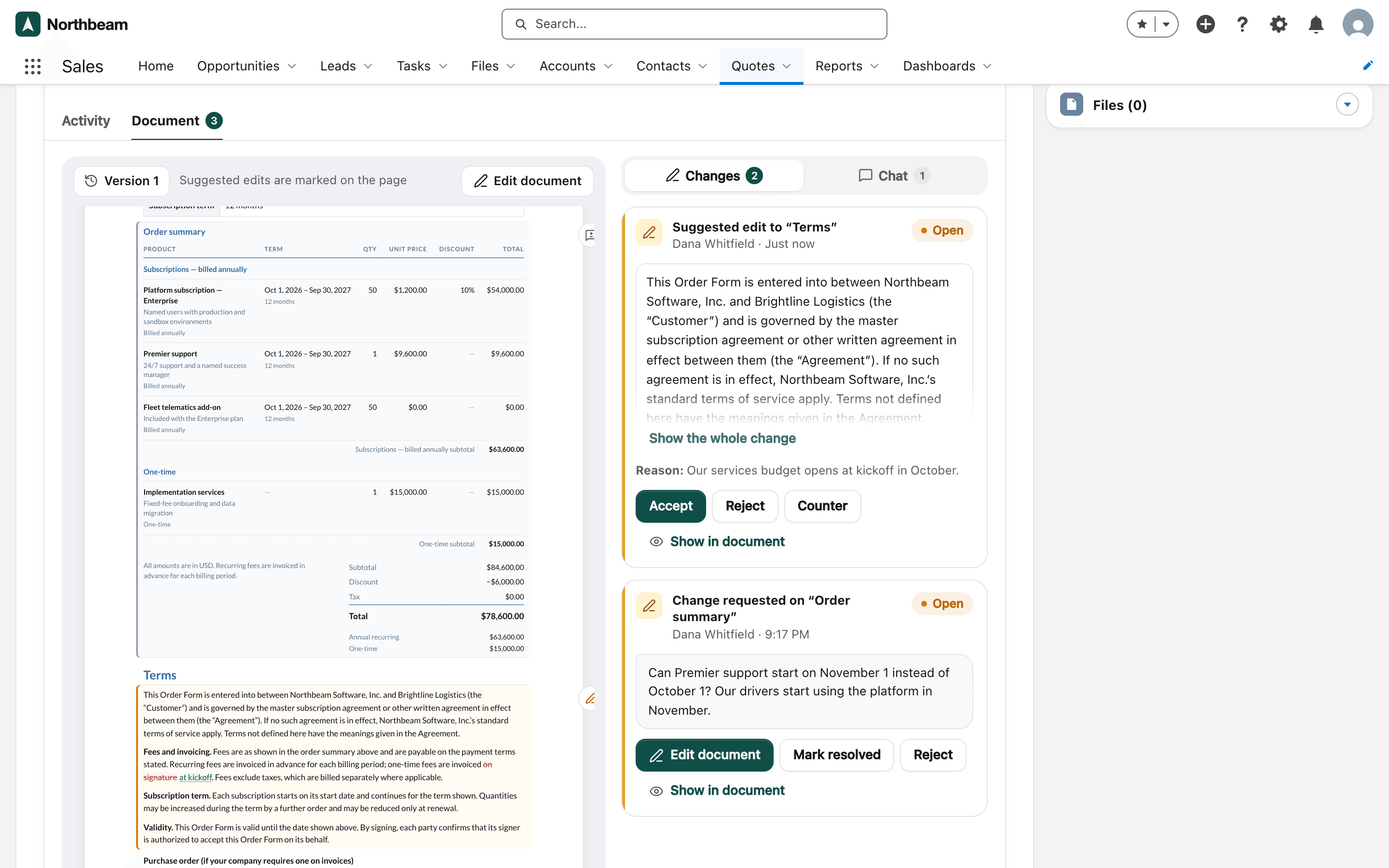
| Card | Actions |
|---|---|
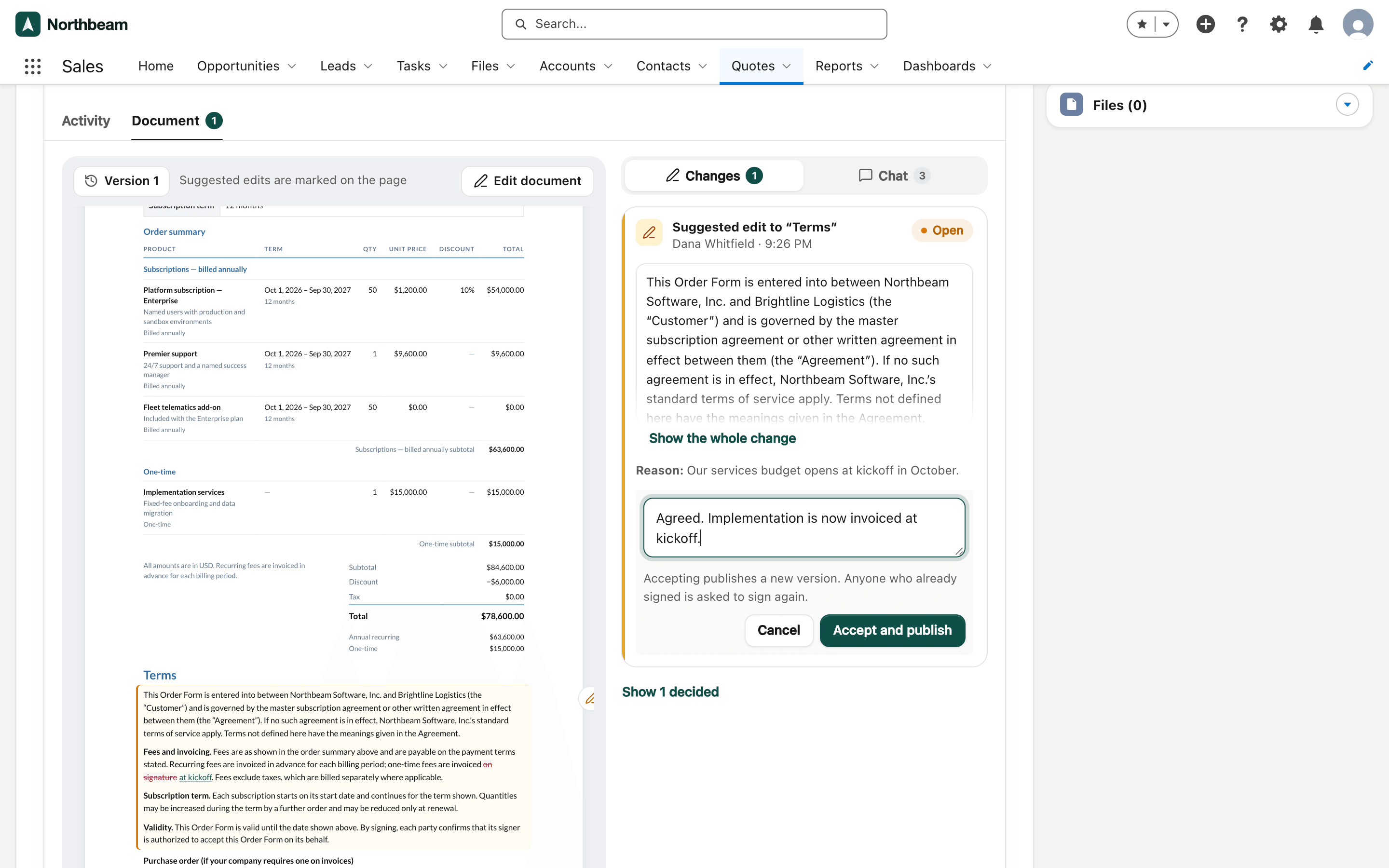
| Suggested edit | Accept, Reject, Counter (edit the wording and publish your version; the customer is told it differs from theirs), Show in document |
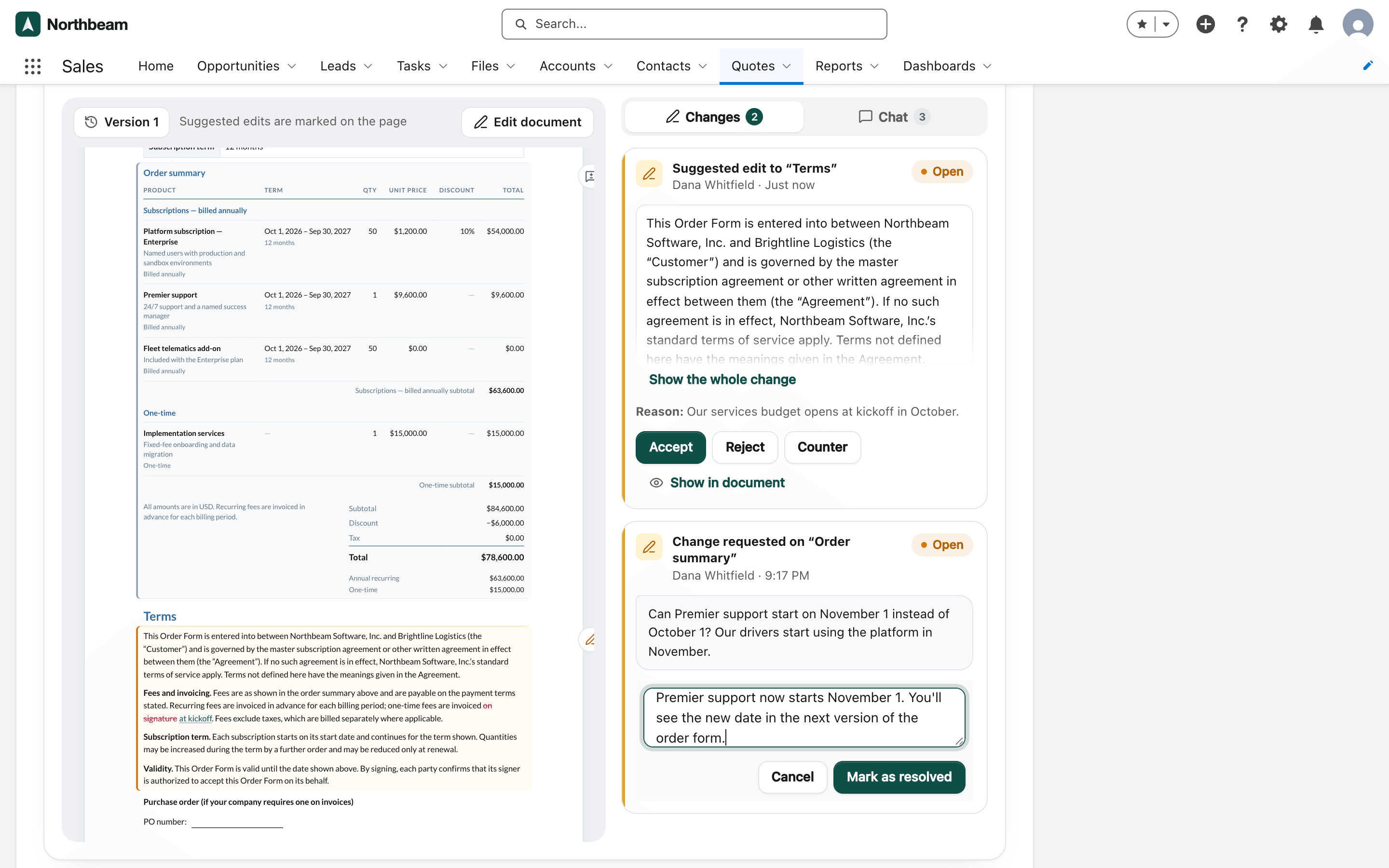
| Change request | Edit document (make the change in a new version), Mark resolved (after you've made the change), Reject, Show in document |
- For a change request, choose Edit document, then Unlock and edit, make the change and send the next version. The request is marked resolved when it's sent, and the customer is told.
- Or, if the change is already made, choose Mark resolved, add a note for the customer and choose Mark as resolved.
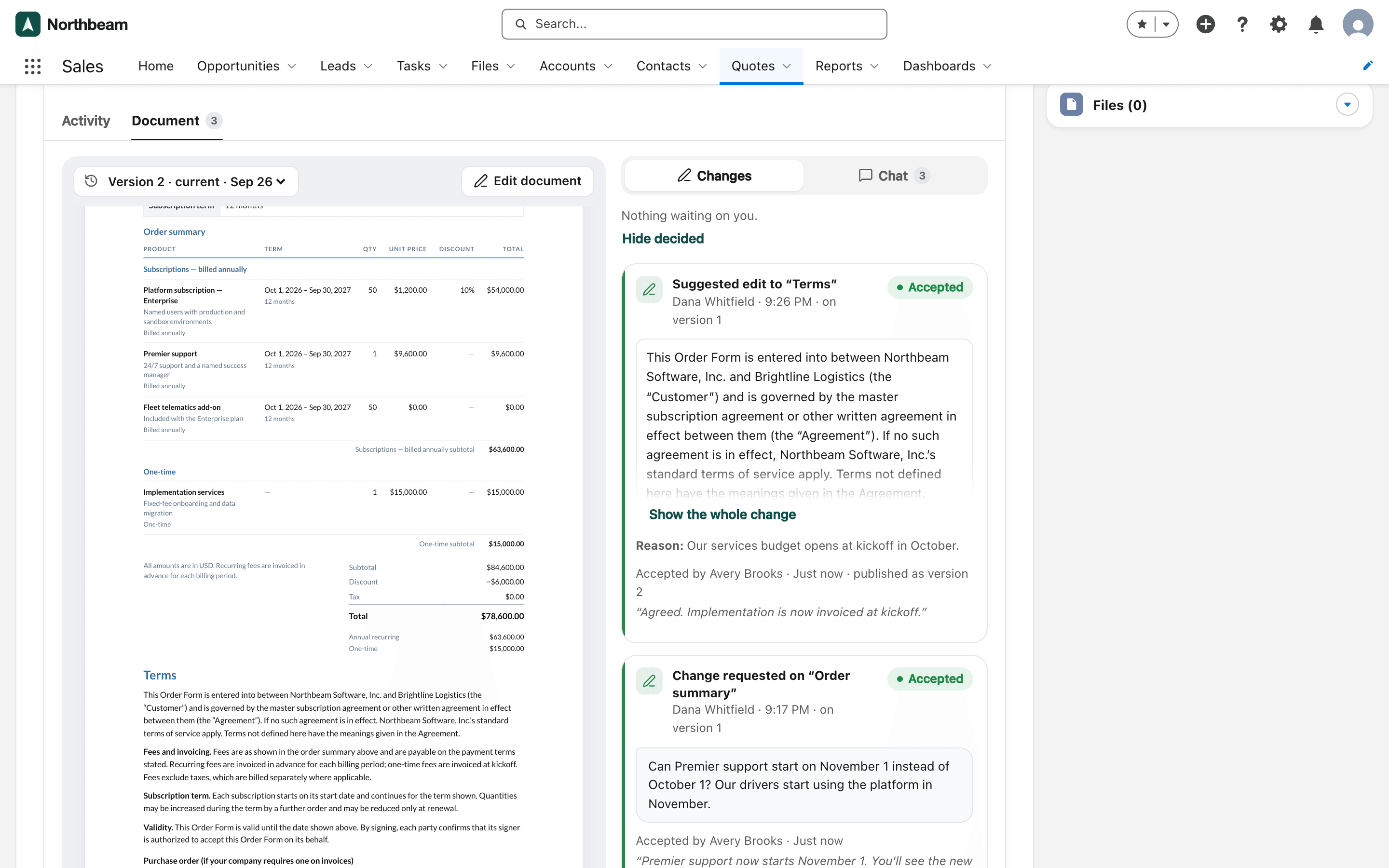
- For a suggested edit, choose Accept, add an optional note and choose Accept and publish.
A countered edit is labeled Countered. Decided changes are folded away; choose Show … decided to see them. Other open changes stay open while you edit and carry over to the next version, so you can still decide them. A suggested edit to a section you rewrote is closed, and the customer is told why.
On the website: Any object·Pricing