
Send a document and track it
Send for signature, see who opened and signed it, remind people and download the signed PDF.
6 sections · 13 screenshots
Send for signature
- Open a template and choose Use template, or choose New document in the sidebar.
- In Signers, enter each person's name and email.
- Fill in anything in Fill-ins that's still empty.
- Choose Send.
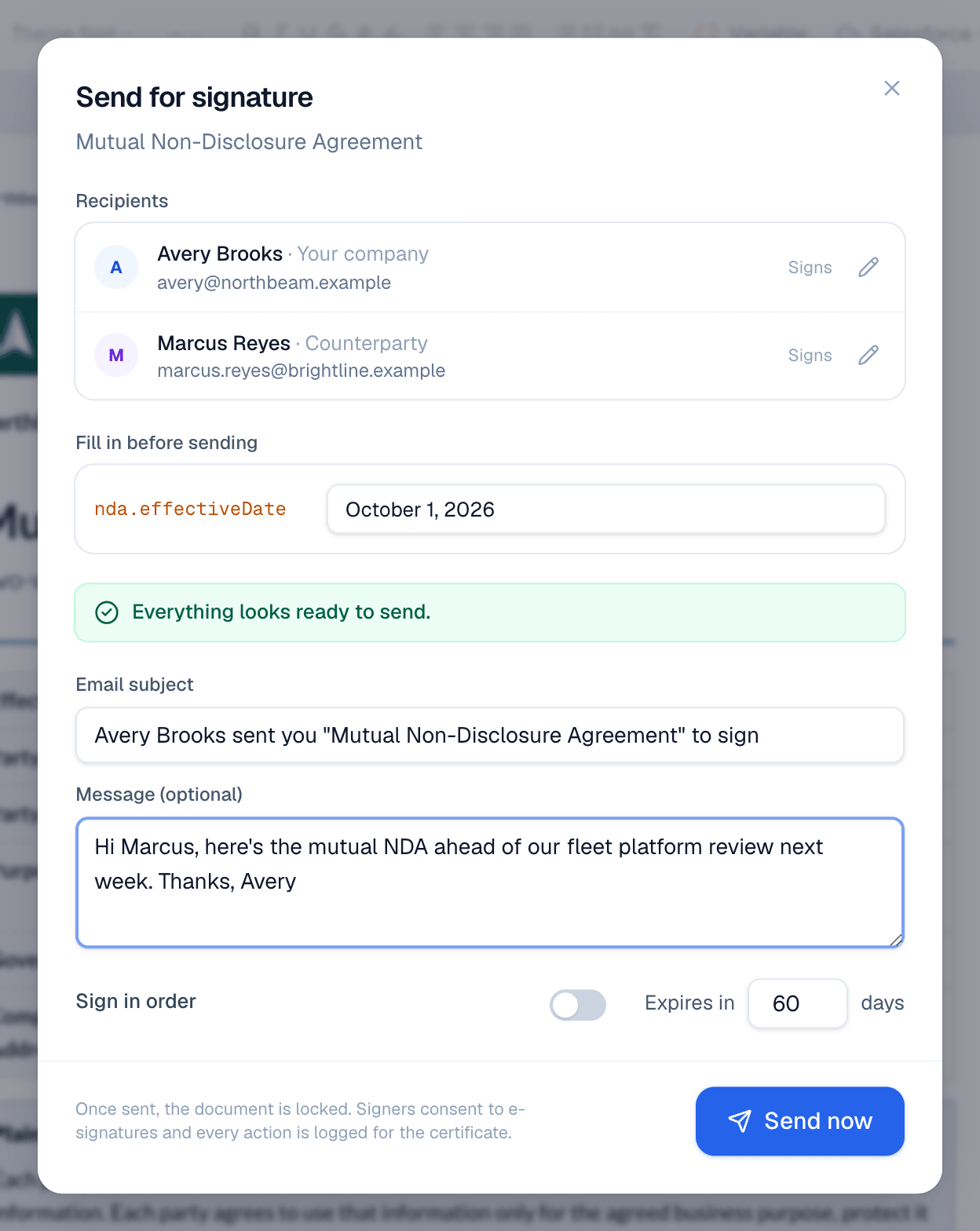
- Check the recipients and the Email subject. Add an optional Message.
- Turn on Sign in order if people must sign one after another. Change Expires in if 60 days is too long or short.
- Leave Signers can assign it to someone else on to let a signer pass the document to the right person, or turn it off when the named person has to sign it themselves.
- Choose Send now.
Attach PDF exhibits
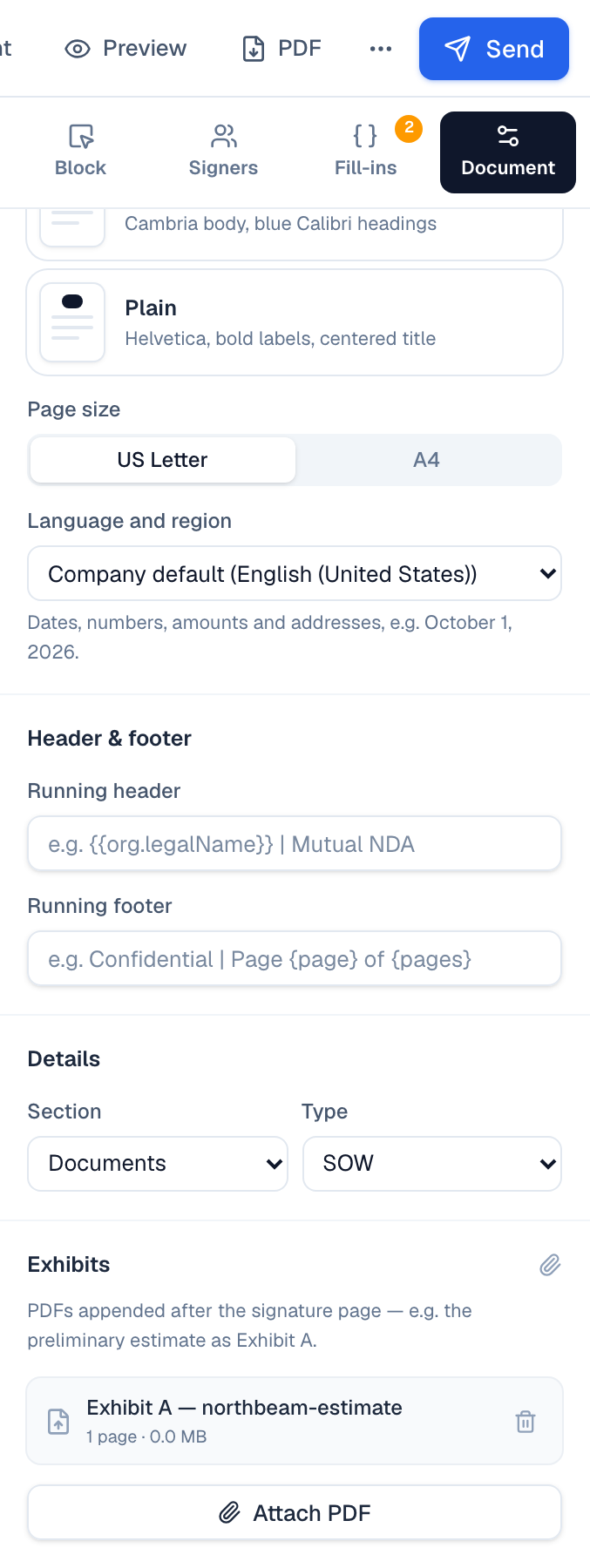
Exhibits are PDFs that go with the agreement, such as a preliminary estimate or a spec sheet. The signer can open them from the signing page, and they're added after the signature page of the signed PDF.
- Open the draft document (exhibits are added to documents, not templates).
- Choose the Document tab on the right and scroll to Exhibits.
- Choose Attach PDF and pick the file. It's named Exhibit A followed by the file name, then Exhibit B, and so on.
- To take one off, choose the trash icon next to it.
On the signing page, the signer sees Exhibits · Included with this agreement under the document, with View to open each one. The document page lists them under Exhibits too.

Track progress
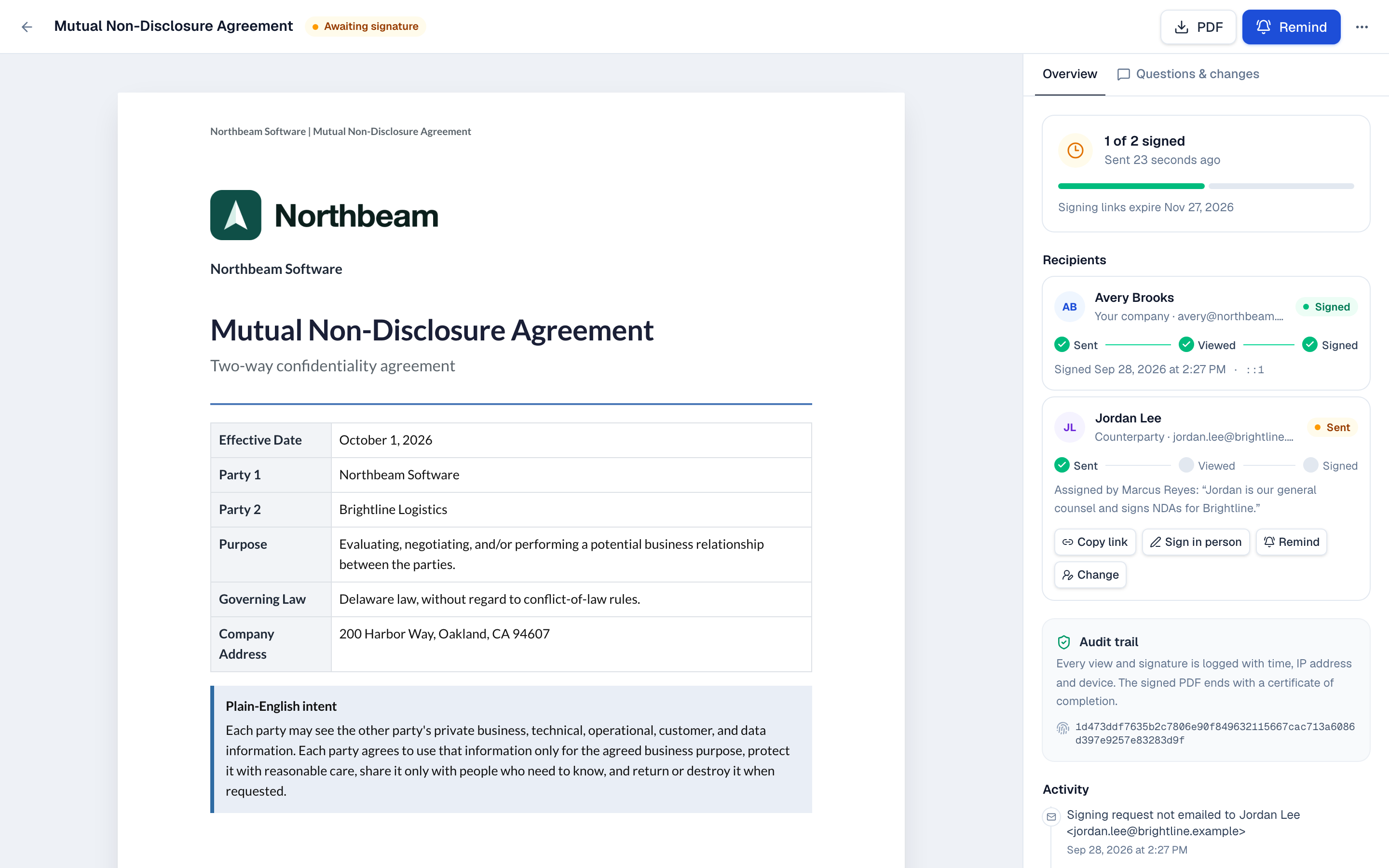
After sending, the document page shows its progress on the right. Each recipient moves through Sent, Viewed and Signed.
Viewed means the person had the document open in their browser and scrolled, clicked or typed in it. Just opening the link doesn't count: many companies' email security (and chat link previews) opens every link before anyone reads it. Those show in Activity as *Signing link opened*, and they're left off the certificate. Each later visit from a different device is logged as *Viewed again*, with its own IP address.
You get an email the first time each signer views the document, and again when they sign or decline (you can turn any of these off: see Choose which updates you get). Your own views don't count: opening a customer's link while you're signed in to Tally Sign, signing your part, or handing your device over for in-person signing. The document page, the Documents list and Home update on their own while anything is out for signature.
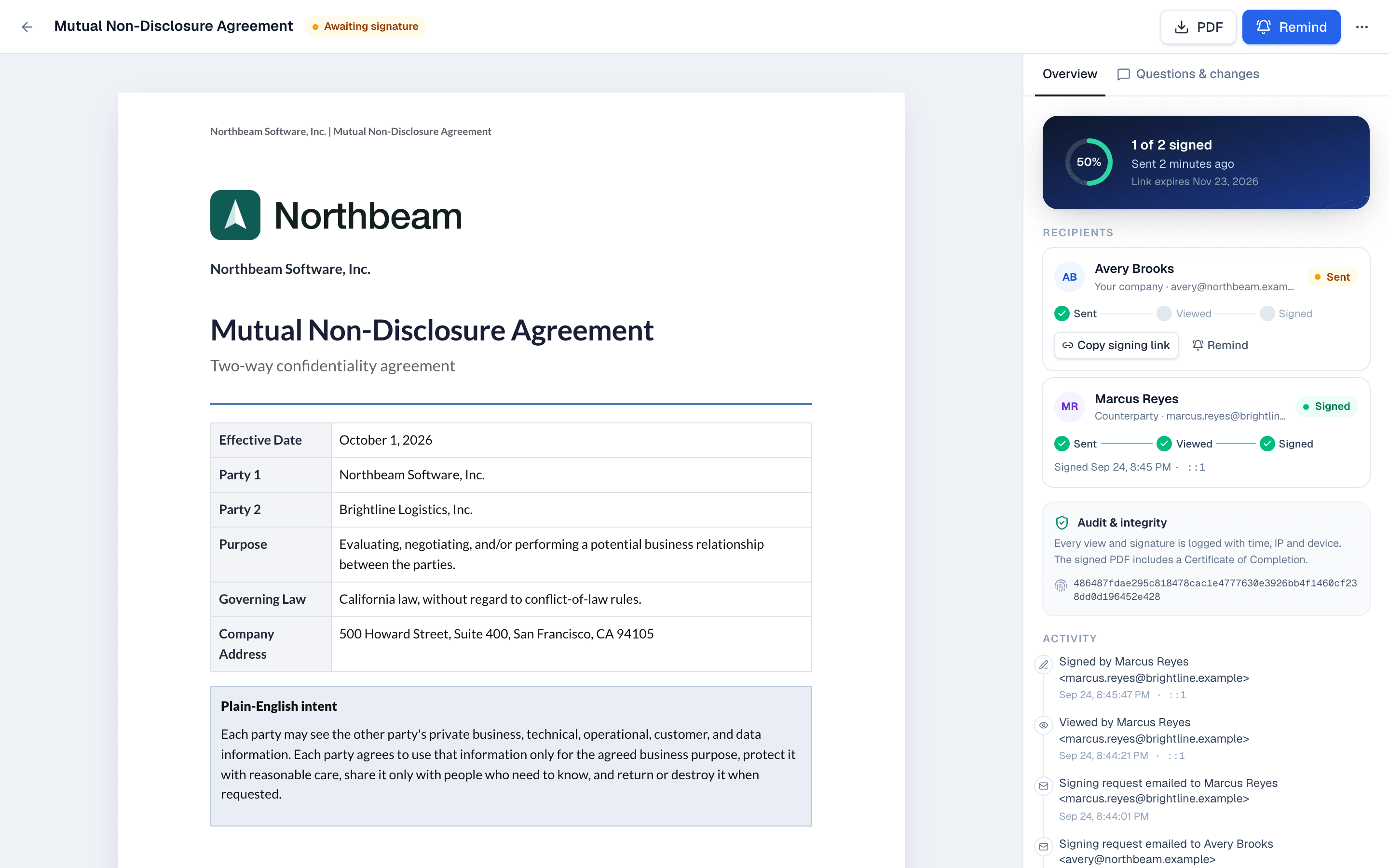
- Copy signing link gives you a person's link, for example to send it in a chat.
- Remind emails signers who haven't signed yet.
- Activity lists every event with time, IP address and device, including each email and the address it came from.
- The Questions & changes tab holds the conversation with the customer.
Signer can't find the email? See Why signing emails land in spam and how to send from your own domain.
Change a recipient after sending
If you mistyped someone's email or name, correct it without sending the document again. You can change anyone who hasn't signed yet, while the document is out for signature. People who already signed can't be changed.
- Open the document. In Overview, find the person under Recipients.
- Choose Change.
- Correct their Full name, Email, Title or Company.
- Choose Save, or Save and send new link when you changed the email of someone whose turn it is.
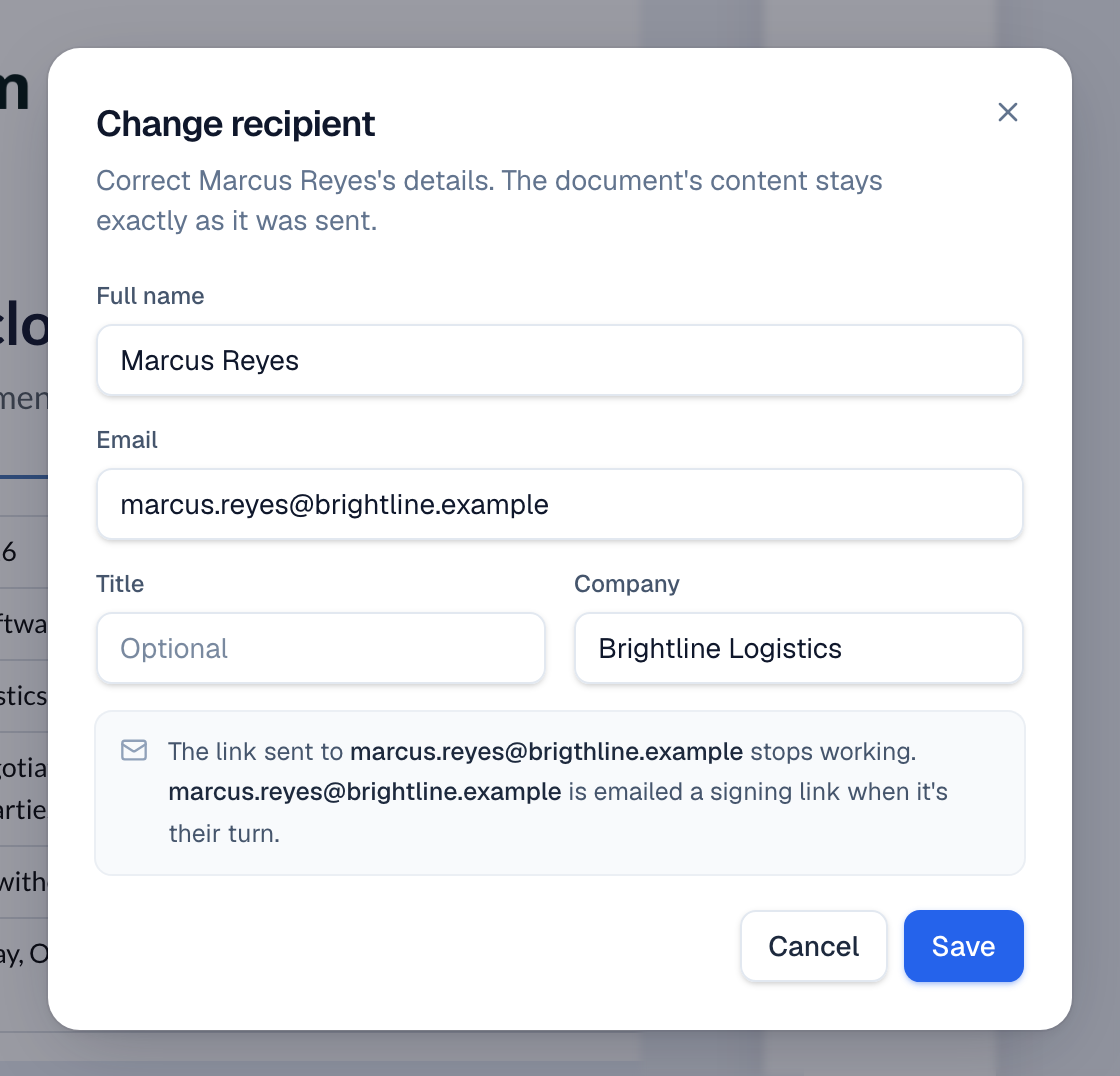
- A new email gets a new signing link right away, and the link sent to the old address stops working. If it isn't their turn yet (Sign in order), the new address is emailed when it is.
- A new name, title or company keeps the same link.
- The document's content doesn't change. If the person's name is written into the text itself, edit the document instead.
- Activity and the certificate record who made the change, when, and the old and new details.
A signer can also pass the document to someone else from the signing page, if you allow it. Their card then shows Assigned by with the reason they gave, and you get an email. See What your customer sees.
Void a document
Voiding cancels a document that's out for signature. Nobody can sign it after that. You can void a document while it's awaiting signature; a completed document can't be voided.
- Open the document from Documents.
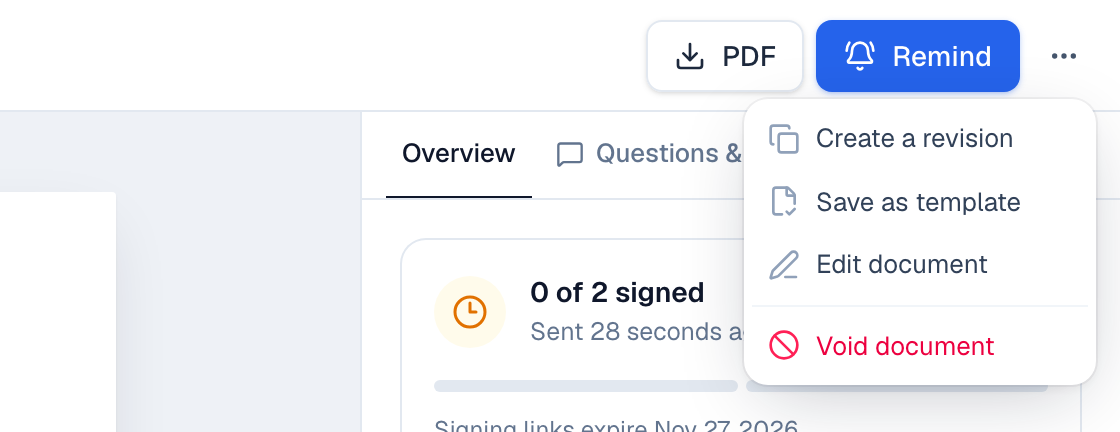
- Choose the ••• menu at the top right, then Void document.
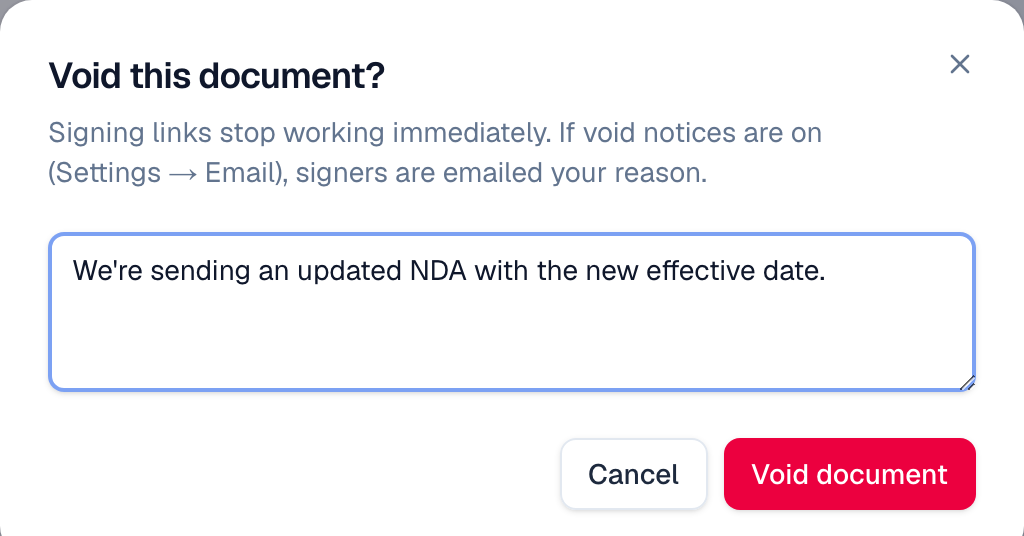
- Type a reason if you like, for example
We're sending an updated NDA. Signers see it in the void email. - Choose Void document.
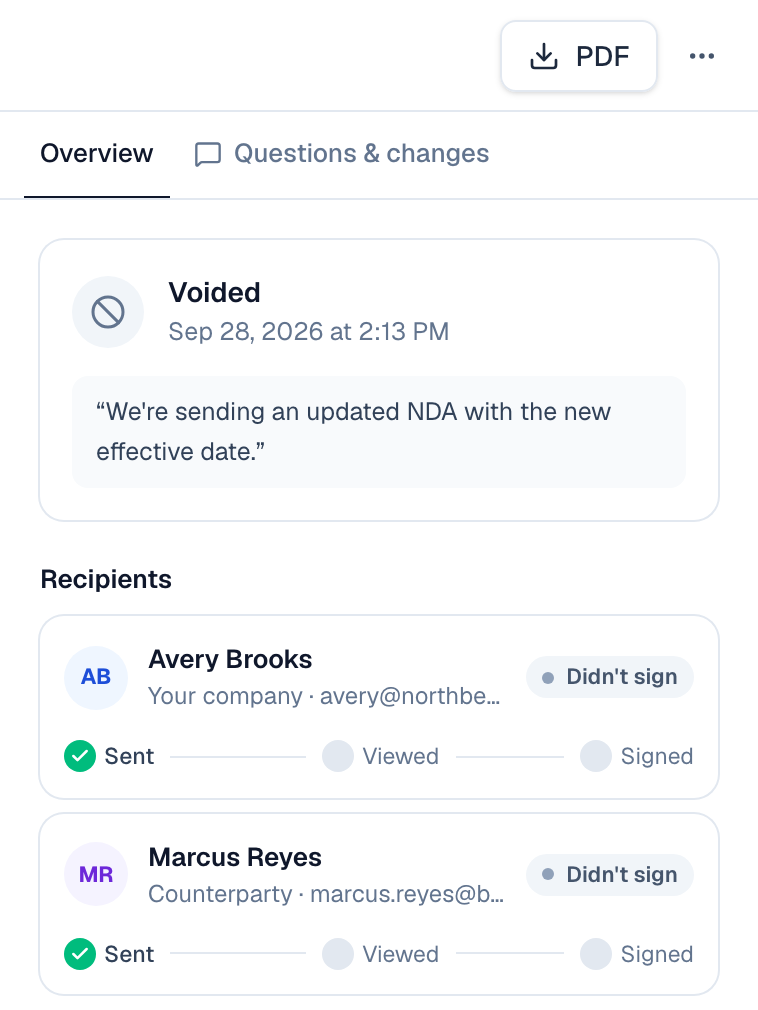
The status changes to Voided and your reason shows at the top of Overview. Recipients who hadn't signed are marked Didn't sign, and Activity records who voided it and why.
What signers see. Each signer's link stops working right away. Opening it shows This document was voided, with your email for questions.

Everyone who received a signing link is also emailed Voided: document name, with your reason, saying the document no longer needs their signature. Anyone who had already signed is told their signature won't be used. Replies go to you. Owners and admins can turn this email off in Settings → Email; see Email and notifications.
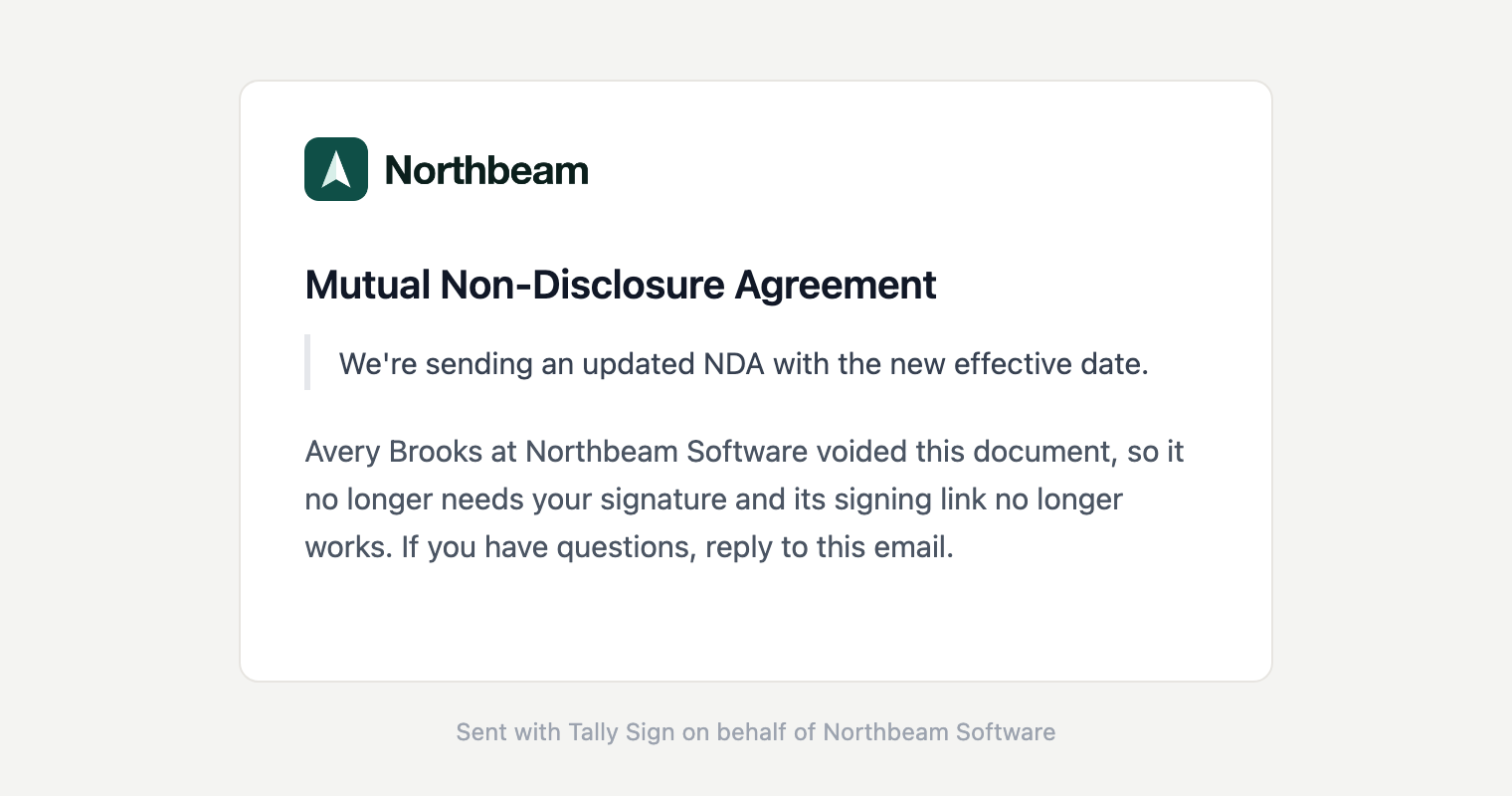
- Voided documents are listed under Declined & voided in Documents. You can delete one there with the trash icon; that also deletes its activity log.
- To fix something without cancelling, choose Edit document or Create a revision in the same menu instead. Editing unlocks it, and when you send it again signers get an email with a link to the new version.
- You can also void from Salesforce with the Void envelope action, or ask ChatGPT or Claude to do it.
When everyone has signed
The status changes to Completed and everyone gets the signed PDF by email. It ends with a Certificate of Completion that records each view and signature.
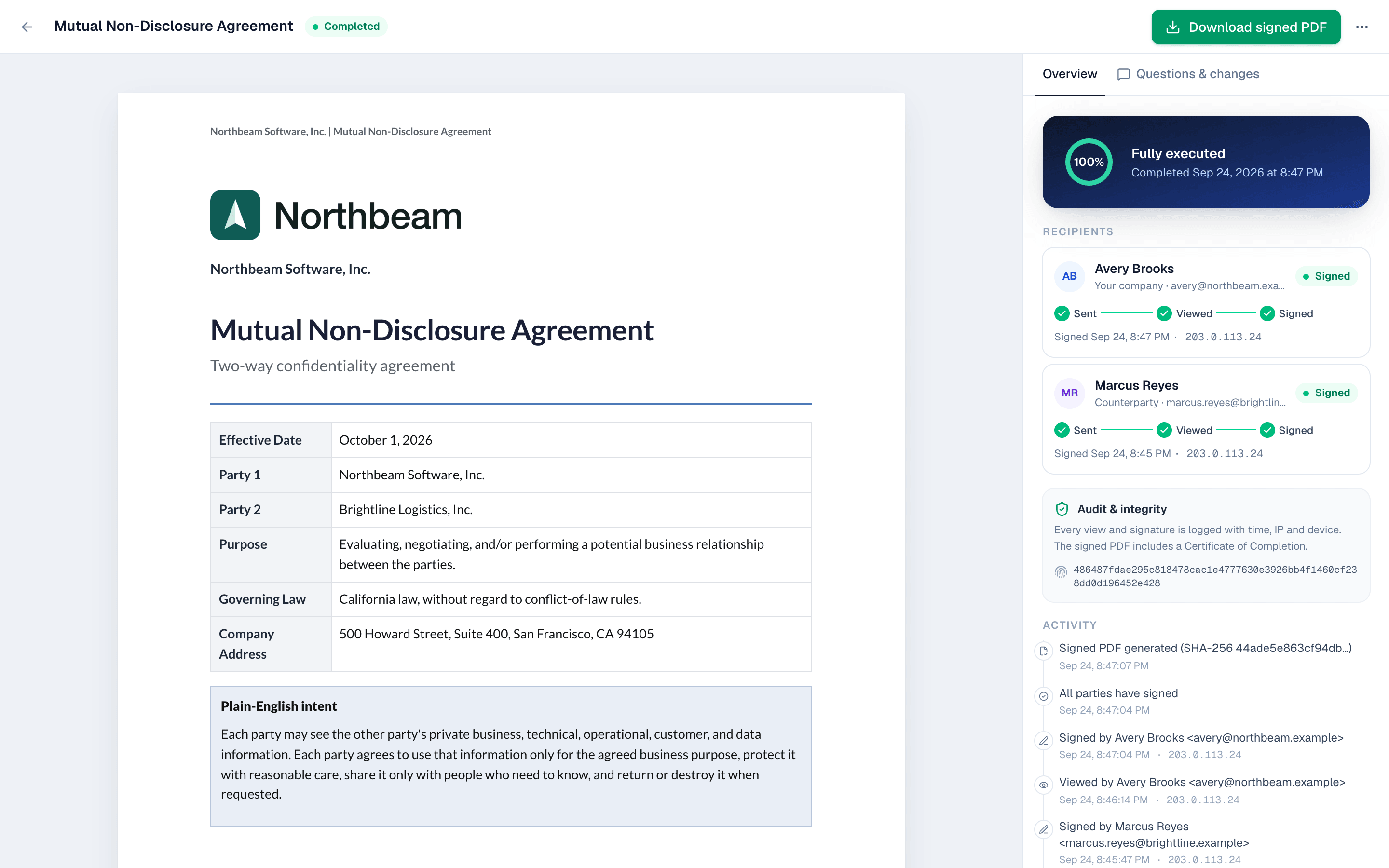
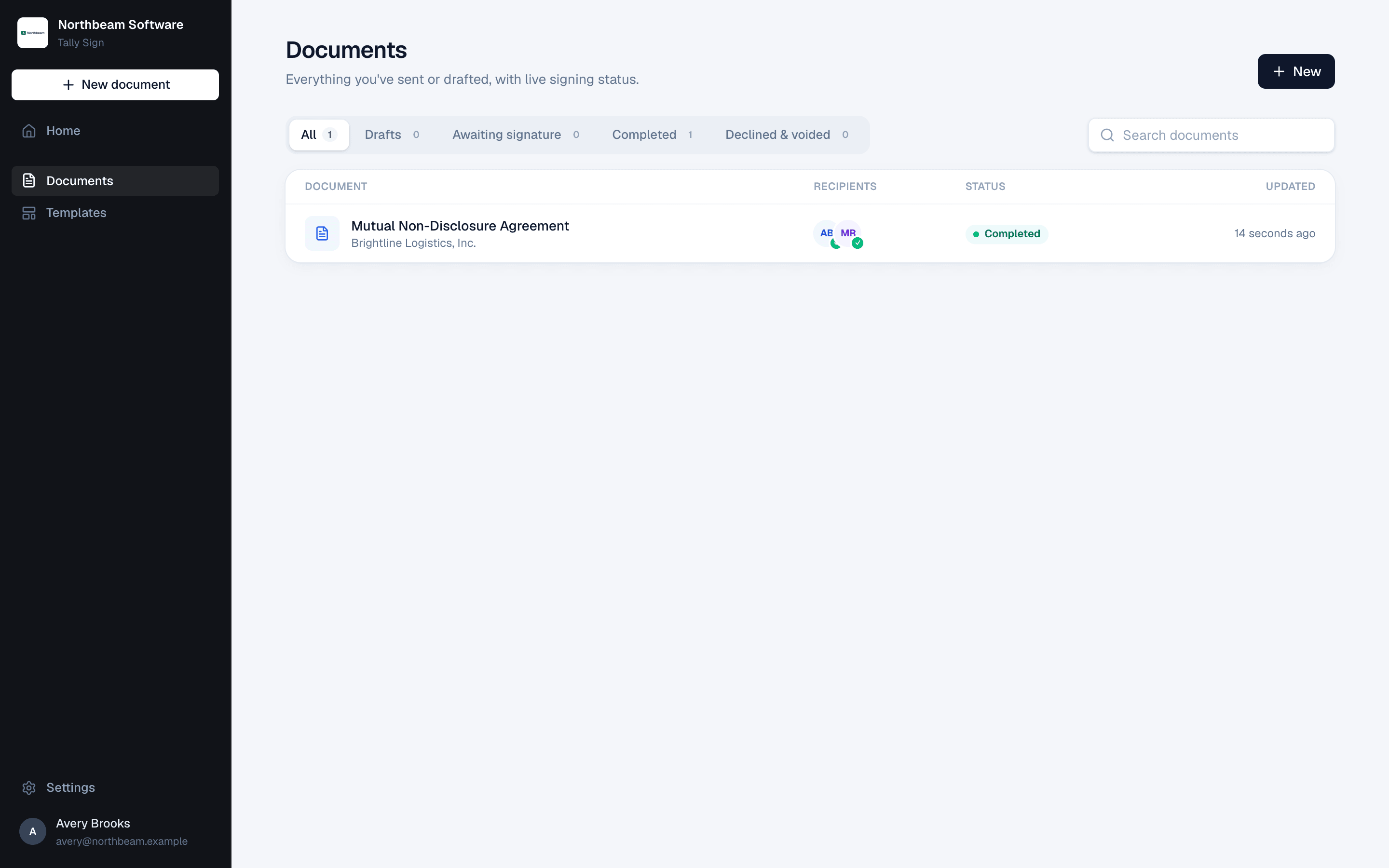
The Documents list shows everything you've sent or drafted, with live signing status. Filter by Drafts, Awaiting signature, Completed or Declined & voided.
To send the same template to many people at once, see Bulk send.
On the website: No CRM needed·Pricing