
Send from a Salesforce record
Send an order form or any template from a Quote, Opportunity, Order, Contract or Account.
2 sections · 3 screenshots
Send with Tally Sign
- Open the record, for example a Quote or an Opportunity.
- Choose Send with Tally Sign. You can also choose Send for signature in the record's Tally Sign tab.
- Under Document, choose the template. Templates linked to this object are listed first. To send your own PDF or Word file instead, choose Or use your own file.
- Under Who signs, check each person. Each shows where it came from. Choose Change to pick someone else, or Choose when nobody was found. A copy (CC) that nobody was found for can be skipped.
- If anything is listed under Fill in the details, fill it in. This only changes the document, not Salesforce.
- Under Message, check the Subject and, if you like, choose Add a personal note.
- Choose Send for signature. To change the document first, choose Edit first: it's saved as a draft and opens in the editor.
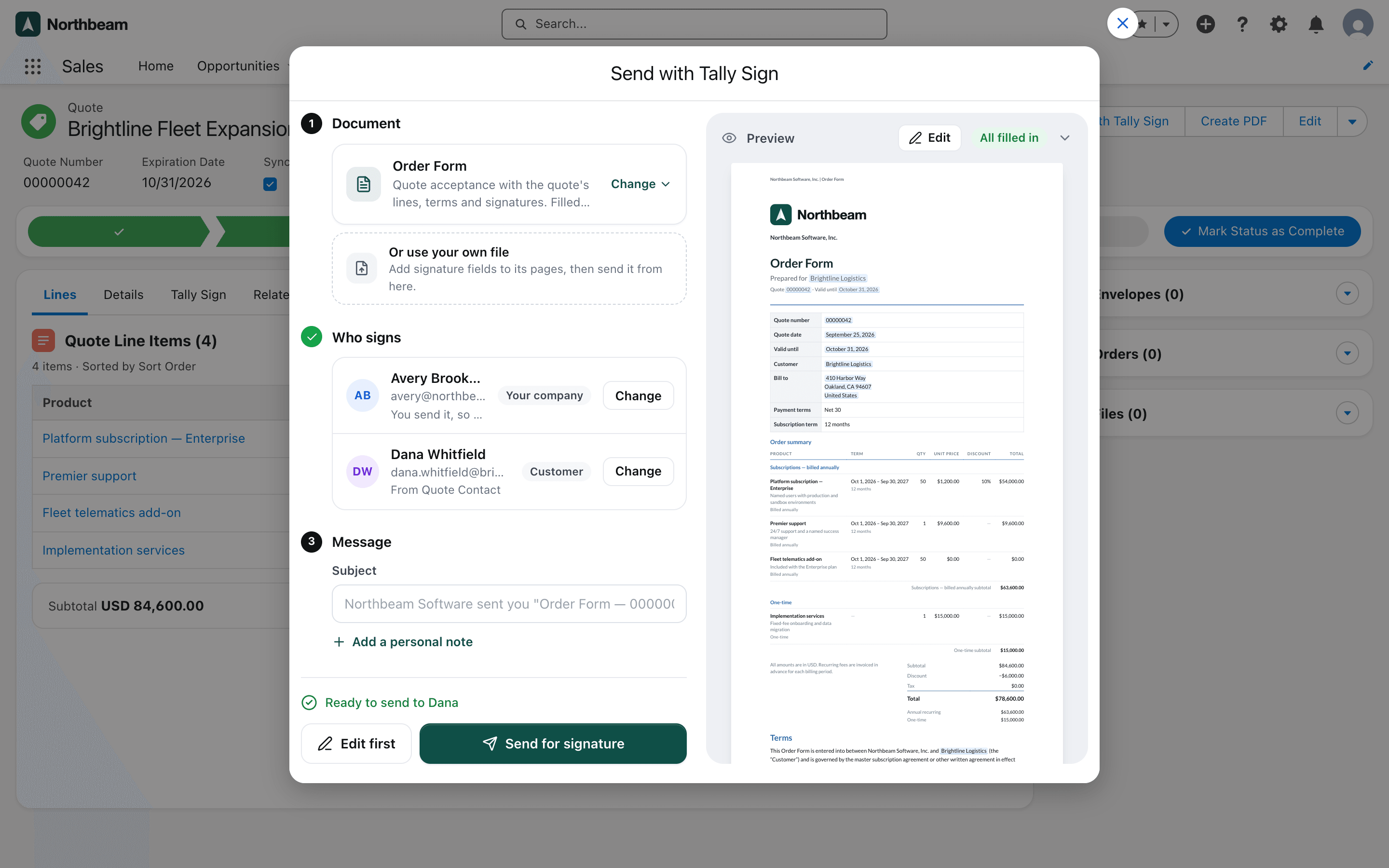
The status next to Send for signature reads Ready to send only when the send will go through. Otherwise it says what's left, for example 1 detail to fill in. Anything the form can't fix, such as a quote with no lines or a field hidden from you in Salesforce, is listed at the top under This can't be sent yet, with what to do next. If the same record had a document sent recently, the form says so before you send again.
Once sent, the envelope appears in the record's Tally Sign tab and in its Envelopes list. With the default Order Form setup, the quote's status changes to Presented.
The Tally Sign tab on the record
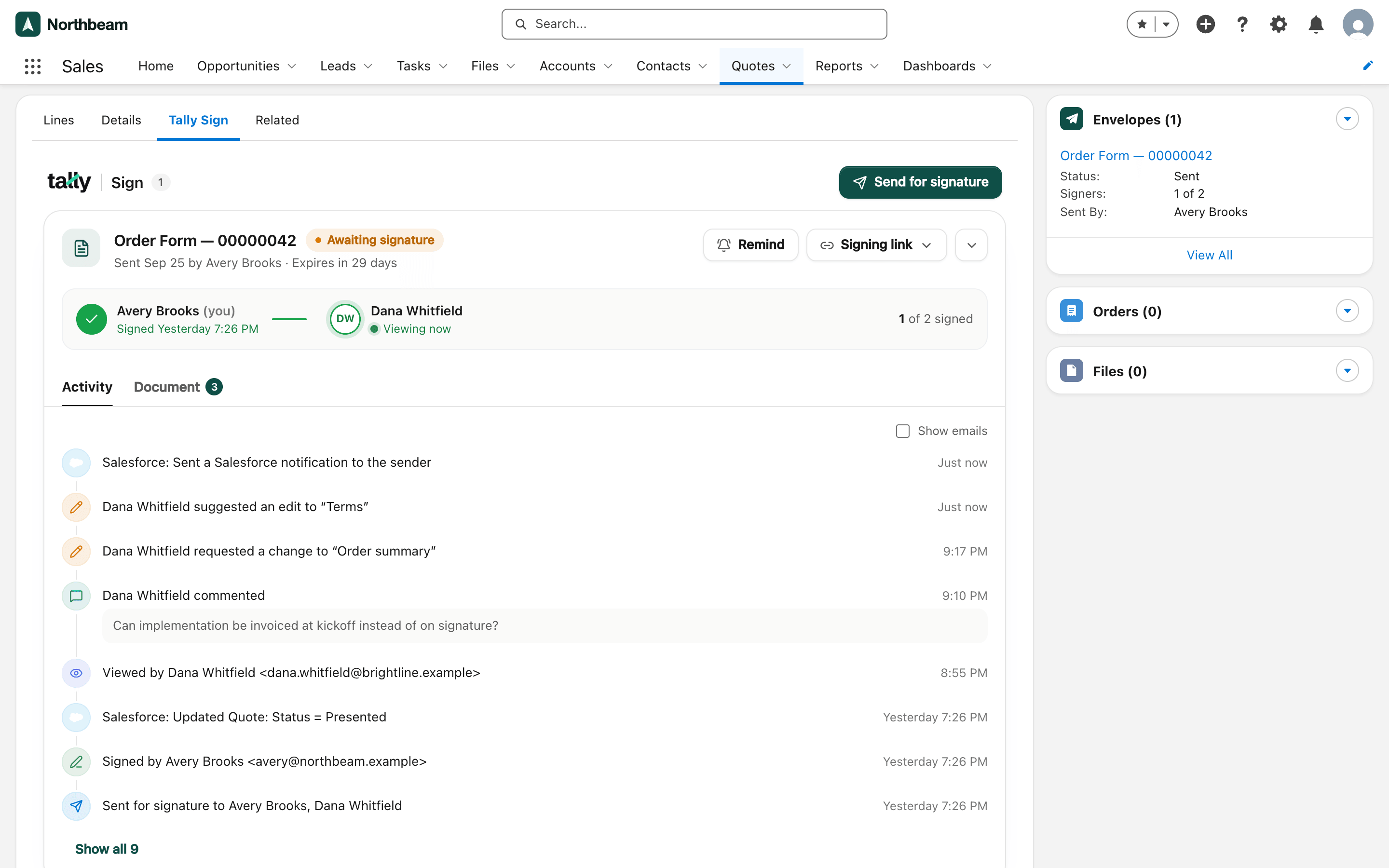
The tab shows every document sent from the record. For each one:
- A signer row with each person's progress, for example Opened 9:06 PM or Viewing now.
- Remind re-sends the email to people who haven't signed, including your company's signer when that's someone else, such as the owner's manager.
- Signing link copies a person's link, or lets you Sign in person on this device.
- Edit and send opens a draft in the editor. View signed PDF opens a completed one.
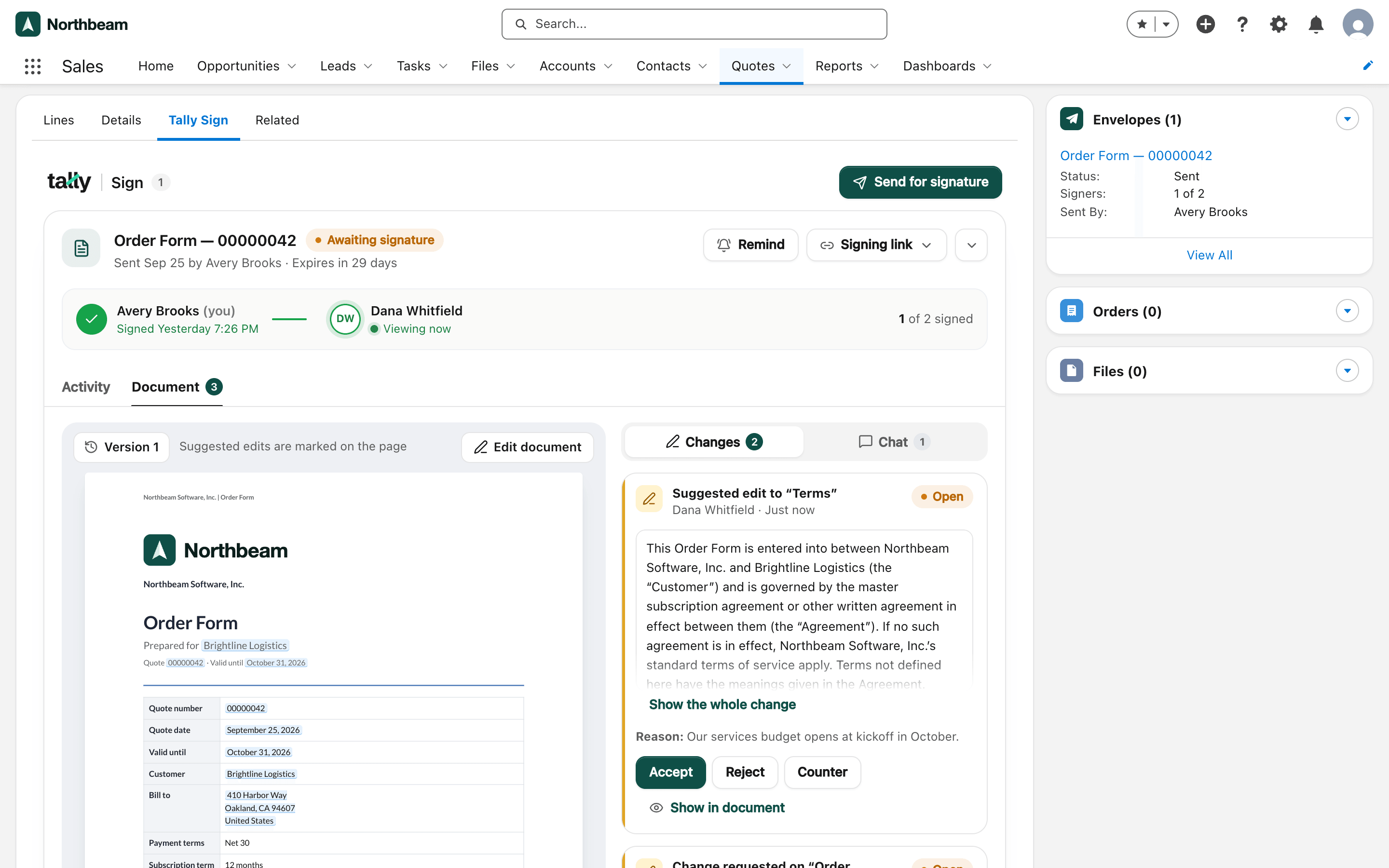
- The menu next to them has Open in Tally Sign (with a seat), Preview PDF or Download signed PDF, and Open order and Open contract once they're created. For drafts it also has Update from record, Use a different template and Delete draft; for documents out for signature, Edit document, Void and send a different one and Void document.
- Update from record pulls field values, lines and signers from the record again. Signers you chose stay, and values you typed stay while the field is still empty in Salesforce.
- Two tabs: Activity lists the people and every event. Document shows the current page, with Changes (suggested edits and change requests) and Chat beside it.
If the signing link expires before everyone signs, the document says so. Choose Edit and resend to send a fresh link with a new expiry date.
On the website: Any object·Pricing