
Envelopes, reports and the dashboard
Every document sent from Salesforce becomes an Envelope record you can list, report on and use in Flows.
5 sections · 4 screenshots
Envelopes
Tally Sign creates and updates an Envelope record for each document linked to Salesforce, with its Recipients and Activity. The package never edits them itself; you don't need to either.
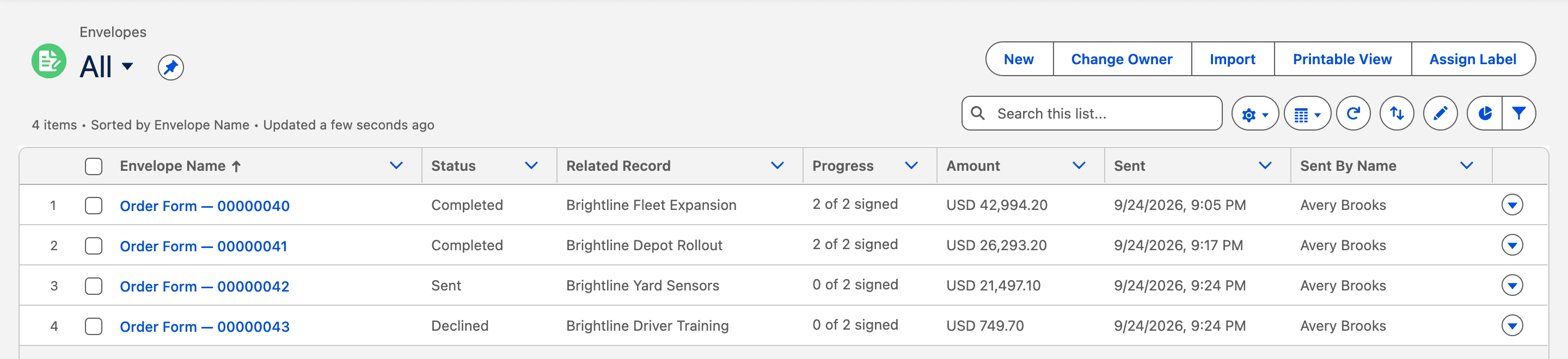
| Field | What it holds |
|---|---|
| Status | Draft, Sent, Completed, Declined, Voided or Expired |
| Progress | For example 1 of 2 signed |
| Related Record Link | Opens the record it was sent from, whatever its object. Opportunity, Contract and Account also get their own lookups, and so do Quote and Order when your org has them |
| Amount | The document's total, in the record's currency (Currency Code) |
| Sent Via | Salesforce, Automation, Tally Sign or API, depending on where it was sent from |
| Sent At, First Viewed, Days to Sign | From the first send to completion. New versions don't reset them |
| Decline or Void Reason | What the signer or your team gave as the reason |
| Created Order, Created Contract | Set by the quote-to-cash steps (Created Order is there when Orders are on) |
| Lifecycle Log, Last Error | What ran after sending, signing or declining, and the problems that still apply. An after-sending problem clears once the document is signed or sent again |
Activity lists every step: sends, views, reminders, signatures, suggested edits and change requests with who decided them, deadline changes, and every comment. Internal notes are included with the type Internal Note, so a report or list view can leave them out.
Who sees envelopes
Envelopes are private. Each one belongs to the person who sent it, so they and the people above them in the role hierarchy see it. Automated sends belong to the person they're sent as. The owner needs the Tally Sign User permission set. Otherwise the envelope stays with the connected user and Settings → Salesforce says who's missing it and how many envelopes are waiting. Once they have it, Tally Sign moves their envelopes to them within a few hours, or right away when you choose Update envelopes. Envelopes you give to someone else in Salesforce stay with them.
People outside the sender's hierarchy, such as finance or RevOps, need a sharing rule to see envelopes and the reports and dashboard built on them. In Setup, open Sharing Settings, and under Envelope Sharing Rules choose New. Share records owned by all internal users with their group or role, with Read Only access.
Envelopes on CPQ quotes
To list envelopes on Salesforce CPQ quotes (or any other object you send from), add a lookup to it on Envelope. Tally Sign fills it in on each envelope.
- In Setup, open Object Manager → Envelope → Fields & Relationships and choose New.
- Choose Lookup Relationship, then the object, for example Quote (SBQQ__Quote__c).
- Name it, for example CPQ Quote, and add the Envelopes related list to that object's page layout.
Reports
The Tally Sign Reports folder has seven reports:
- Signed this quarter
- Awaiting signature by owner
- Completed this month by rep
- Average days to sign by template
- Redlines by envelope
- Decline and void reasons
- Sent automatically vs by hand
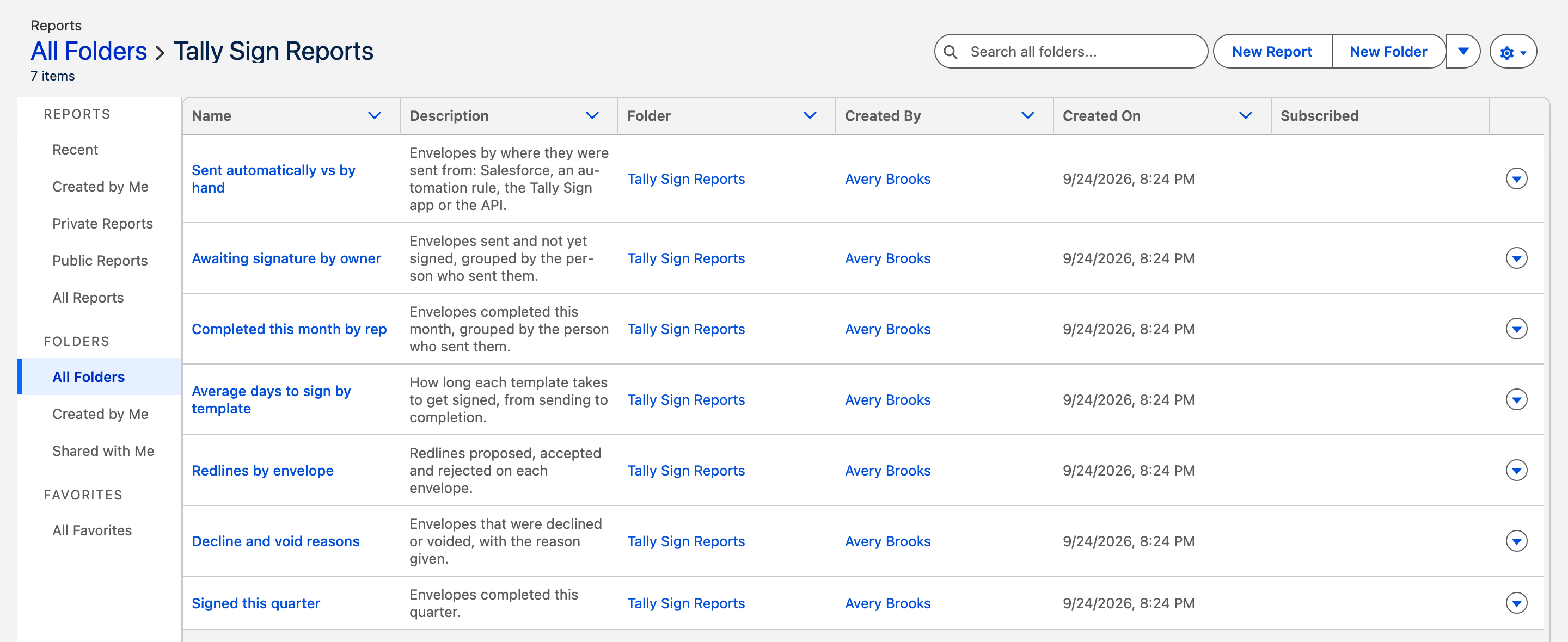
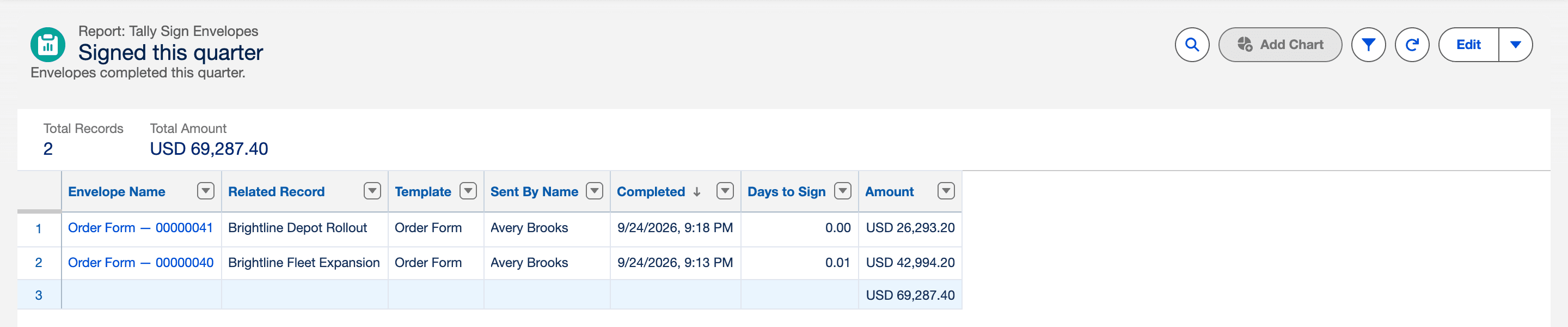
To build your own, use the report types Tally Sign Envelopes, Tally Sign Envelopes with Recipients and Tally Sign Envelopes with Activity.
The Tally Sign Overview dashboard
Open Dashboards → Tally Sign Overview in the Tally Sign app: amount and number of envelopes awaiting signature, average time to sign, and what each rep closed this month.
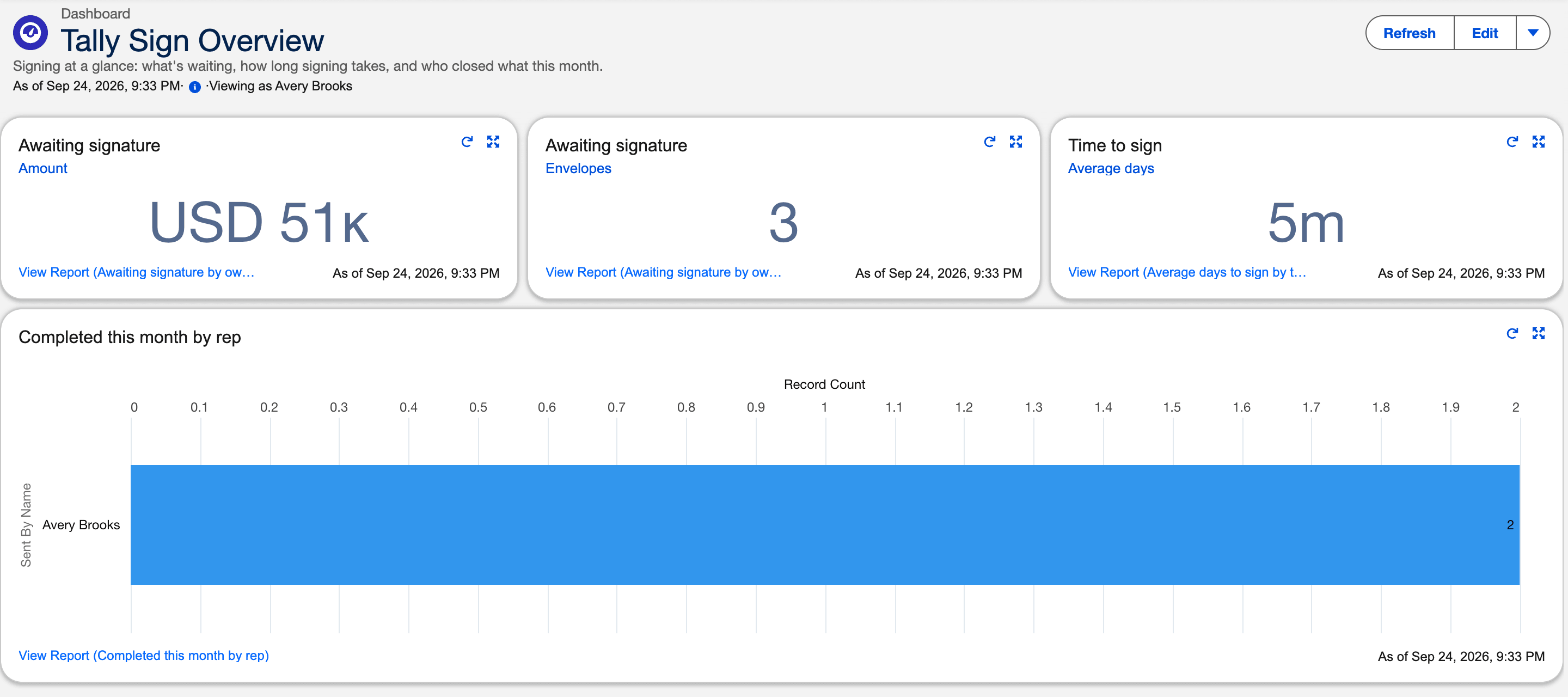
The dashboard runs as the admin who installed the package, so everyone who opens it sees all envelopes. Salesforce limits how many dashboards can run as the person viewing them, which is why the package doesn't use that setting.
To show each person only what they can see: open the dashboard, choose Edit, then the gear icon, and under View Dashboard As choose The dashboard viewer. This uses one of your org's dynamic dashboards.
On the website: Any object·Pricing