
Team and roles
Invite teammates and choose what each of them can manage.
3 sections · 1 screenshot
On this page
Invite a teammate
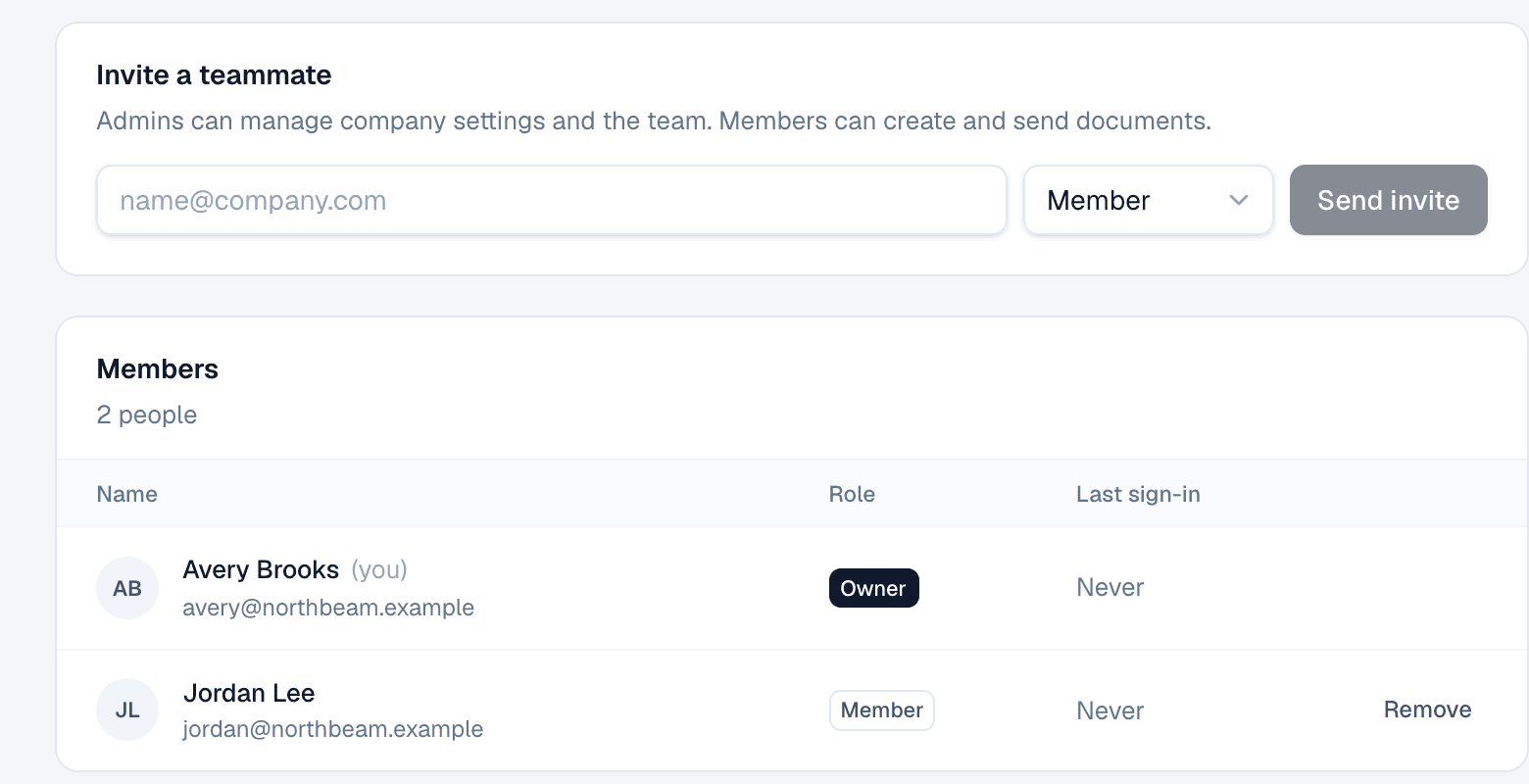
- Open Settings → Team.
- Under Invite a teammate, enter their email and pick a role.
- Choose Send invite. They get an email with a link to set their name and password.
Already have an account somewhere else? If the person signed up on their own before you invited them (say, a manager who started a trial), invite them anyway. The invite tells them their account moves to your company. They sign in to that account, open the invite and choose Move my account. If they were the only person at their old company, they can bring its documents and templates, and the old company is closed. If others are there, they leave on their own and their documents stay with that team. The owner of a company with other people in it can't move until someone else owns it. Their API keys and AI app connections stop working and need connecting again.
Instead of choosing a password, an invited person can go to the sign-in page and use Sign in with SSO (when your company has single sign-on turned on), or Continue with Google or Continue with Microsoft when the sign-in page shows them, with the email address the invite went to. The invite is accepted and they join with the role you picked.
How teammates sign in
- Email and password, the default for everyone.
- Single sign-on through your identity provider, such as Okta, Microsoft Entra ID or Google Workspace, once an admin sets it up. See Single sign-on.
- Continue with Salesforce, for people with a Salesforce seat, or with the same verified email as their Tally Sign account, when your Salesforce org is connected. Invited people can accept this way too, and with automatic seat assignment on, a Salesforce user without a seat gets a free one.
- Continue with Google and Continue with Microsoft, when the sign-in page shows them, for anyone whose verified Google or Microsoft email matches their Tally Sign account.
Someone who joined through single sign-on, Google, Microsoft or Salesforce has no password. They can set one in Settings → Profile under Password, and then also sign in with their email.
Roles
| Role | Can |
|---|---|
| Owner | Everything, including company settings, Salesforce, seats and the team |
| Admin | Manage company settings, the team, seats, Salesforce and automation rules |
| Member | Create, send and manage documents |
To remove someone, choose Remove next to them. Their documents stay with the company.
On the website: Pricing