
Send a document and track it
Send for signature, see who opened and signed it, remind people and download the signed PDF.
3 sections · 4 screenshots
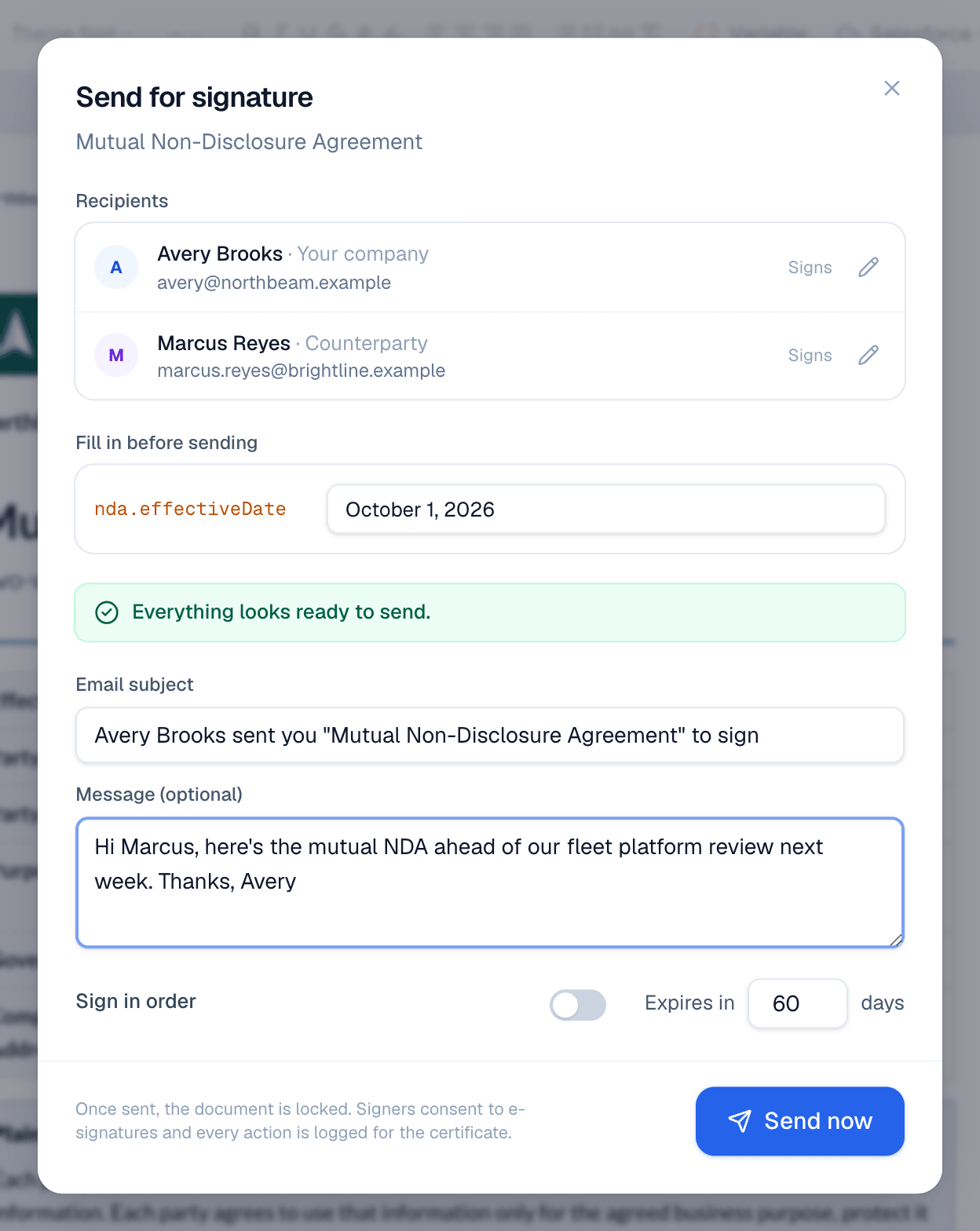
Send for signature
- Open a template and choose Use template, or choose New document in the sidebar.
- In Signers, enter each person's name and email.
- Fill in anything in Fill-ins that's still empty.
- Choose Send.
- Check the recipients and the Email subject. Add an optional Message.
- Turn on Sign in order if people must sign one after another. Change Expires in if 60 days is too long or short.
- Choose Send now.
Track progress
After sending, the document page shows its progress on the right. Each recipient moves through Sent, Viewed and Signed.
Viewed means the person had the document open in their browser and scrolled, clicked or typed in it. Just opening the link doesn't count: many companies' email security (and chat link previews) opens every link before anyone reads it. Those show in Activity as *Signing link opened*, and they're left off the certificate. Each later visit from a different device is logged as *Viewed again*, with its own IP address.
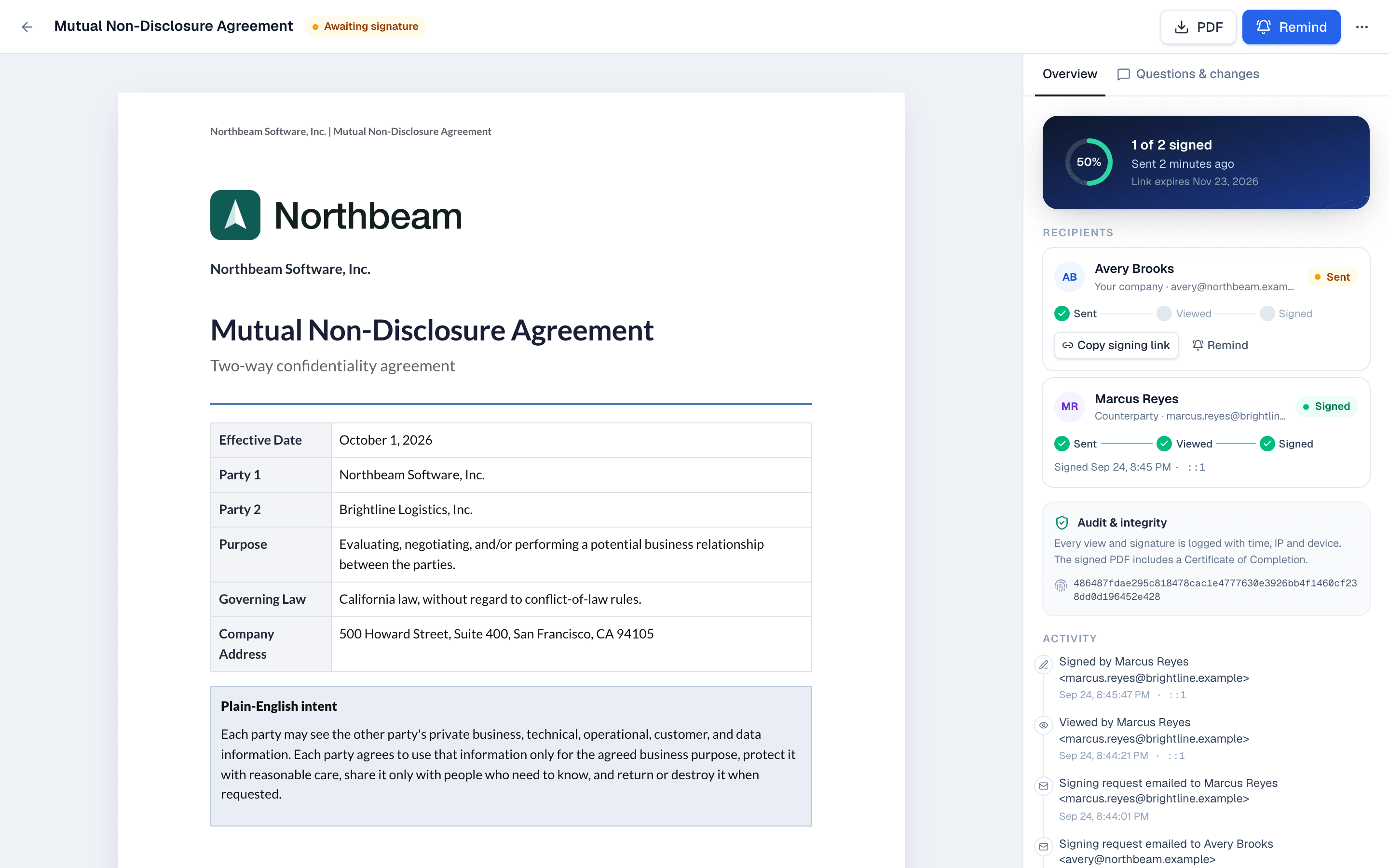
- Copy signing link gives you a person's link, for example to send it in a chat.
- Remind emails signers who haven't signed yet.
- Activity lists every event with time, IP address and device.
- The Questions & changes tab holds the conversation with the customer.
When everyone has signed
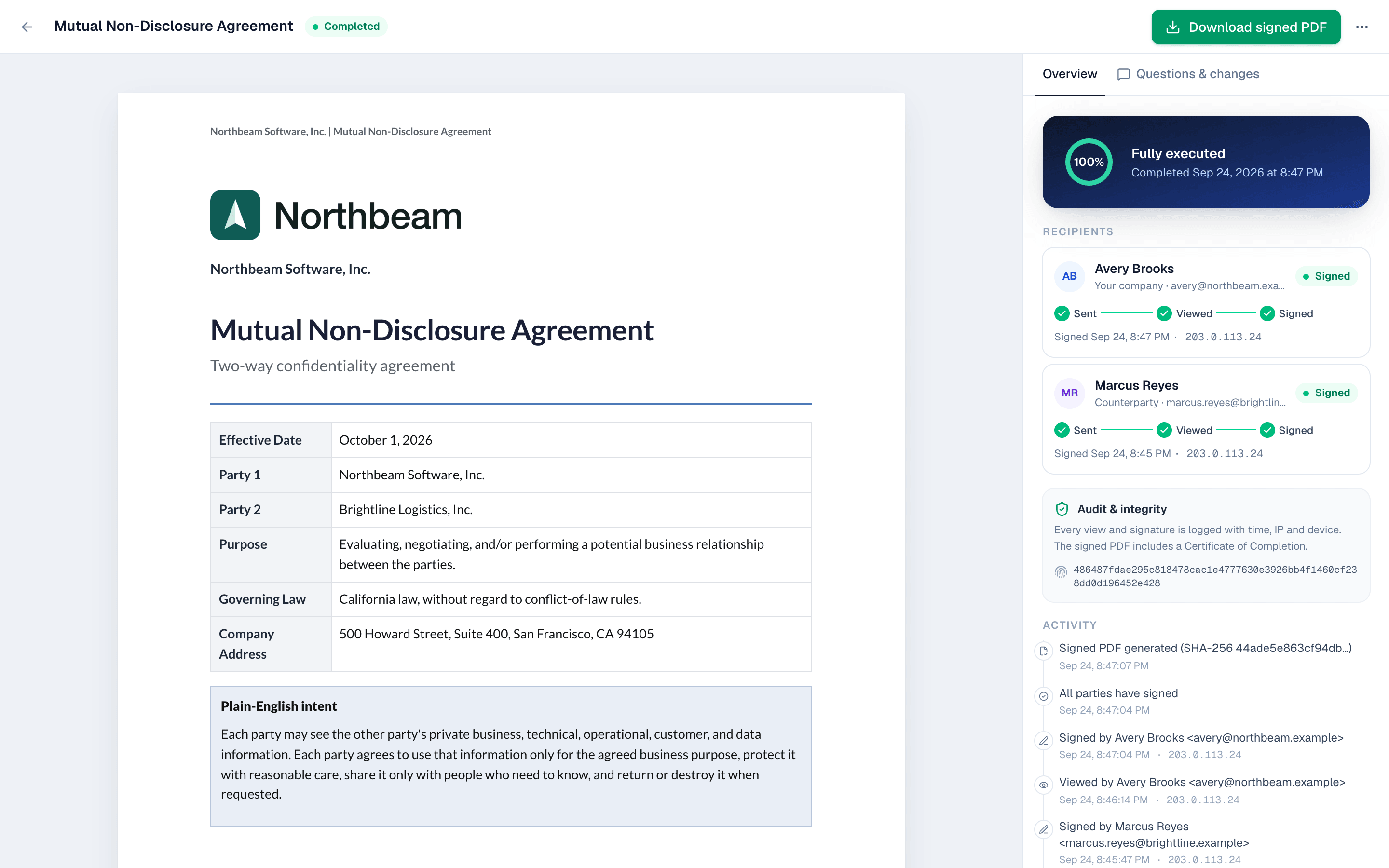
The status changes to Completed and everyone gets the signed PDF by email. It ends with a Certificate of Completion that records each view and signature.
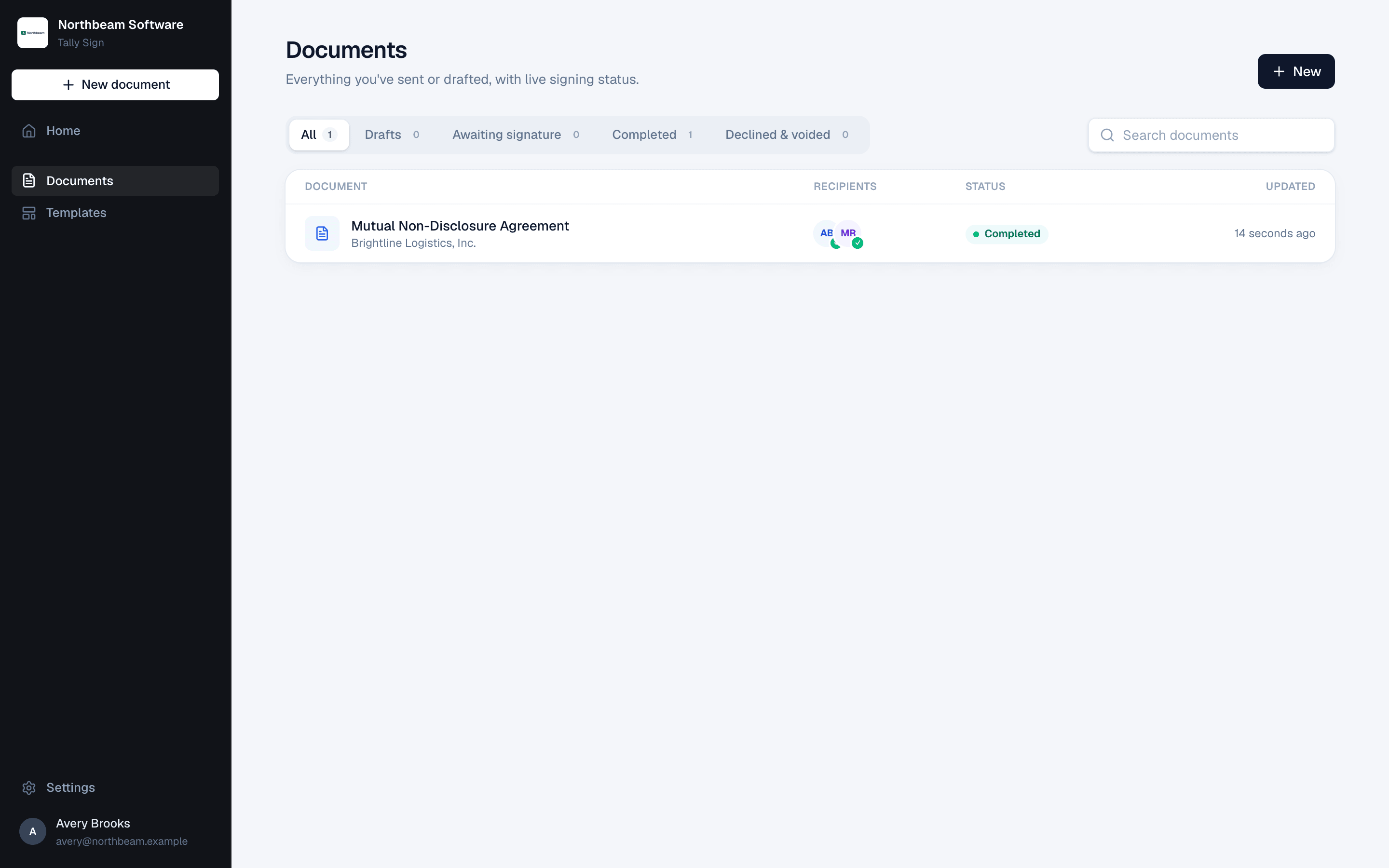
The Documents list shows everything you've sent or drafted, with live signing status. Filter by Drafts, Awaiting signature, Completed or Declined & voided.
On the website: No CRM needed·Pricing