
Single sign-on
Let your team sign in through Okta, Microsoft Entra ID, Google Workspace or any SAML 2.0 or OpenID Connect provider, test it, then turn it on or require it.
12 sections · 7 screenshots
Single sign-on lets your team sign in to Tally Sign through your company's identity provider, the same way they sign in to everything else at work. It works with Okta, Microsoft Entra ID, Google Workspace, OneLogin, JumpCloud, PingOne and any provider that speaks SAML 2.0 or OpenID Connect. It's included on every plan. Owners and admins set it up in Settings → Single sign-on.
On this page
- Before you start
- What Tally Sign needs from a SAML app
- Okta (SAML)
- Microsoft Entra ID (SAML)
- Google Workspace (SAML)
- OpenID Connect
- Test single sign-on
- Turn it on, or require it
- Verify your email domains
- Your company's sign-in link
- What people see when they sign in
- Continue with Salesforce, Google or Microsoft
Before you start
Open Settings → Single sign-on. How your team signs in lists every way people can sign in today and whether it's on.
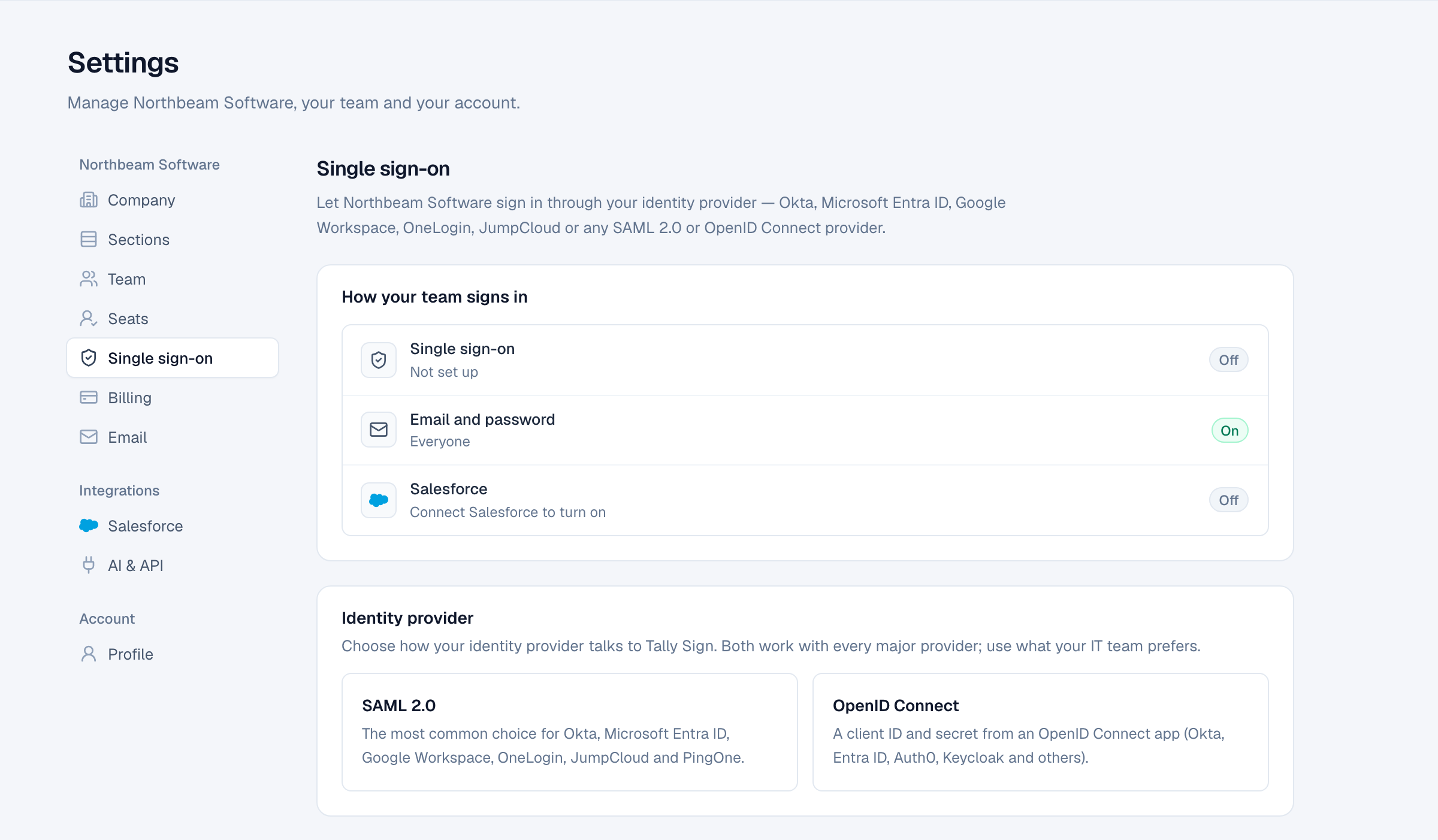
Setting it up has four parts, in this order:
- Connect your identity provider. Add Tally Sign as an app there, then tell Tally Sign about the provider.
- Test it. Sign in once through your identity provider from Settings.
- Turn it on, and if you want, require it.
- Verify your email domains, so typing a work email is enough to find your identity provider, and new people can join on their own if you allow it.
SAML 2.0 is the usual choice for Okta, Microsoft Entra ID and Google Workspace. OpenID Connect works too, if your IT team prefers it. You can switch later with Use OpenID Connect instead (or Use SAML 2.0 instead), but switching starts that part of the setup over.
What Tally Sign needs from a SAML app
Choose SAML 2.0. Step 1 shows three values to copy into your identity provider. Each has a Copy button.
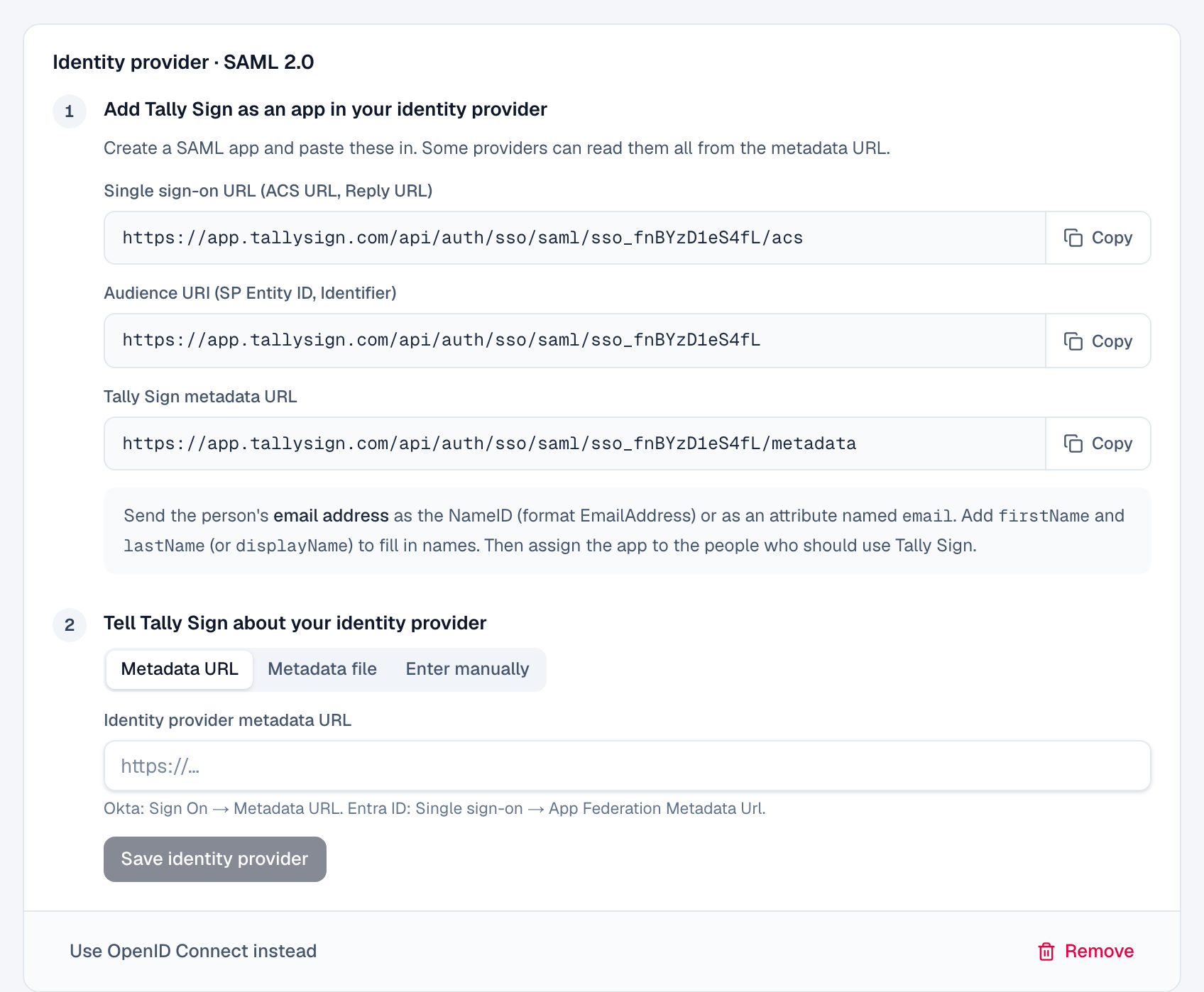
| In Tally Sign | What identity providers call it |
|---|---|
| Single sign-on URL (ACS URL, Reply URL) | Single sign-on URL, ACS URL, Reply URL |
| Audience URI (SP Entity ID, Identifier) | Audience URI, SP Entity ID, Identifier, Entity ID |
| Tally Sign metadata URL | Service provider metadata. Only some providers can read it. |
Your identity provider must send the person's email address, either as the NameID (format EmailAddress) or as an attribute named email. Add firstName and lastName (or displayName) so new accounts get the right name. Then assign the app to the people who should use Tally Sign.
In step 2, tell Tally Sign about your identity provider in one of three ways:
- Metadata URL: paste the identity provider's metadata address. Tally Sign reads the sign-in URL, issuer and signing certificate from it.
- Metadata file: open the metadata XML file you downloaded and paste its contents.
- Enter manually: the identity provider's Single sign-on URL, its Issuer (IdP Entity ID) and its Signing certificate, including the BEGIN and END lines.
Choose Save identity provider. Tally Sign shows the sign-in URL, issuer and number of signing certificates it saved.
Okta (SAML)
- In the Okta Admin Console, open Applications → Applications and choose Create App Integration.
- Choose SAML 2.0 and Next. Name the app
Tally Signand choose Next. - Paste Tally Sign's Single sign-on URL into Single sign-on URL, and its Audience URI (SP Entity ID) into Audience URI (SP Entity ID).
- Set Name ID format to EmailAddress and Application username to Email.
- Under Attribute Statements, add
firstNamewith the valueuser.firstNameandlastNamewith the valueuser.lastName. - Choose Next, then Finish.
- On the app's Sign On tab, copy the Metadata URL.
- On the Assignments tab, assign the people or groups who use Tally Sign.
- In Tally Sign, choose Metadata URL, paste it and choose Save identity provider.
To add Tally Sign to your team's Okta dashboard, see Your company's sign-in link.
Microsoft Entra ID (SAML)
- In the Microsoft Entra admin center, open Enterprise applications and choose New application, then Create your own application.
- Name it
Tally Sign, choose Integrate any other application you don't find in the gallery (Non-gallery) and choose Create. - Open Single sign-on and choose SAML.
- In Basic SAML Configuration, choose Edit. Paste Tally Sign's Audience URI into Identifier (Entity ID) and its Single sign-on URL into Reply URL (Assertion Consumer Service URL). Paste your company's sign-in link into Sign on URL so My Apps opens Tally Sign the right way. Choose Save.
- In Attributes & Claims, choose Edit, then Add new claim. Name it
displayName, set Source attribute touser.displaynameand save. Entra ID already sends the email address, first name and last name. - In SAML Certificates, copy the App Federation Metadata Url.
- Open Users and groups and assign the people or groups who use Tally Sign.
- In Tally Sign, choose Metadata URL, paste it and choose Save identity provider.
Google Workspace (SAML)
- In the Google Admin console, open Apps → Web and mobile apps, then Add app → Add custom SAML app.
- Name the app
Tally Signand choose Continue. - Under Option 1, choose Download metadata to save the identity provider metadata file, then Continue.
- Paste Tally Sign's Single sign-on URL into ACS URL and its Audience URI into Entity ID. Set Name ID format to EMAIL and Name ID to Basic Information > Primary email. Choose Continue.
- Under Attribute mapping, map First name to
firstNameand Last name tolastName, then choose Finish. - Open the app's User access, turn it ON for everyone (or for the organizational units or groups that use Tally Sign) and save.
- In Tally Sign, choose Metadata file, paste the contents of the file you downloaded and choose Save identity provider.
OpenID Connect
Choose OpenID Connect if your identity provider's app should use a client ID and secret instead of SAML. It works with Okta, Microsoft Entra ID, Auth0, Keycloak and others.

- In your identity provider, create an OpenID Connect web application that uses the authorization code flow.
- Allow the
openid,emailandprofilescopes. - Add Tally Sign's Sign-in redirect URI (it ends in
/api/auth/sso/callback/oidc) as a sign-in redirect URI. - Assign the people or groups who use Tally Sign.
- In Tally Sign, enter the Issuer URL, Client ID and Client secret, and choose Save.
| Provider | Issuer URL |
|---|---|
| Okta | https://yourcompany.okta.com |
| Microsoft Entra ID | https://login.microsoftonline.com/<tenant ID>/v2.0 |
| Others | The address before /.well-known/openid-configuration |
Tally Sign checks the issuer when you save. The client secret is stored encrypted; to keep it when you change something else, leave the field empty.
Test single sign-on
Before anyone relies on single sign-on, check it works. Under Test and turn on, choose Test single sign-on. You're sent to your identity provider; sign in there as yourself. You come back to Settings, still signed in as before, with the result at the top.

- Single sign-on works. The message says what would happen for the email your identity provider sent: that it signs in to your account, that the person would join as a member, or that they have no account yet.
- The test sign-in didn't work. The message says why, for example the certificate didn't match or the identity provider didn't send an email address. Fix it and test again.
Your identity provider must have the app assigned to you for the test. Saving new identity provider settings clears the test, so test again after any change.
Turn it on, or require it
| Switch | What it does |
|---|---|
| Let people sign in with single sign-on | People choose Sign in with SSO on the sign-in page and type their work email, or use your company's sign-in link. Other ways to sign in still work. You can only turn this on after a test works. |
| Require single sign-on | Everyone except the owner must sign in through your identity provider: no passwords, Google, Microsoft or Salesforce. Someone who types their password gets a link to single sign-on instead. |
| Let people at your verified domains join on their own | Someone your identity provider signs in who isn't on the team yet gets an account as a member, while seats remain. Otherwise, invite people from Settings → Team first. Needs a verified domain. |
People who already have an account keep it: the first time they sign in with single sign-on, their identity provider account is linked to it by email. Your identity provider decides who can use the app, so removing someone there stops their next sign-in. To take away their seat, remove them in Settings → Team.
To stop using single sign-on, choose Remove at the bottom of the identity provider panel. People sign in with their email and password again (or Google, Microsoft or Salesforce). Anyone without a password can set one with Forgot password?. Verified domains stay.
Verify your email domains
Under Email domains, add the domains your team's email addresses use, for example northbeam.example, and choose Add domain. Tally Sign shows a TXT record to add where the domain's DNS is managed:
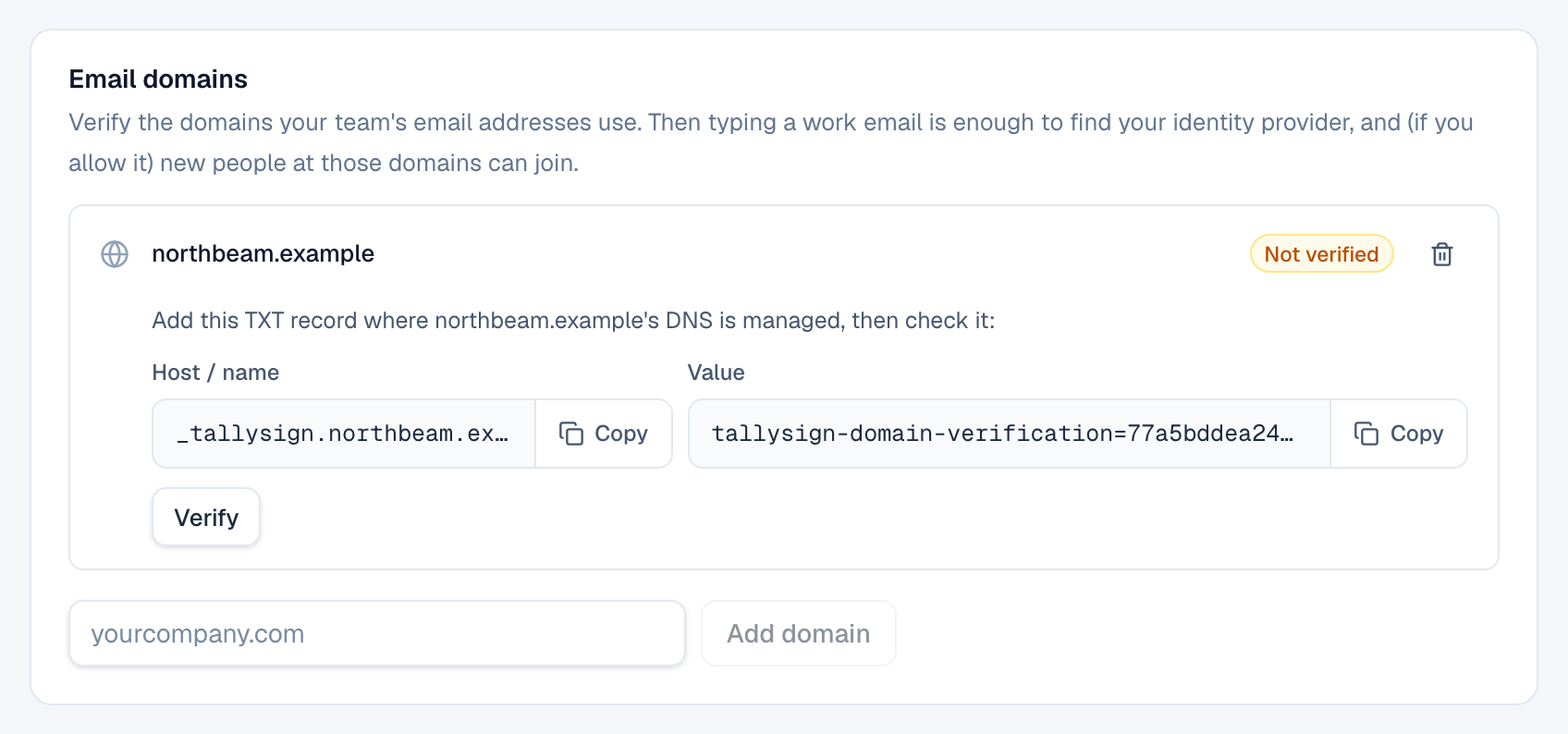
| Type | Host / name | Value |
|---|---|---|
| TXT | _tallysign.<your domain> | tallysign-domain-verification=<token> |
- Copy the Host / name and Value into a new TXT record at your DNS provider.
- Come back and choose Verify. DNS changes can take a few minutes to an hour to appear; if it isn't visible yet, try again later.
A verified domain does two things: anyone who types an email at that domain on the Sign in with SSO page is sent to your identity provider, even before they have an account, and it lets you turn on Let people at your verified domains join on their own.
People already on your team, and people you've invited, are found by their email address without a verified domain.
Your company's sign-in link
Test and turn on ends with Your company's sign-in link, for example https://app.tallysign.com/login/sso?company=northbeam-software. It goes straight to your identity provider, with no email to type. Share it, bookmark it, or put it on your identity provider's dashboard:
- Okta: the SAML app's tile works as it is. Tally Sign restarts the sign-in from its side, which passes through Okta without asking again.
- Microsoft Entra ID: paste the link into Sign on URL in Basic SAML Configuration. The tile in My Apps then opens it.
- Google Workspace: share the link or bookmark it. People can also use Sign in with SSO.
What people see when they sign in
The sign-in page starts with Continue with Salesforce, with Google and Microsoft beside it when they're available. Then come email and password, and Sign in with SSO under them.

- On the sign-in page, choose Sign in with SSO.
- Type your work email and choose Continue.
- Sign in to your identity provider if you aren't already. You land in Tally Sign.

- When single sign-on is required and someone types their email and password, the page says Your company signs in with single sign-on with a Continue with SSO link.
- Someone invited to the team can use Sign in with SSO with the invited email; the invite is accepted.
- Someone with no account at your company is told to ask their admin for an invite, unless people at your verified domains can join on their own.
Continue with Salesforce, Google or Microsoft
These buttons are for single people, and don't need any setup in Settings → Single sign-on:
- Continue with Salesforce works once your Salesforce org is connected in Settings → Salesforce, for people who hold a Tally Sign seat as that Salesforce user, or whose verified Salesforce email matches their Tally Sign account. For a sandbox or a My Domain login, open Sign in with SSO and choose Salesforce sandbox or custom domain?.
- Continue with Google and Continue with Microsoft sign in anyone whose verified Google or Microsoft email matches their Tally Sign account. Someone with no account can use them to create one: they name their company on the next page and start a 7-day free trial.
While Require single sign-on is on, these buttons don't work for your company's members; they're sent to single sign-on instead.
On the website: Pricing