
Seats
One seat per person, across the web app and Salesforce. Request a seat, the 7-day rule and automatic assignment.
6 sections · 2 screenshots
A seat lets someone send documents, reply to customers and accept or reject changes. Viewing documents and leaving internal notes is free. Seats are people: each person holds one seat, whether they work in Tally Sign, in Salesforce or both.
Seats at a glance
Open Settings → Seats. The meter shows how many seats are used and how many are left.
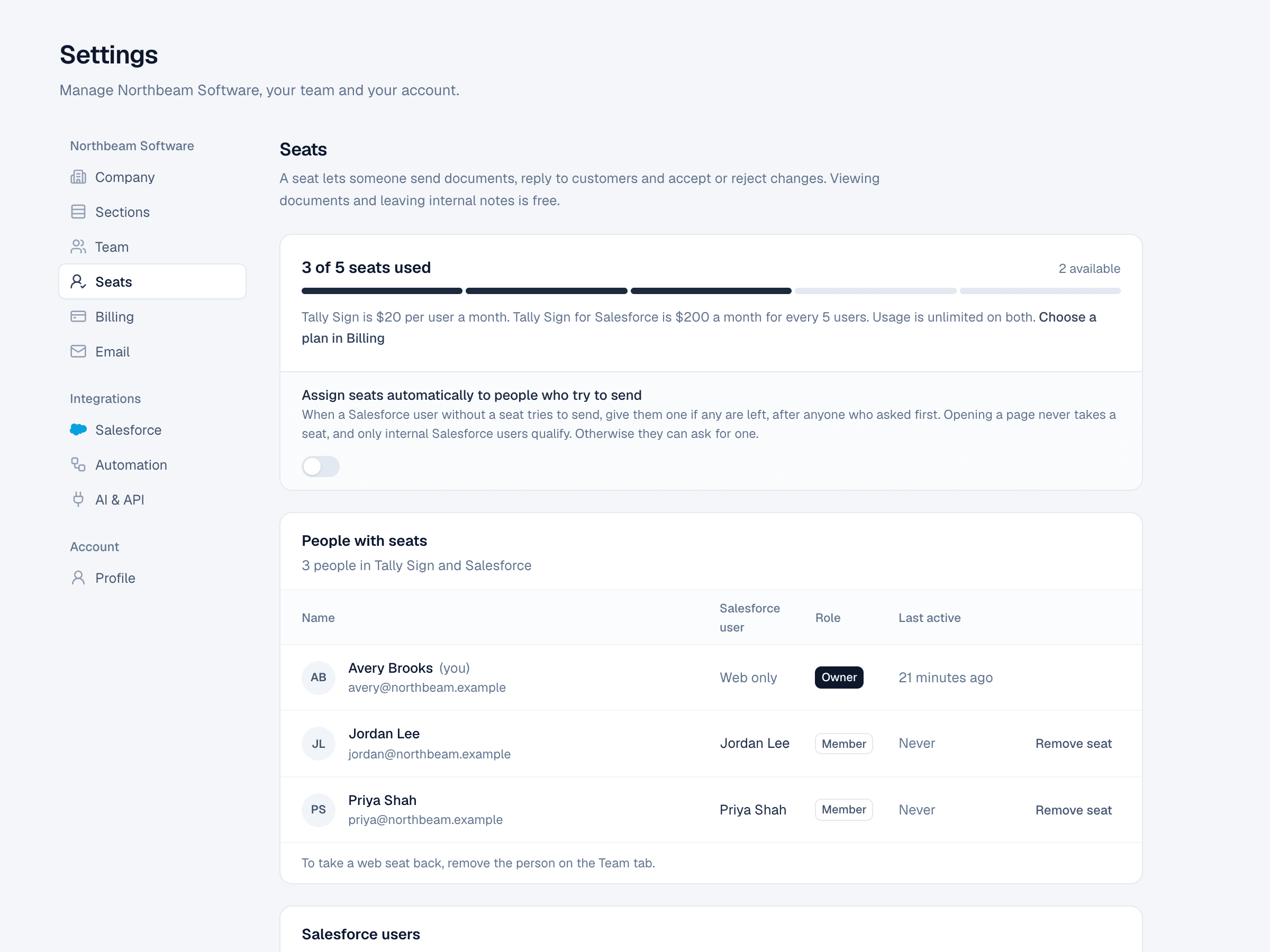
| Plan | Price |
|---|---|
| Tally Sign | $20 per user a month |
| Tally Sign for Salesforce | $200 a month for every 5 users |
Usage is unlimited on both. Connecting Salesforce needs Tally Sign for Salesforce, which adds the Salesforce integration (it works seamlessly with Revenue Cloud); everything else is the same.
Who holds a seat
- Everyone on your Team in Tally Sign holds a seat.
- Salesforce users hold a seat once you give them one. Tally Sign links them to an account with the same email, or creates one.
- A person who uses both the web app and Salesforce holds one seat, not two. Linking someone already on your team uses no extra seat, even when all seats are in use.
- Only internal Salesforce users (user type Standard) can hold a seat. Partner, community, guest and automated users can't.
- Someone with a seat as a Salesforce user can open the web app with Continue with Salesforce on the sign-in page. With automatic assignment on, a Salesforce user without a seat gets a free one the first time they sign in this way, the same as when they first send from Salesforce. See How teammates sign in.
Give a seat to a Salesforce user
- In Settings → Seats, scroll to Salesforce users. The list shows active users in your org.
- Search by name, email, title or profile.
- Turn on the switch next to the person. It reads Has a seat.
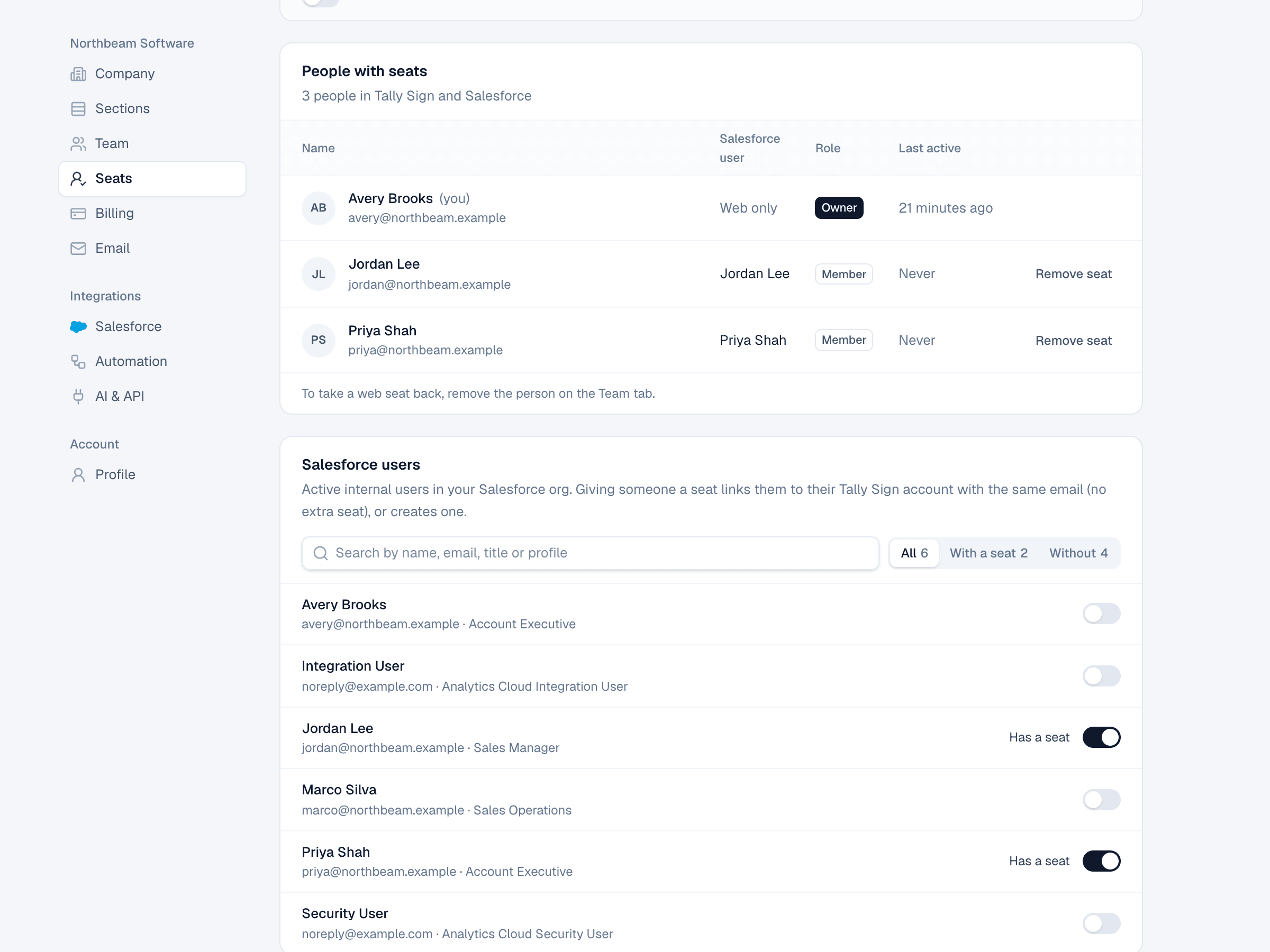
Different email in Salesforce? If someone on your team uses one email in Tally Sign and another in Salesforce, choose Link next to their Salesforce user and pick them from your team. They keep their account, and it uses no extra seat. When the emails match, the switch links them for you, and so does their first Continue with Salesforce sign-in.
Request a seat
When someone without a seat tries to send from Salesforce, the component shows Needs a Tally Sign seat with a Request a seat button. Their admins are asked, and the request appears under Seat requests in Settings → Seats, with Approve and Decline.
They can add a note for you. When you approve or decline, they get an email, and an open Salesforce page switches to full access by itself once they have a seat. After a decline they can ask again after 7 days. If no seats are free when they ask, you're emailed again when one frees up.
Assign seats automatically
Turn on Assign seats automatically to people who try to send. A Salesforce user without a seat gets one the first time they send (or choose Request a seat), if any are left. People who already asked get free seats first. When none are left, they can still request one.
- Opening a page with Tally Sign on it never takes a seat.
- Only internal Salesforce users qualify. Integration users are never given a seat automatically.
- Someone whose seat was removed in the last 7 days doesn't get it back automatically. You can give it back yourself.
Remove a seat and the 7-day rule
- In People with seats, choose Remove seat next to the person (or turn off their switch under Salesforce users).
- Confirm.
Their account, made for the Salesforce seat, is removed. They can still view documents and leave internal notes in Salesforce, but can't send. The seat stays counted for 7 days before it can go to someone else. Giving the seat back to the same person doesn't wait.
For someone who also uses the web app, the button reads Unlink: it removes only the Salesforce link, and they keep their seat. To take a web seat back, remove the person on the Team tab.
Users deactivated in Salesforce lose their seat automatically, and an account made for their seat is removed, which ends any web sign-in. Teammates who also use the web app keep web access and are marked Deactivated in Salesforce, with Remove from team next to them.
People linked to a Salesforce org that's no longer connected (a sandbox, or an org you replaced) show that org and a Remove button. An account from there that nobody used on the web frees its seat right away.
On the website: Pricing