
Salesforce fields in templates and Preview as record
Place any field from the record, or its parent records, and preview the template with real data.
3 sections · 4 screenshots
Link a template to an object
- Open the template in the editor and choose the Salesforce tab on the right.
- Under Used for, pick the object you send it from, for example Quote.

Linking sets default signer rules for that object. You can change them in the same tab.
If the template uses fields the new object doesn't have, for example Quote Number after switching from Quote to Opportunity, the tab lists them under Used for. Replace them, or they stay empty when sending.
Insert a field
- Click in the text where the value should go.
- Choose Salesforce field in the toolbar.
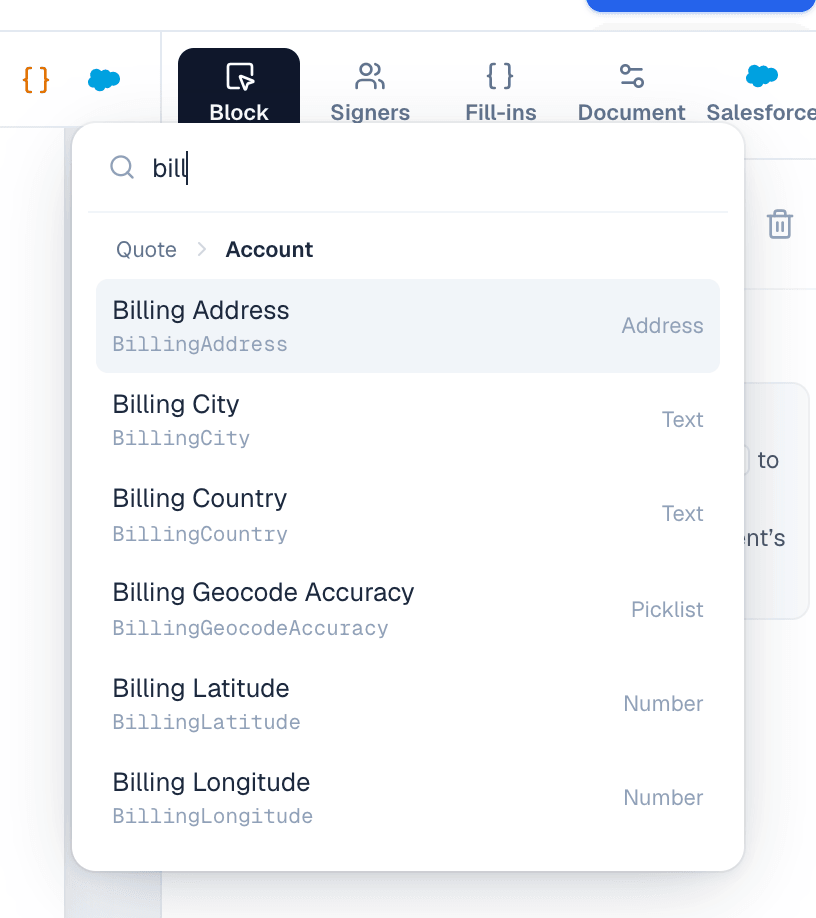
- Search the list. Fields of the object come first, then related records you can open with the arrow, for example Account.
- Pick a field. It appears on the page as a chip labeled with the field name, for example Account › Billing Address.
Behind the chip the template stores a merge field such as:
{{record.QuoteNumber}}
{{record.Account.Name}}
{{record.Opportunity.Owner.Name}}| Field type | Shown as |
|---|---|
| Date | October 1, 2026 |
| Date/time | October 1, 2026 at 9:30 AM PDT, in your org's time zone |
| Currency | In the currency of the record the field is on, for example $42,994.20 |
| Currency ISO Code | The code, for example EUR |
| Percent | 12.5% |
| Checkbox | Yes or No |
| Address | On separate lines, in the order the address's country uses, for example 10115 Berlin for Germany |
| Rich text, link and image formulas | Plain text. Links show their web address, and images their description |
Fields also work in the page header and footer, and in the document name.
The examples are for US English. To write dates, numbers and amounts another way, for example 1. Oktober 2026 and 42.994,20 €, set Document language and region in Settings → Company, or for one template under Document → Language and region in the editor.
Preview as record
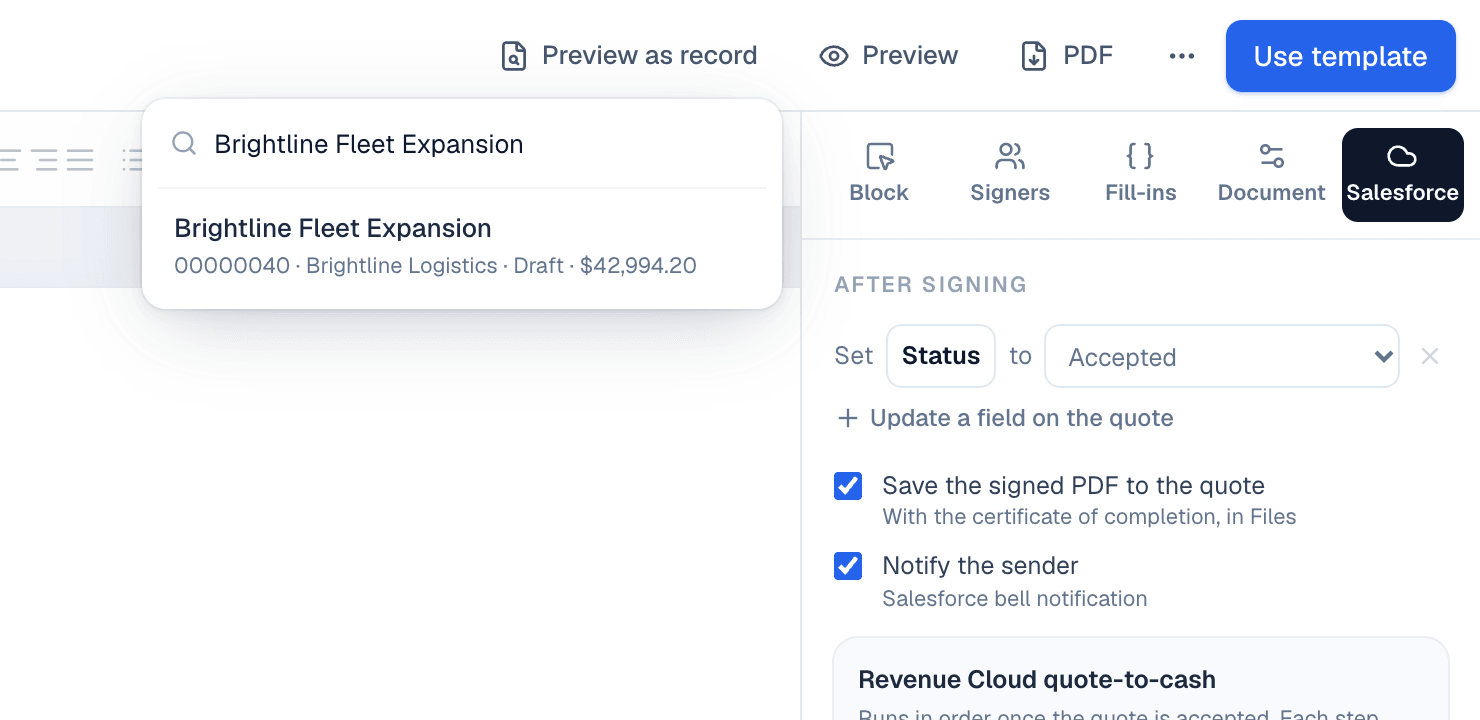
- In the editor, choose Preview as record.
- Search for a record by name or number and pick it.
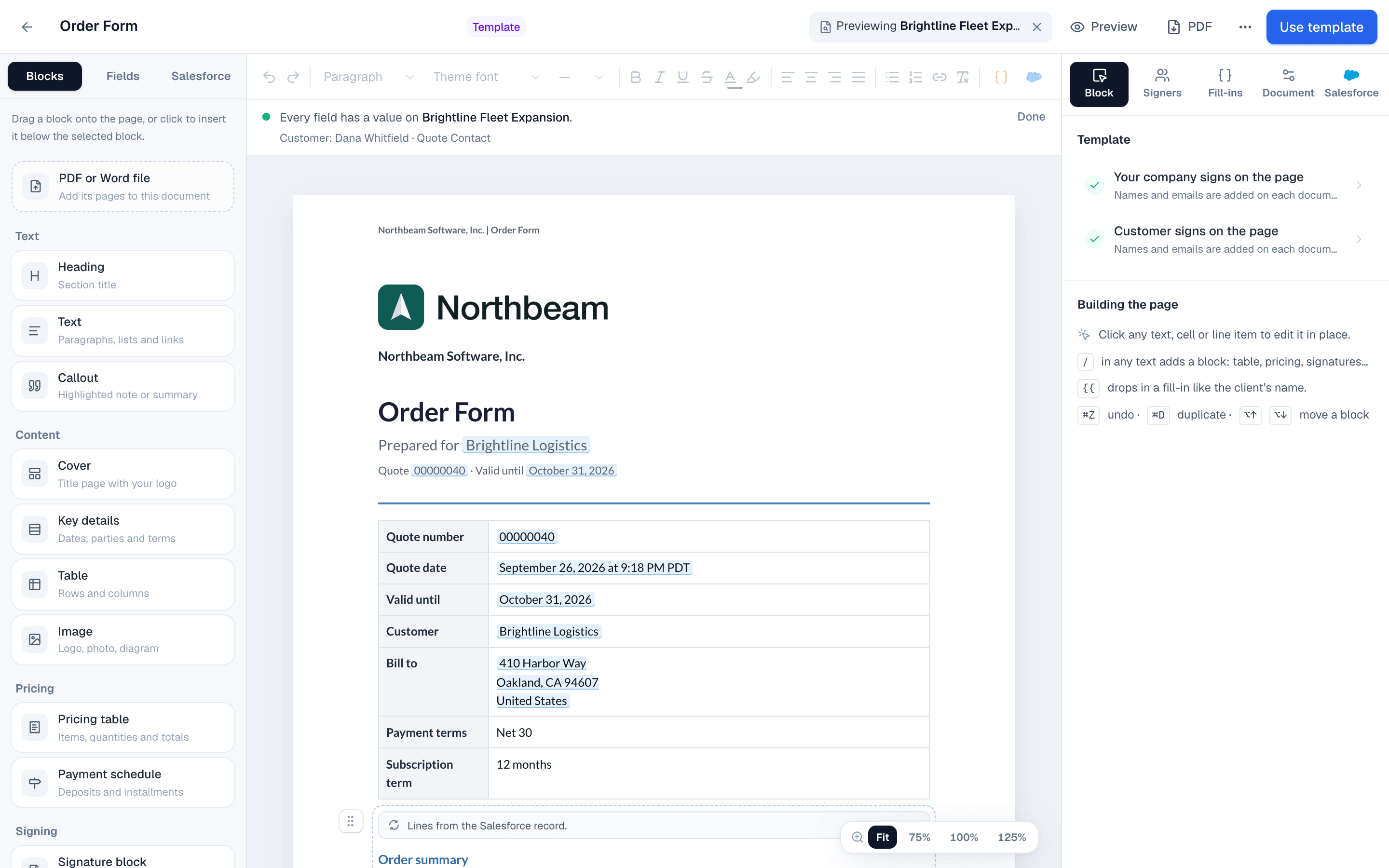
- The page fills with the record's values and quote lines. The bar at the top lists the signers found and any missing values.
- Choose Stop previewing to go back to editing.
A field that's empty on the record keeps the document as a draft until someone fills it in. If a field may be empty, for example a PO number, open Fill-ins in the template, check Can be empty under the field, and optionally type what to print instead, such as N/A.
If Tally Sign can't read a field, the bar says so instead of calling it empty. Check that the field still exists under that name and that the Salesforce user Tally Sign is connected as has access to it. A field hidden from you in Salesforce is listed as hidden from you: fill it in on the document, or ask your Salesforce admin for access.
You can search and preview only records you can open in Salesforce, with the fields you can see there. That needs a seat linked to your Salesforce user. Owners and admins without a seat see what the user Tally Sign connects as sees.
On the website: Any object·Pricing